
Changelog

Follow new updates and improvements to Growably.

Fixed: Delete Options from Dropdown, Multi-select, Radio & Checkbox Fields in Custom Objects and Companies

You can now delete options from Dropdown, Multi-select, Radio, and Checkbox fields for Custom Objects and Companies, bringing the same capability already available for Contact and Opportunity fields.

If an option is already used, existing records keep the value while the option is removed from future selection.

What’s New?

  • Delete unused options permanently

  • Remove used options from future selection without losing existing record data

  • See how many records use an option before deleting it

  • Existing filters, Smart Lists, and workflows continue to work

Why This Matters

You can clean up outdated or incorrect field options without breaking historical data or existing automation.

How to Use

  1. Go to Settings → Custom Fields

  2. Open a Custom Object or Company field

  3. Delete the required option

  4. Review the affected-record count, if applicable

  5. Confirm deletion

Pro Tips

  • Used options remain visible on existing records

  • Deleted options cannot be selected for new records, filters, or workflow conditions

  • Contact and Opportunity fields already support deleting options
FixedCRM

Enhanced Two-Way Sync for Service Appointments

🧭 Overview

When a service appointment's calendar event was rescheduled or cancelled directly from a connected third party calendar (e.g., Google or Outlook calendar) — the change previously updated the calendar event only, leaving the service appointment record out of sync. For single-service appointments, this is now fixed: changes made directly on a third-party calendar sync back correctly everywhere. Multi-service appointments would still remain out of sync if directly updated on third party calendars.

🚀 What's New?

✅ Full two-way sync for single-service appointments

When a service appointment has just one service/event, a reschedule or cancellation made directly in third party calendars (e.g., Google or Outlook) now updates the calendar event and the service appointment together — so your third-party calendar and in-app calendar always agree.

✅ Correct appointment data everywhere you look

For single-service appointments, the calendar view, the appointment list view, and the appointment's view-details all now correctly reflect reschedules or cancellations made directly on a connected third-party calendar.

🧩 How to Use It

  • No setup needed — these improvements are live automatically.

  • Single-service appointments: Reschedule or cancel directly from third party calendars (e.g., Google or Outlook) — the change syncs back automatically, and shows correctly in the calendar, appointment list, and view-details.

  • Multi-service appointments: These are not yet synced with third-party calendar changes — continue managing schedule changes for multi-service appointments directly in-app to avoid your appointment and calendar event going out of sync.

🎯 Why This Matters

  • Closes a double-booking risk that occurred when a third-party cancellation or reschedule for a single-service appointment wasn't reflected in the in-app appointment.

  • Keeps the calendar view, appointment list, and appointment details in agreement for single-service appointments, no matter where the change is made.

  • Reduces support reachouts stemming from mismatched appointment times or statuses between the services calendar and connected calendars.

FixedCalendar

Client Portal: "User Login" Workflow Trigger Now Supports the New Client Portal Experience

📌 Overview

The User login workflow trigger now fires for logins from the new Client Portal experience — not just legacy membership logins. We've also added a dedicated Client Portal category in the workflow trigger picker, so all Client Portal triggers live in one place.

✨ What's New

🔑 New Client Portal logins now fire the "User login" trigger Successful logins from the new Client Portal experience now emit the same workflow trigger event as legacy membership logins. Any workflow already using the User login trigger will start running on these logins automatically — no reconfiguration required.

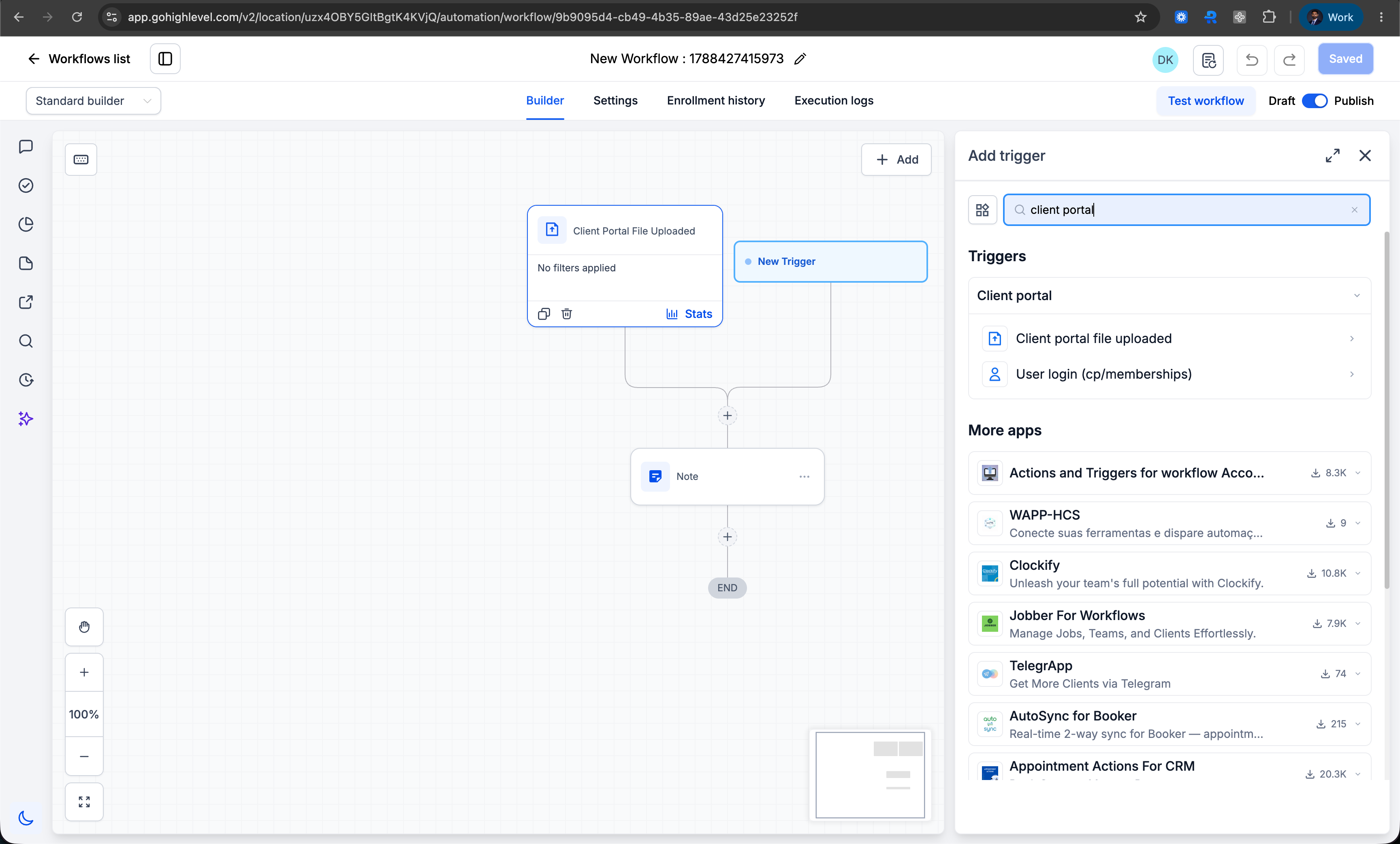
🗂️ New "Client Portal" category in the trigger picker

A dedicated Client Portal category now groups all Client Portal triggers together:

User login — moved from Courses

Client portal file uploaded — moved from Membership

💬 Clearer helper text

The User login trigger now spells out that it covers both legacy membership logins and logins from the new Client Portal experience — removing the confusion caused by its old placement under Courses.

image

🛠️ How to Use

Automate on Client Portal member login

  • Open the Workflow Builder.

  • Click Add trigger and search for User login.

  • Select it under the new Client Portal category (previously found under Courses).

  • Save your workflow — it will now fire on both legacy membership logins and logins from the new Client Portal experience.

Already using this trigger?

No action needed. Existing workflows continue to run as-is and will automatically pick up login events from the new Client Portal experience.

💡 Why This Matters

Agencies on the new Client Portal experience previously had no way to automate off a member login, because the trigger only covered legacy memberships. Trigger placement was inconsistent too — login sat under Courses while file upload sat under Membership — making it unclear what each trigger actually covered. This update closes the gap and puts both triggers where you'd expect to find them.

Earlier updates