Changelog

Follow new updates and improvements to Growably.

Filter HubSpot Records Before You Import

Overview

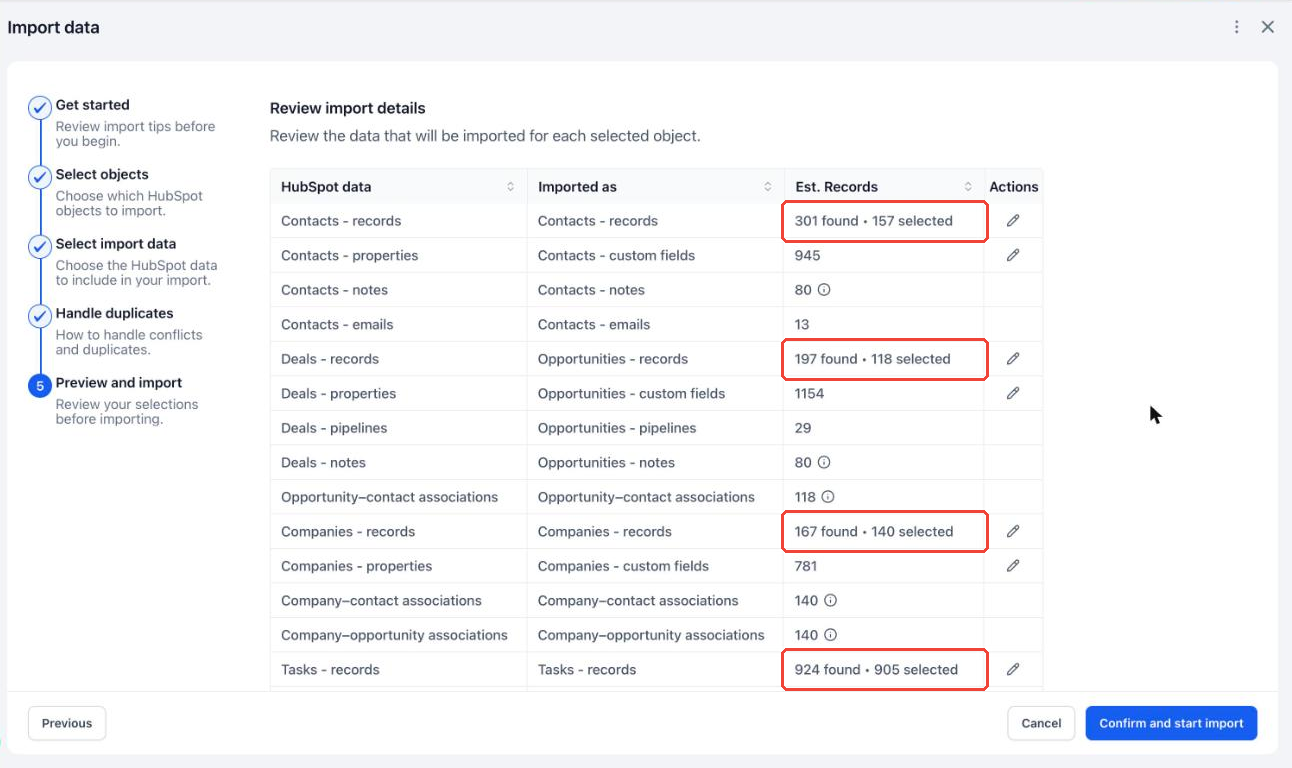
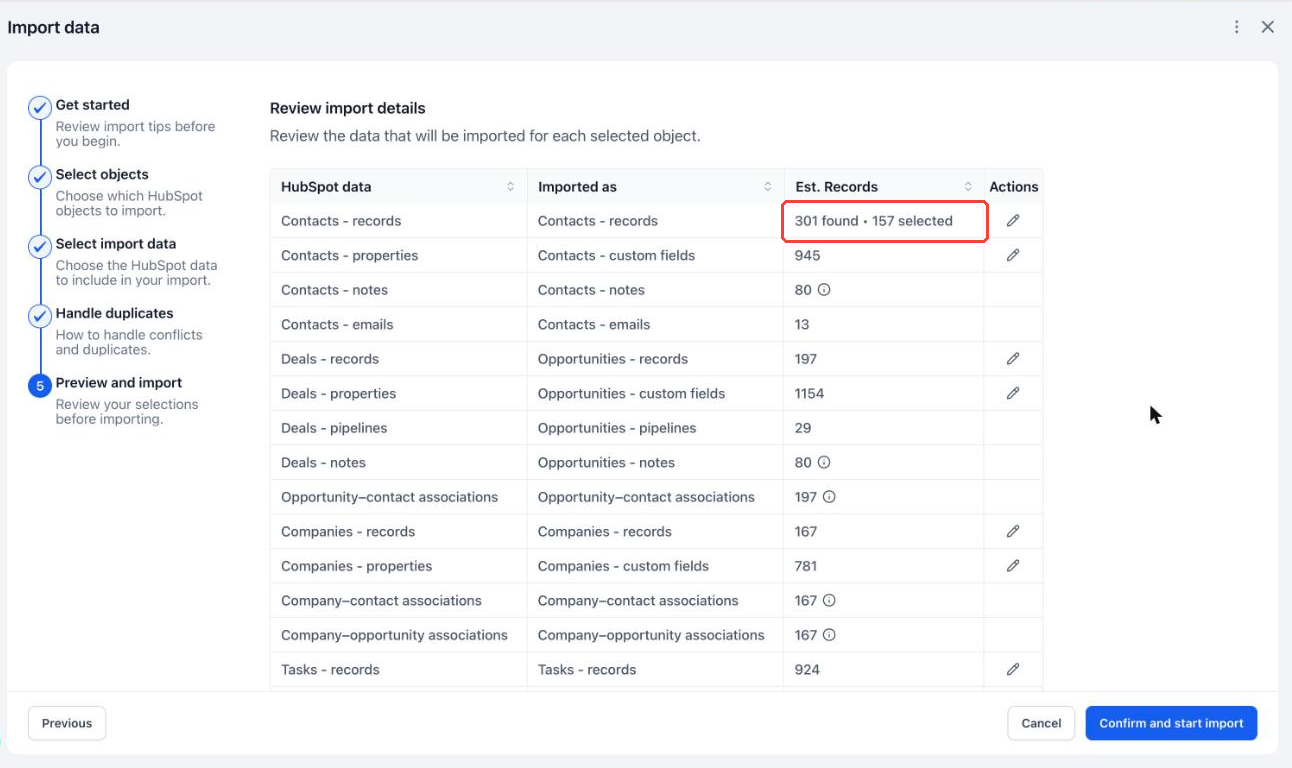
You can now choose exactly which HubSpot records come into HighLevel. The HubSpot Importer's Preview step lets you filter Contacts, Deals, Companies, and Tasks by when they were created or last modified in HubSpot, so you bring over the data you need and leave the rest behind.
image

What's New

  • Filter each object (Contacts, Deals, Companies, Tasks) separately on the Preview and import step

  • Filter by HubSpot Created Date or HubSpot Last Modified Date

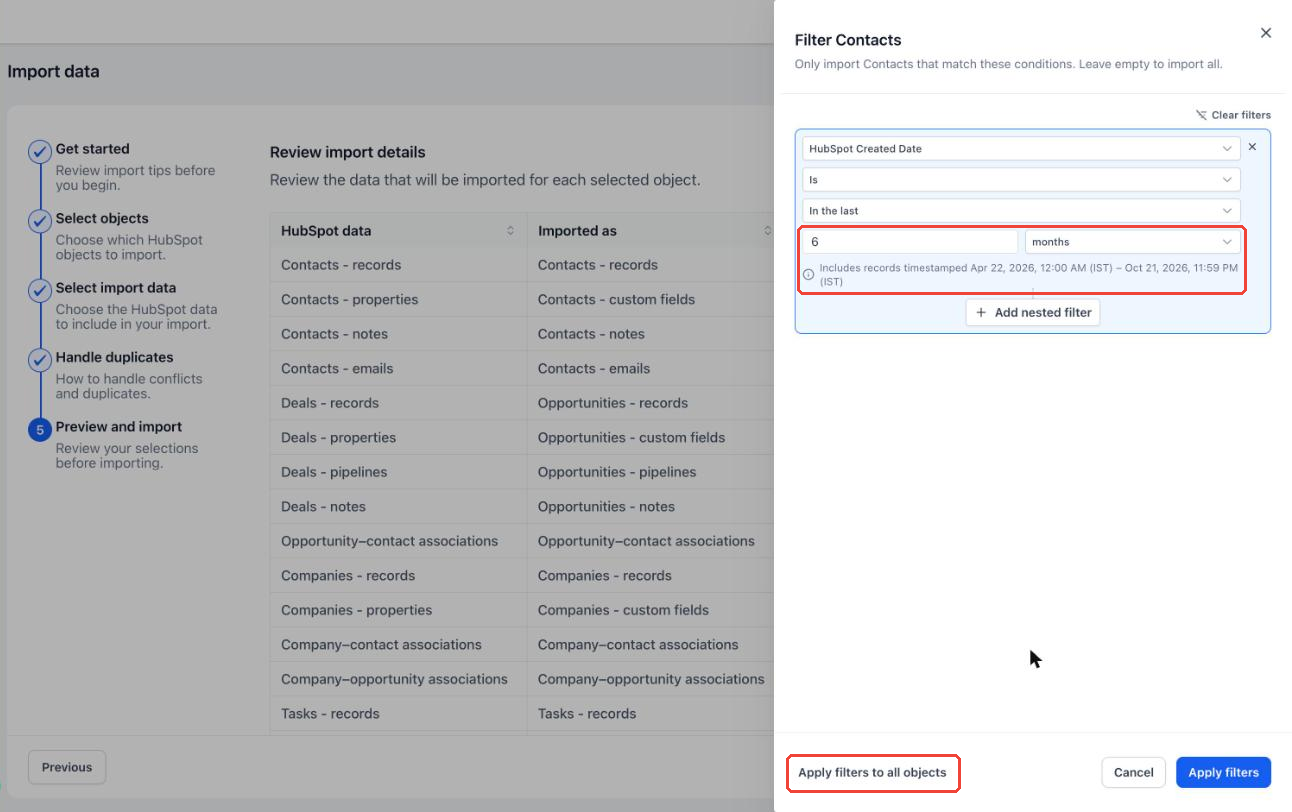
  • Choose relative ranges like In the last 6 months or This quarter, or exact dates with On, Before, After, and Between

  • See the exact date range a filter covers before you apply it

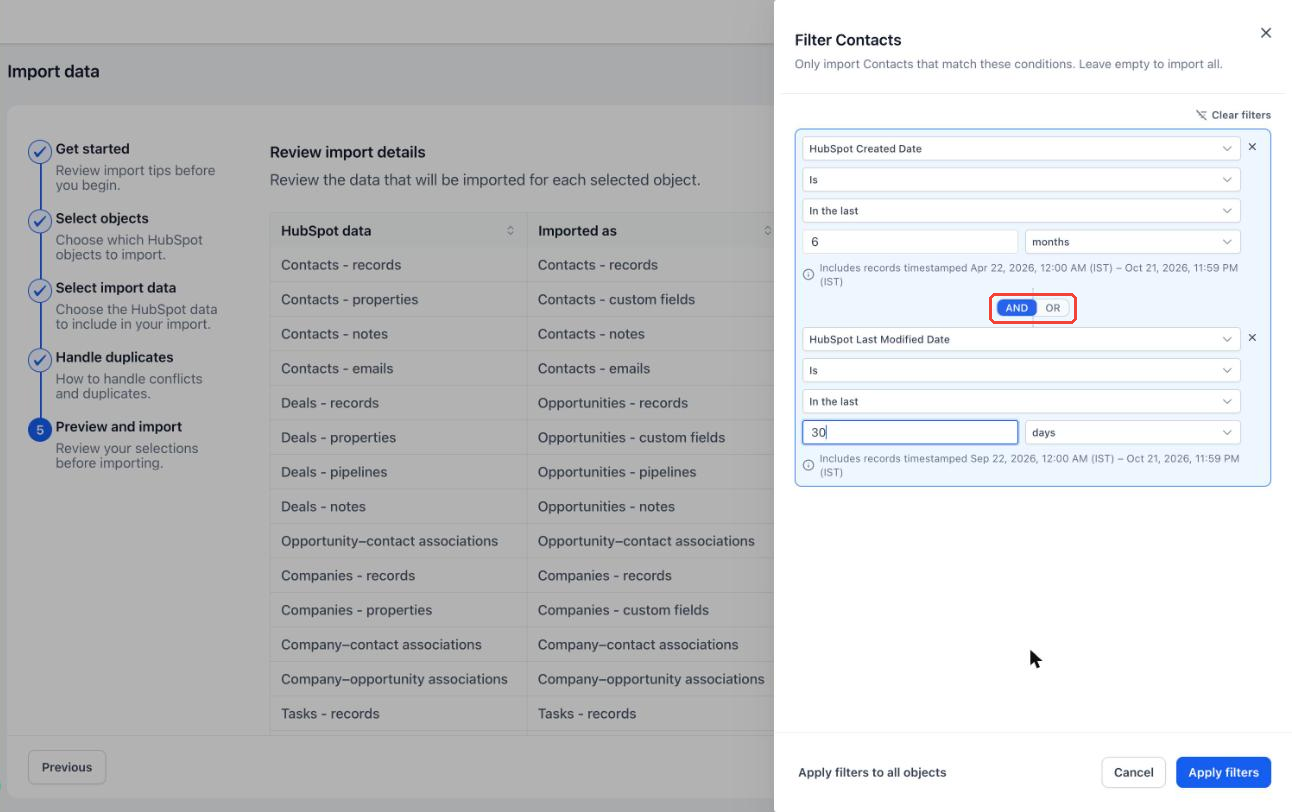
  • Combine conditions with AND / OR

  • Apply the same filters to every selected object in one click

  • Record counts update right away, showing how many records were found and how many will be imported
image

How It Works

  • Go to Contacts, Companies, or Opportunities, click Import, and choose Import from HubSpot.

  • Continue through the wizard to Preview and import.

  • Click the edit (pencil) icon on any records row, such as Contacts – records.

  • Pick a field, a condition, and a value. Use Add nested filter to combine conditions with AND or OR.

  • Click Apply filters, or Apply filters to all objects to reuse the same conditions everywhere.

  • Review the updated counts and click Confirm and start import.
image
image

Benefits

  • Migrate only recent or active records

  • Smaller, faster imports that are easier to review

  • Fewer unwanted records to clean up afterward

  • Know exactly how many records will be imported before you start

Notes

Filters are optional. Leave them empty to import everything.

"In the last" excludes today.

Filters currently support HubSpot Created Date and HubSpot Last Modified Date.
ImprovedCRM

Fixed: Delete Options from Dropdown, Multi-select, Radio & Checkbox Fields in Custom Objects and Companies

You can now delete options from Dropdown, Multi-select, Radio, and Checkbox fields for Custom Objects and Companies, bringing the same capability already available for Contact and Opportunity fields.

If an option is already used, existing records keep the value while the option is removed from future selection.

What’s New?

  • Delete unused options permanently

  • Remove used options from future selection without losing existing record data

  • See how many records use an option before deleting it

  • Existing filters, Smart Lists, and workflows continue to work

Why This Matters

You can clean up outdated or incorrect field options without breaking historical data or existing automation.

How to Use

  1. Go to Settings → Custom Fields

  2. Open a Custom Object or Company field

  3. Delete the required option

  4. Review the affected-record count, if applicable

  5. Confirm deletion

Pro Tips

  • Used options remain visible on existing records

  • Deleted options cannot be selected for new records, filters, or workflow conditions

  • Contact and Opportunity fields already support deleting options

FixedCRM

Bulk update tag colors and create categories on the go

What’s changed

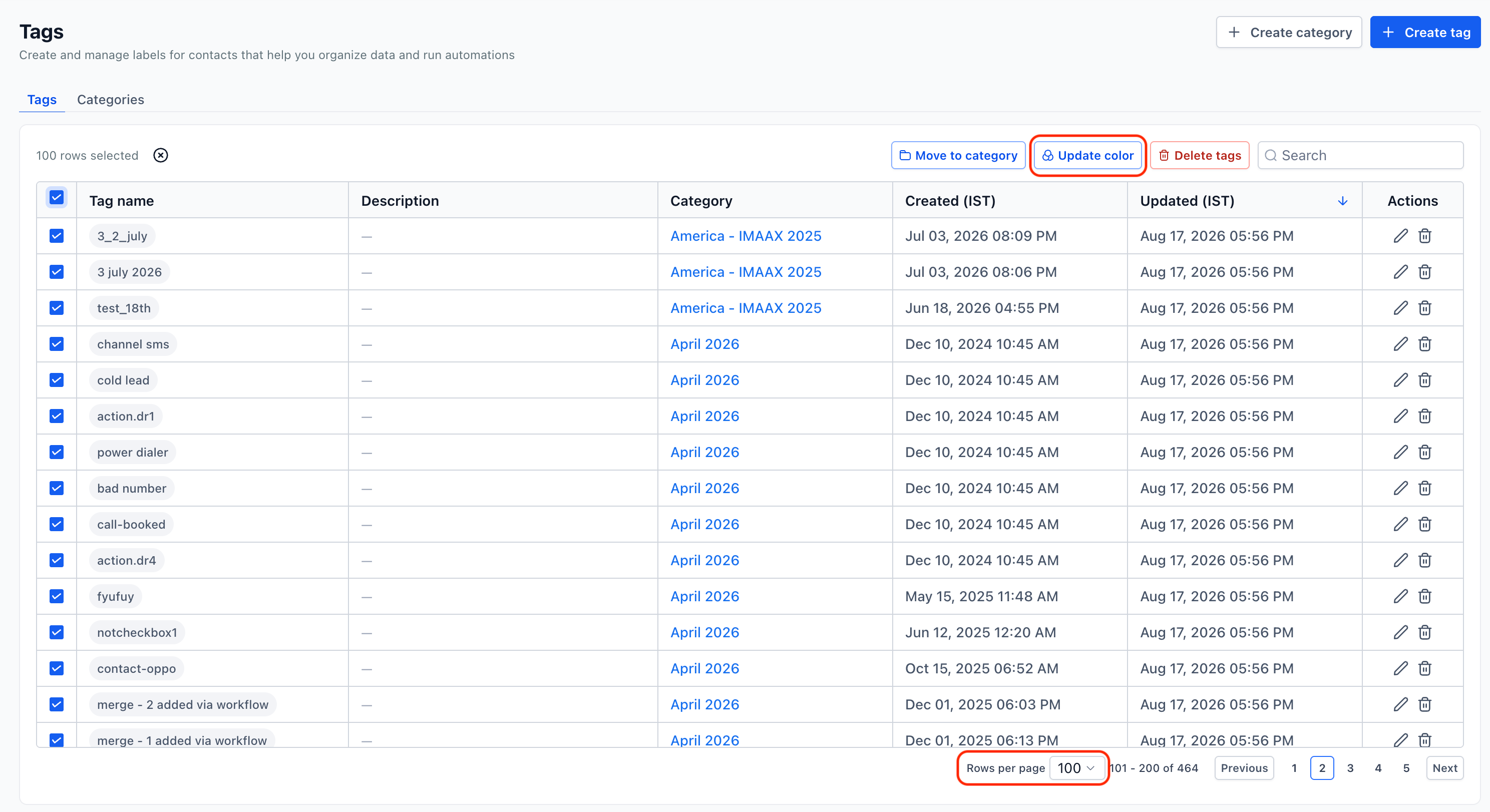
1. Bulk update tag colors:

Previously, tag colors had to be updated individually, which could become repetitive when organizing a large number of existing tags. Based on feedback received during our Labs rollout, we’ve made this experience much faster.

You can now:

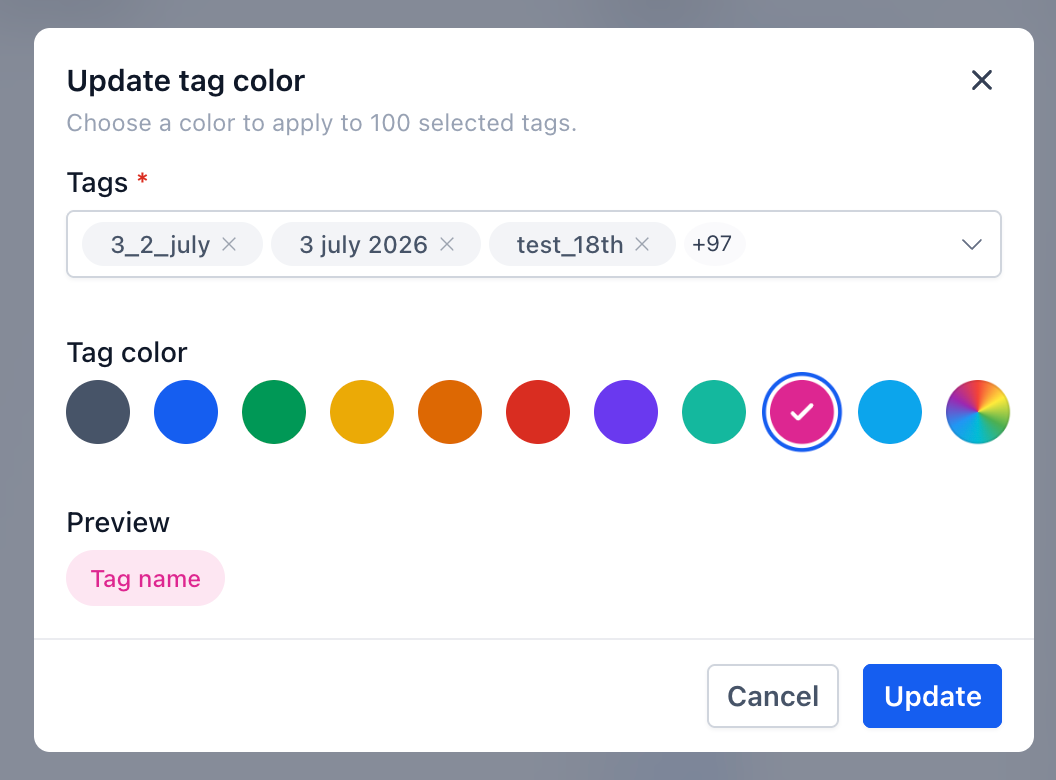
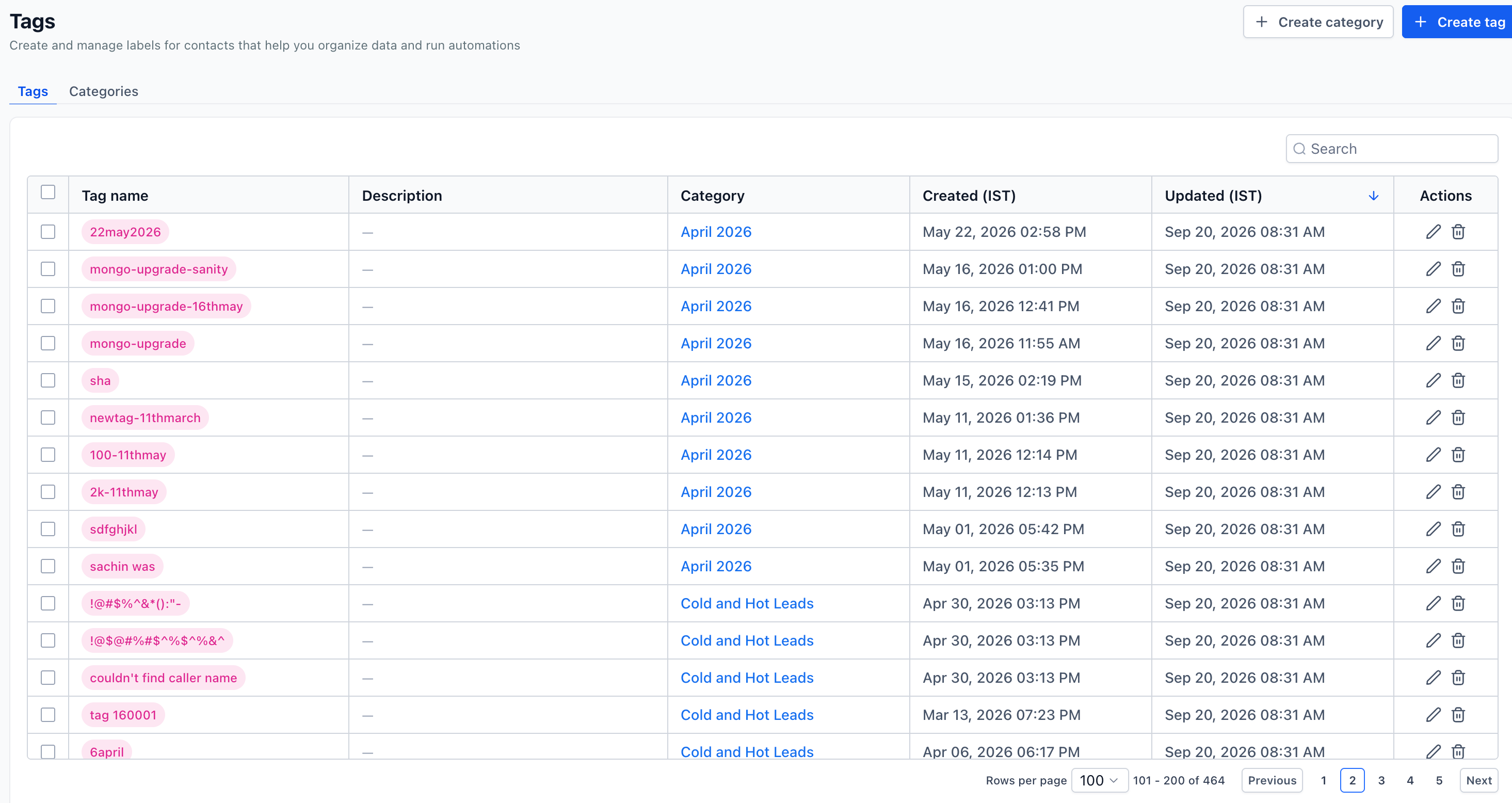
  • Select up to 100 tags at once from the Tags management page.

  • Choose the update color action and select a color for all the selected tags. Apply the new color to the entire selection in a single bulk action, instead of editing tags one by one.

1
  • Quickly reorganize existing tags using a consistent visual color system across different categories, teams, or use cases.

  • This makes it significantly easier to set up or reorganize tag colors, particularly for accounts that already have a large tag library.

2
Screenshot 2026-09-20 at 8

Create categories on the go:

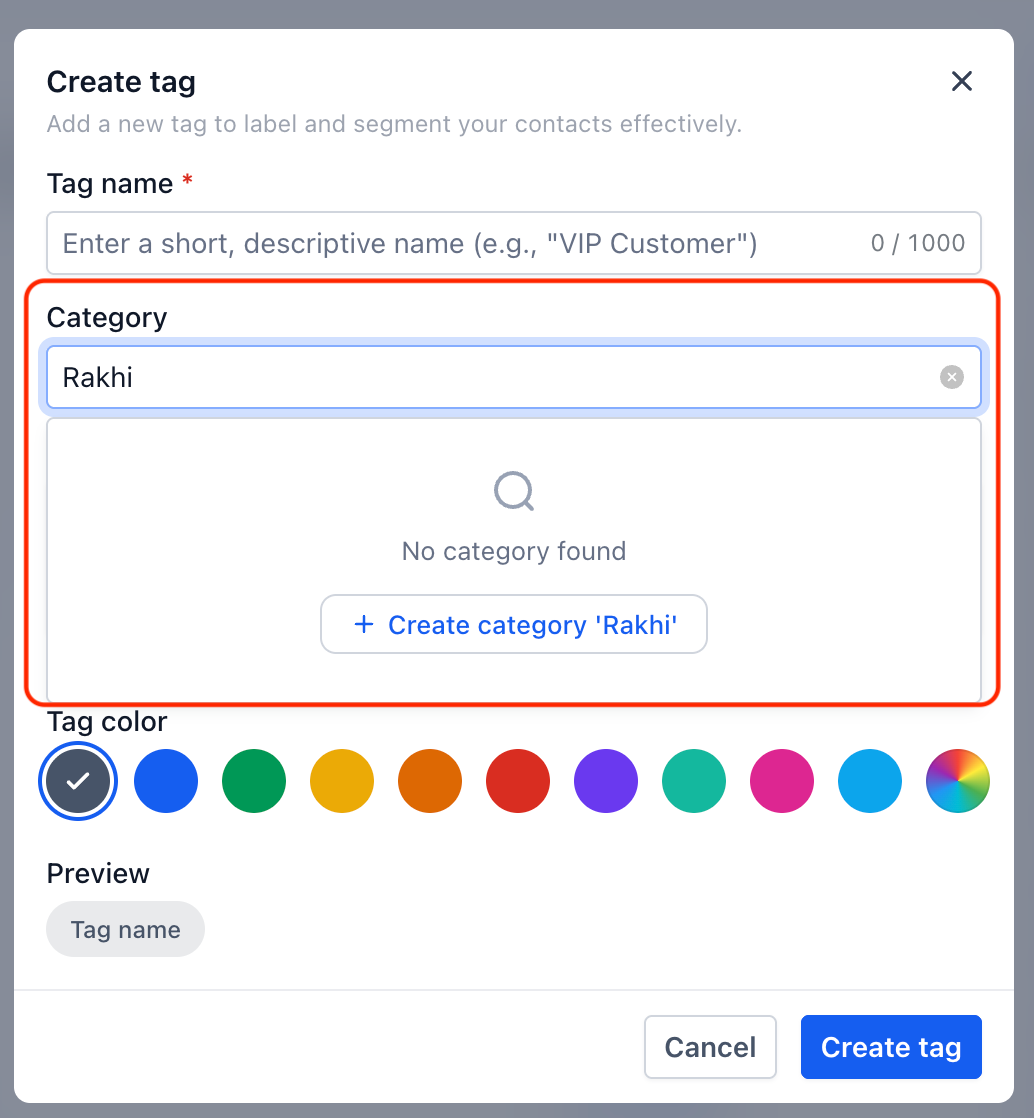
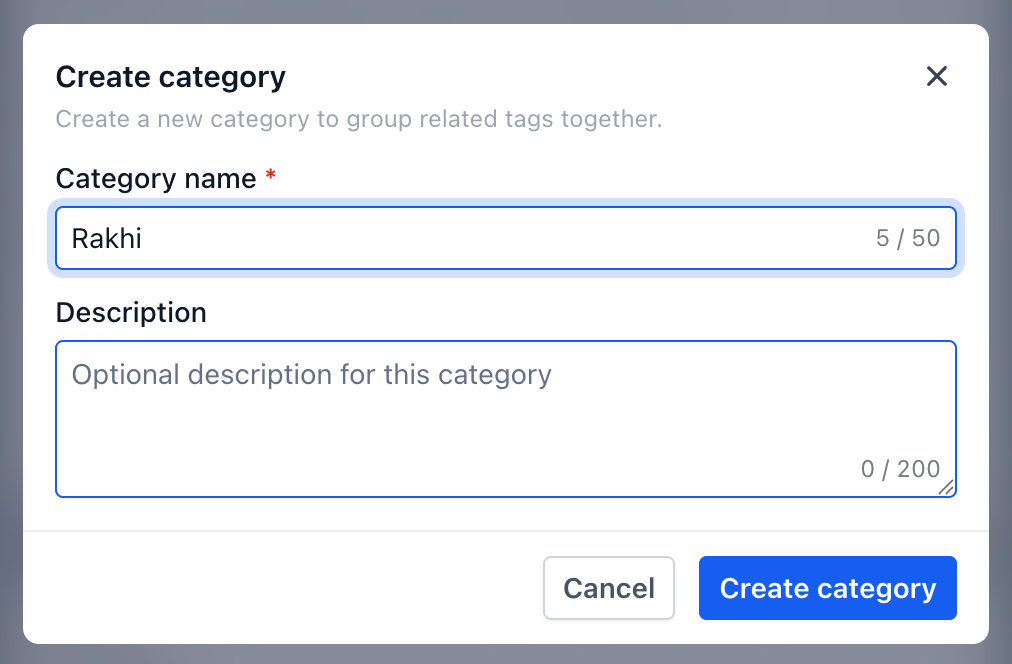
  • We’ve also made category assignment more seamless. Previously, if the category you wanted didn’t exist, you had to leave the current flow, create the category separately, and then return to assign your tags.

  • Now, when selecting a category, you can create a new category directly from the category selector and continue with your action without breaking the flow.

Screenshot 2026-09-20 at 8

Together, these enhancements reduce repetitive steps and make it easier to organize, categorize, and visually manage tags at scale.

NewCRM

Earlier updates