Changelog

Follow new updates and improvements to Growably.

Attach Forms When You Create Service/Rental Bookings In-App

🧭 Overview

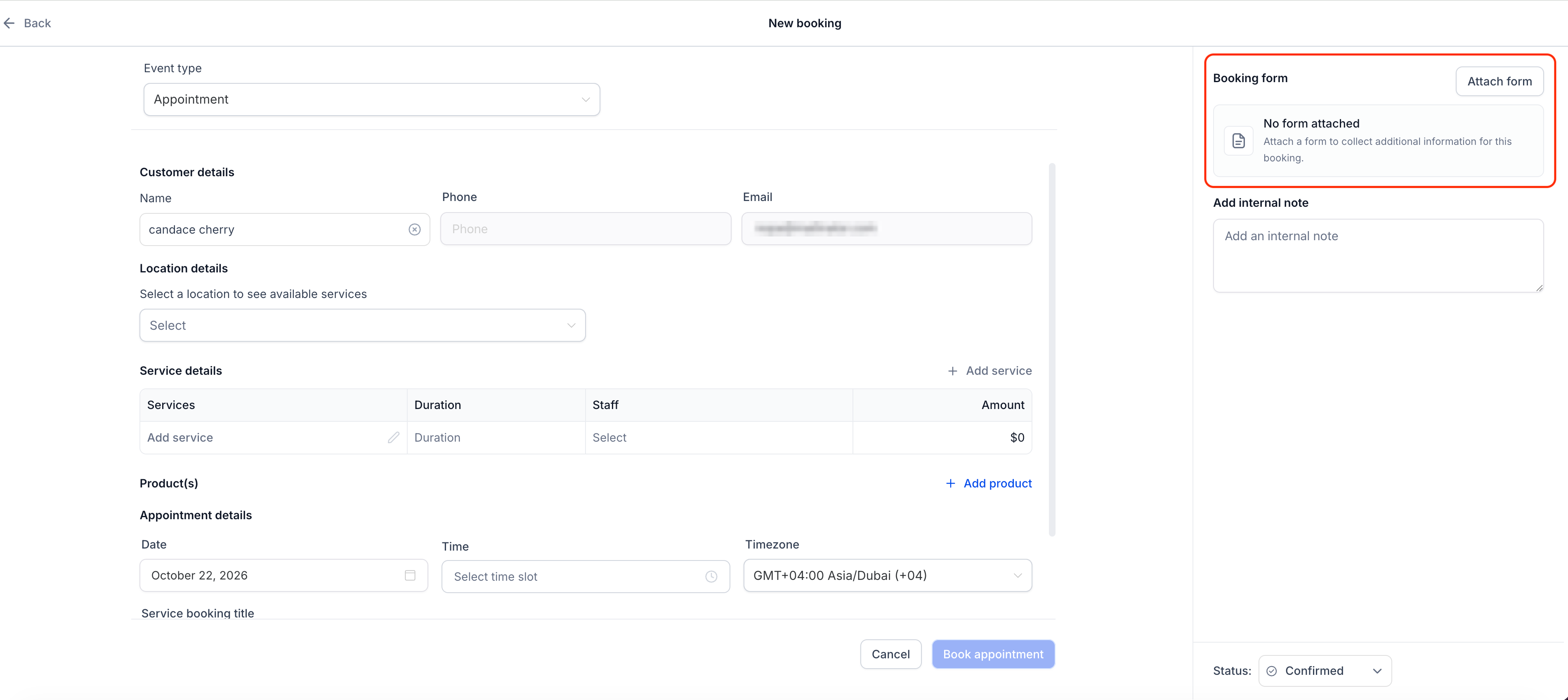
Forms can now be attached to your service and rental bookings you create yourself, not just bookings made on the booking page. While creating a new booking, from the appointment modal, you can attach and complete the booking form on the customer's behalf, so the intake information you collect is consistent however a booking is made.

πŸš€ What's New?

βœ… Attach a form in the appointment modal

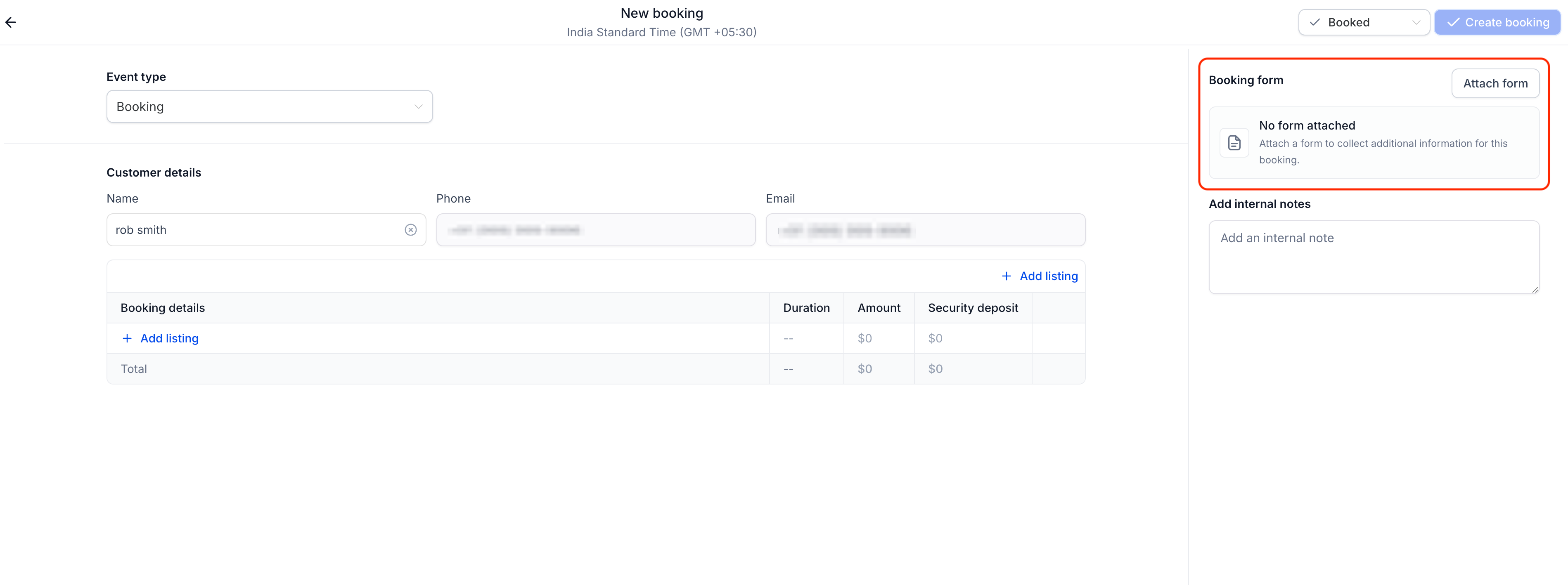
Service and rental bookings have a new Booking form section. Click Attach form and the form opens within the booking flow. It's optional, and you can still create bookings without one.

βœ… The right form, preselected

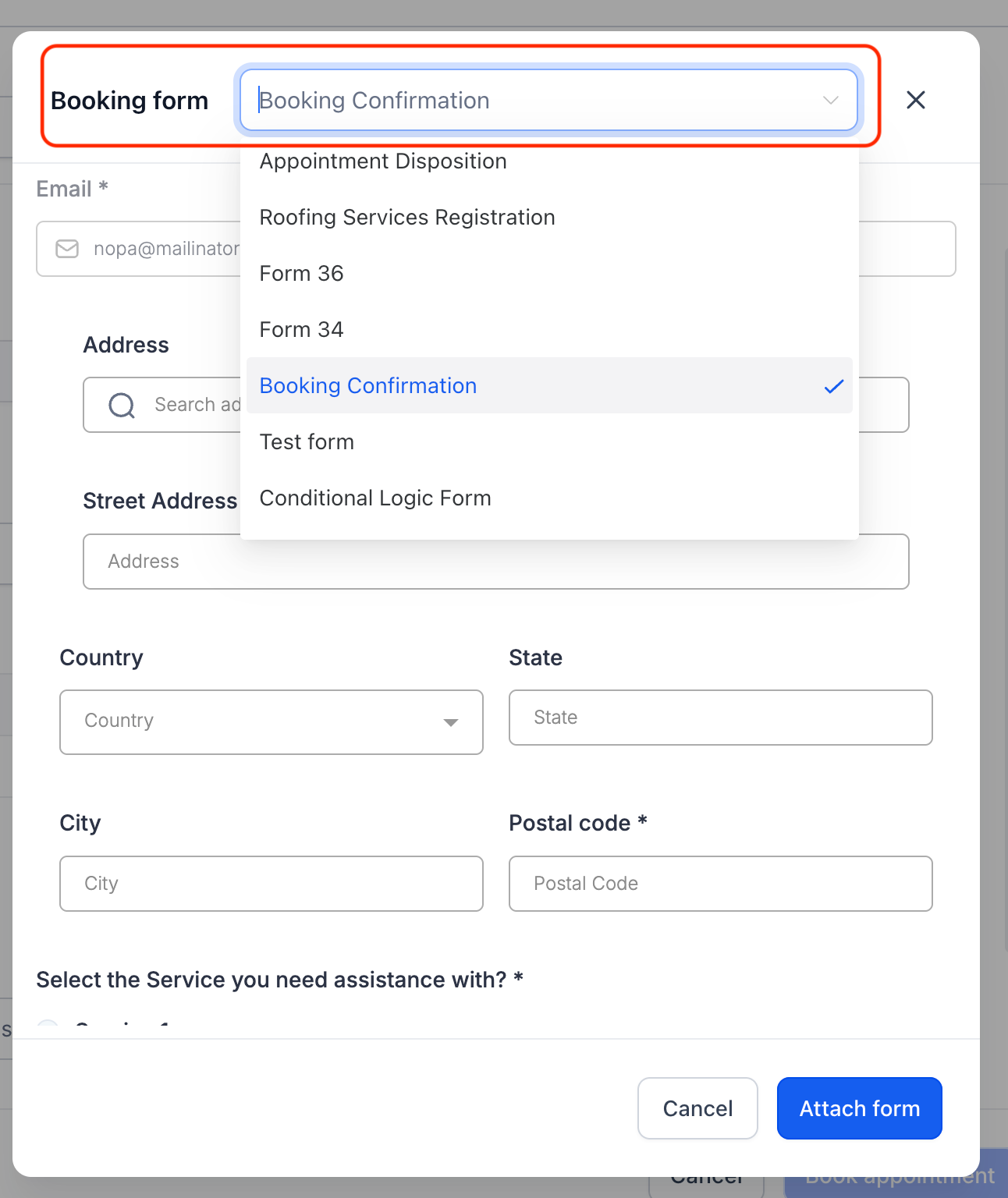
Your configured form is preselected. You can also switch to any available form from the dropdown.

βœ… Contact details prefilled

First name, last name, email, and phone come prefilled from the selected contact that you select.

βœ… Only what your team needs

CAPTCHA, product selling, and payment elements don't appear when you fill a form from the appointment modal.

🧩 How to Use It

  1. Create a service or rental booking from the in-app appointment modal and select the contact.

  2. In the Booking form section, click Attach form.

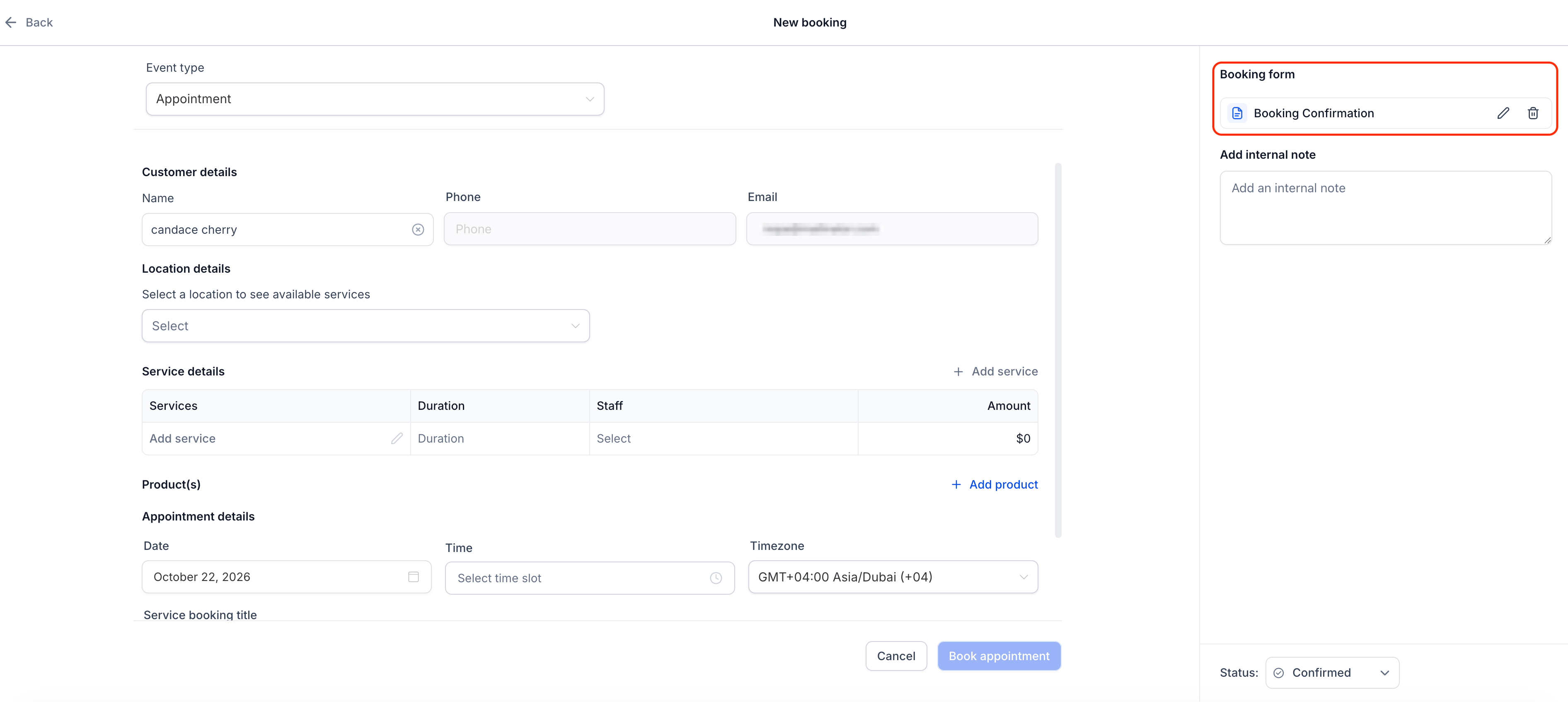
  3. Complete the form on the customer's behalf and create the booking.

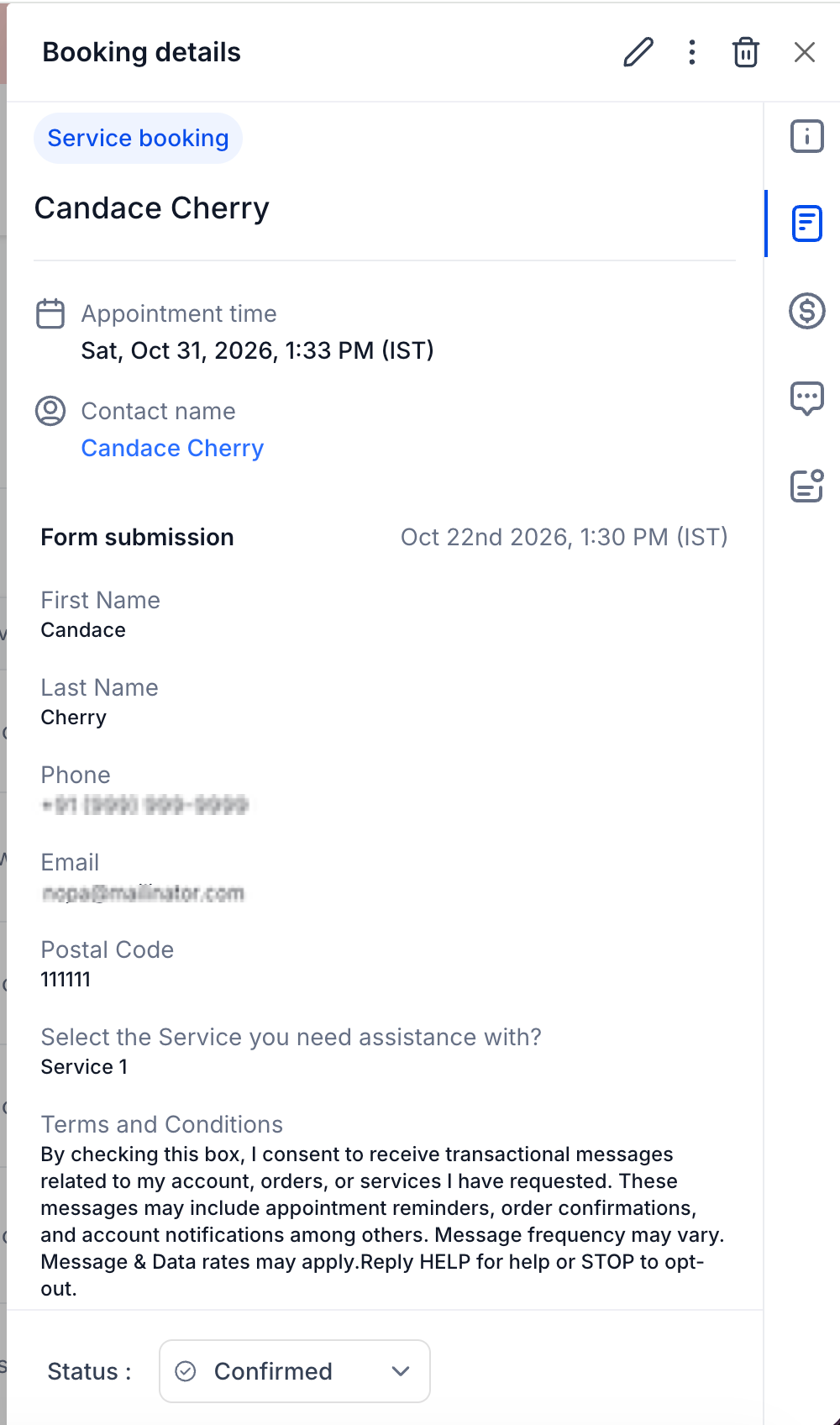
  4. Open the appointment details any time to view the submitted form.

Note : Forms can be attached only while creating the booking for now, and can't be added/edited later.

🎯 Why This Matters

  • Bookings you create manually capture the same intake details as online bookings.

  • Collect the important details upfront and logged with the booking.

  • Prefilled contact details save time and prevent mismatches.
Services - new booking -form
Rentals attach form
Attach form via in app
form attached
View form details
NewCalendar

Calendars, Services & Rentals Notifications Now Speak Your Business's Language

🧭 Overview

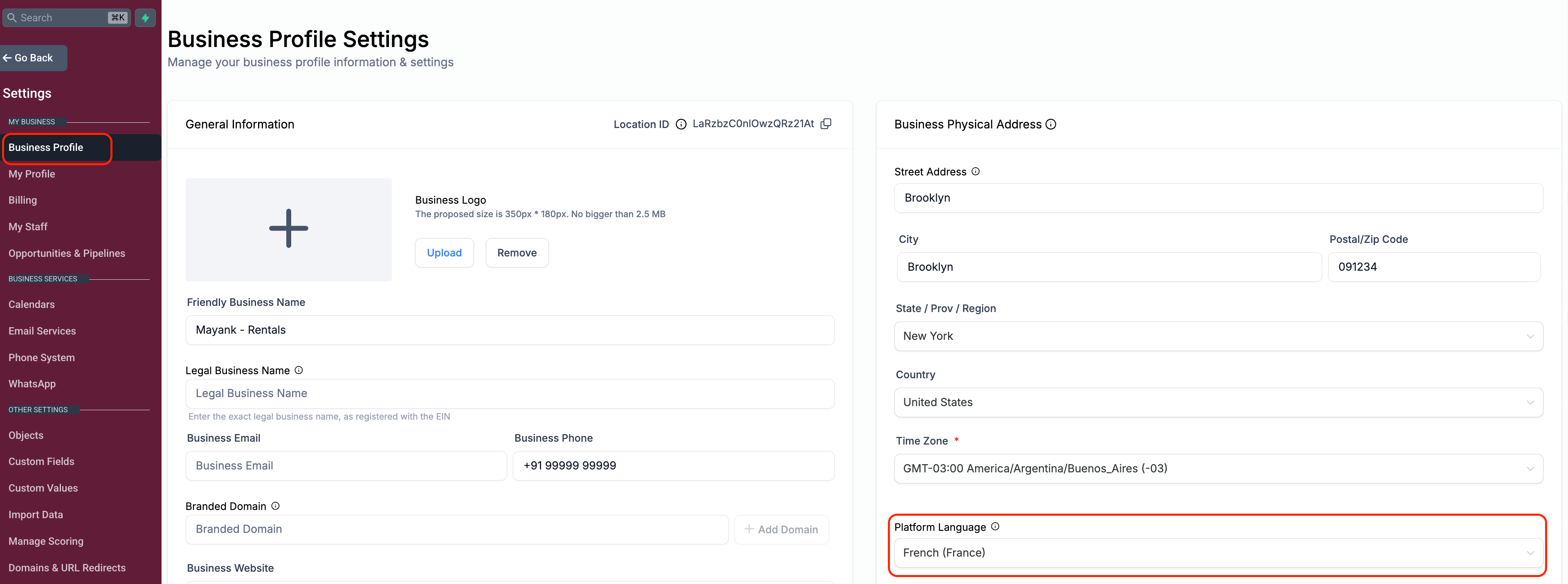
Notification templates have historically shipped in English only, leaving multi-language businesses to manually translate every notification themselves. This release brings internationalization (i18n) to notification templates across Calendars, Services, and Rentals β€”default templates now localize based on the Business Profile's Platform Language, while anything a user has already customized stays exactly as saved. Newly created calendars, Services and Rentals locations get localized defaults automatically; existing ones keep their current templates until a user resets them to default.

πŸš€ What's New?

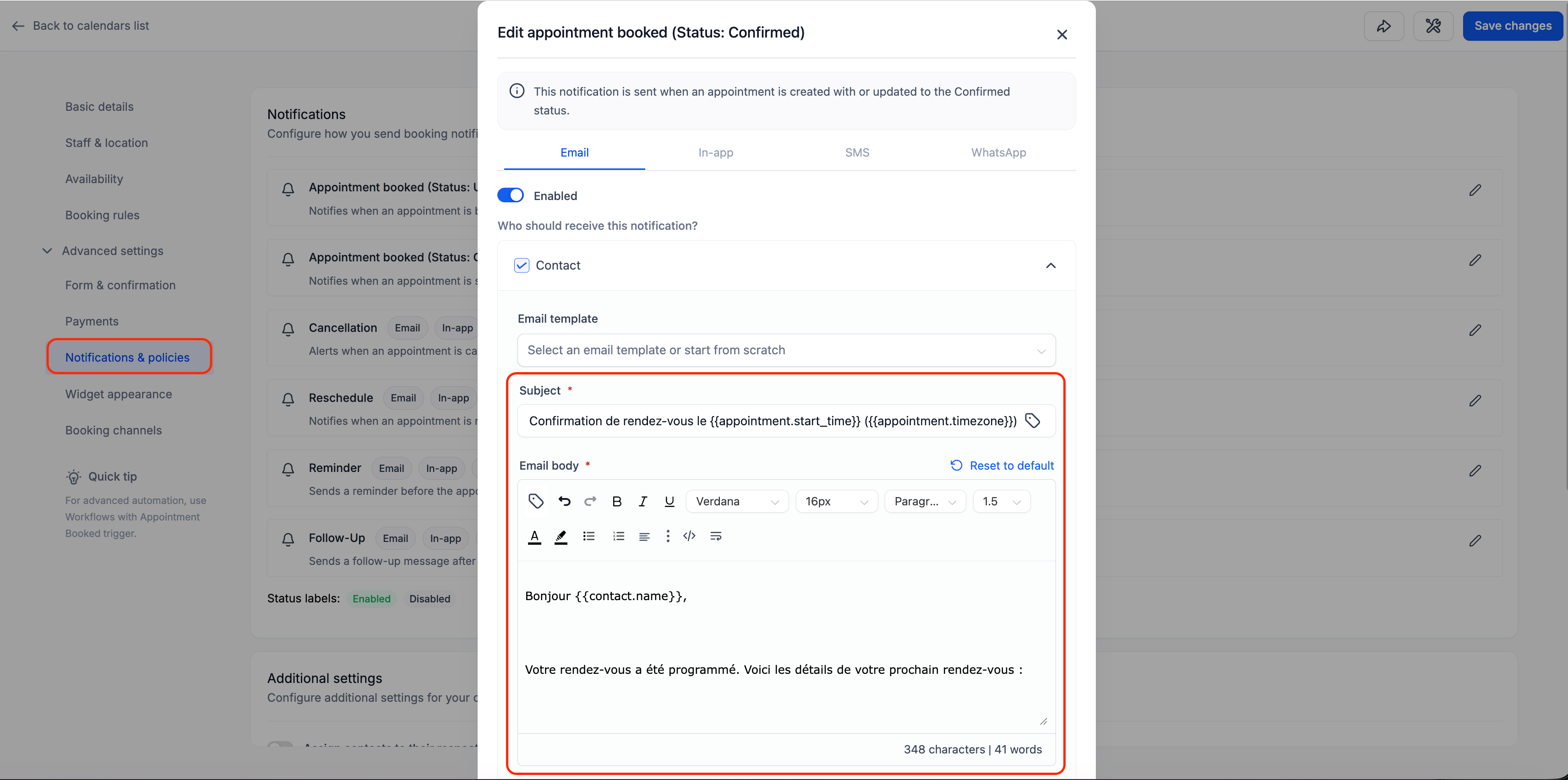
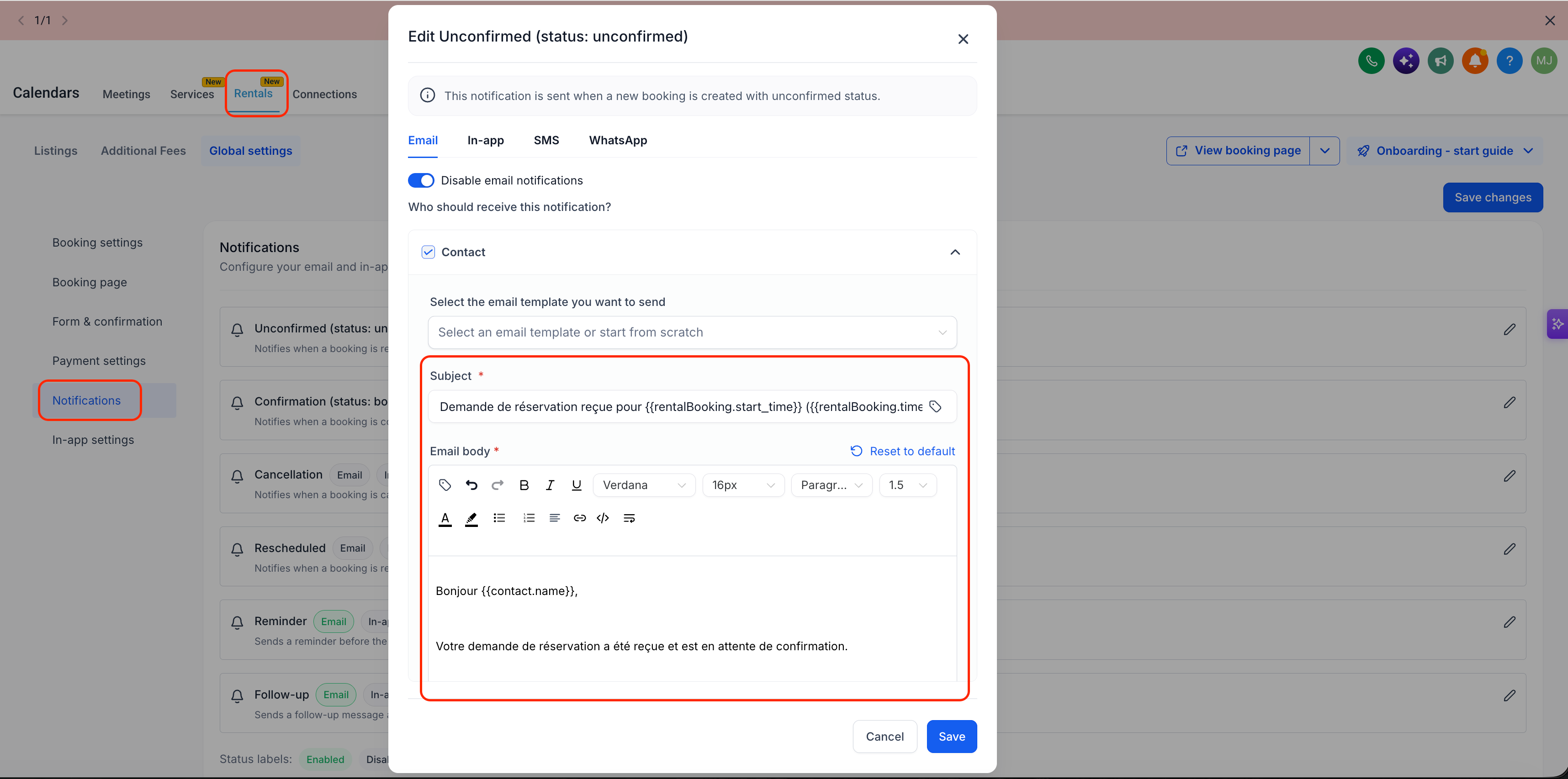
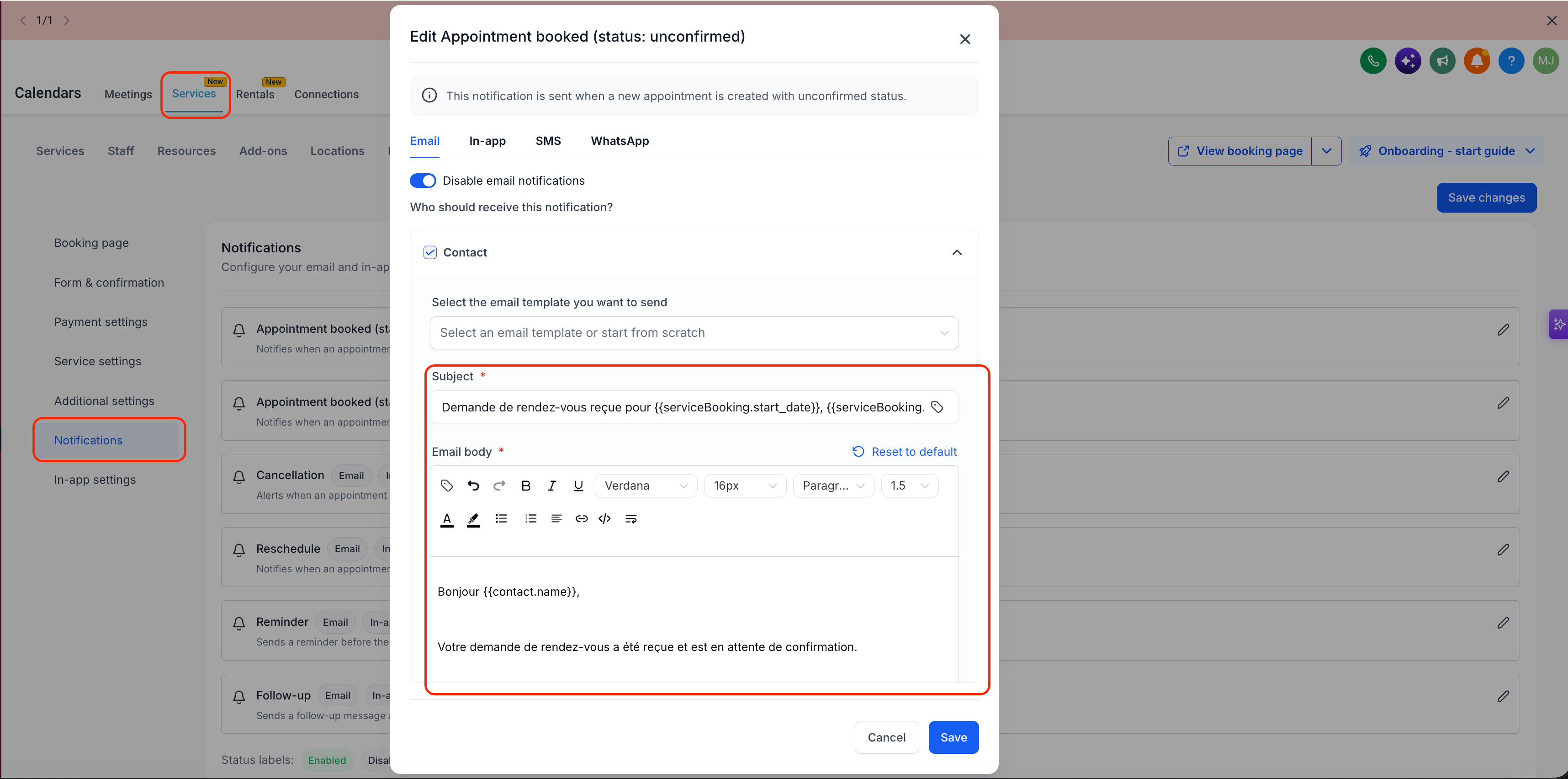
βœ… Localized templates across Calendars, Services, and Rentals

Notification templates now display in the appropriate language automatically β€” across Email, SMS, and WhatsApp channels, wherever each product supports them.

βœ… Coverage matches each product's own notification types

Calendars covers Assigned User, Additional Email, Additional Phone, Contact, and Guest templates. Services and Rentals covers all recipients of each notification as well.

βœ… One consistent language source

All notification templates resolve their language from the Business Profile Platform Language β€” a single, consistent source across every product, recipient type, and channel.

βœ… Your customizations are never touched

Any template that's already been edited is preserved exactly as saved β€” the system will never overwrite, retranslate, or reset a customized template. Only untouched, default templates get localized.

βœ… New calendars, Services and Rentals locations get localized defaults automatically

Newly created calendars, services and rentals locations display their default notification templates in the Business Profile Platform Language right away β€” no extra steps needed.

🧩 How to Use It

  • Calendars: Go to Calendar Settings β†’ Notifications for the calendar you want to update.

  • Services / Rentals: Go to Global Settings β†’ Notifications.

  • New calendars, Services, and Rentals: Nothing to do β€” default templates already display in the Business Profile Platform Language.

  • Existing calendars, Services, and Rentals: Templates keep their current (English) content by default, even if they've never been edited. To pick up the localized version, click Reset to Default on the relevant notification template β€” this is what triggers the translation.

🎯 Why This Matters

  • Multi-language businesses no longer need to manually translate notification templates across Calendars, Services, or Rentals.

  • A single source of truth for language β€” the Business Profile β€” keeps behavior predictable and easy to reason about across every product and recipient type.

  • Protects existing work β€” nothing a user has already customized gets reset or retranslated.

  • New calendars, services, and rentals work out of the box, and existing ones can opt in with one click β€” no forced, silent overwrite of what's already live.

business profile settings
calendar notifications i18n
Screenshot 2026-09-22 at 10
ImprovedCalendar

Enhanced Two-Way Sync for Service Appointments

🧭 Overview

When a service appointment's calendar event was rescheduled or cancelled directly from a connected third party calendar (e.g., Google or Outlook calendar) β€” the change previously updated the calendar event only, leaving the service appointment record out of sync. For single-service appointments, this is now fixed: changes made directly on a third-party calendar sync back correctly everywhere. Multi-service appointments would still remain out of sync if directly updated on third party calendars.

πŸš€ What's New?

βœ… Full two-way sync for single-service appointments

When a service appointment has just one service/event, a reschedule or cancellation made directly in third party calendars (e.g., Google or Outlook) now updates the calendar event and the service appointment together β€” so your third-party calendar and in-app calendar always agree.

βœ… Correct appointment data everywhere you look

For single-service appointments, the calendar view, the appointment list view, and the appointment's view-details all now correctly reflect reschedules or cancellations made directly on a connected third-party calendar.

🧩 How to Use It

  • No setup needed β€” these improvements are live automatically.

  • Single-service appointments: Reschedule or cancel directly from third party calendars (e.g., Google or Outlook) β€” the change syncs back automatically, and shows correctly in the calendar, appointment list, and view-details.

  • Multi-service appointments: These are not yet synced with third-party calendar changes β€” continue managing schedule changes for multi-service appointments directly in-app to avoid your appointment and calendar event going out of sync.

🎯 Why This Matters

  • Closes a double-booking risk that occurred when a third-party cancellation or reschedule for a single-service appointment wasn't reflected in the in-app appointment.

  • Keeps the calendar view, appointment list, and appointment details in agreement for single-service appointments, no matter where the change is made.

  • Reduces support reachouts stemming from mismatched appointment times or statuses between the services calendar and connected calendars.

FixedCalendar

Earlier updates