Changelog

Follow new updates and improvements to Growably.

Conversations: SLA Workflow Triggers & Permissions

Overview:

Until now teams had to manually watch for conversations that were about to breach or had already missed their SLA targets. With this release, SLAs become actionable. You can now automate workflows when conversation SLAs are due soon, overdue, or manually dismissed, helping teams proactively manage response times instead of reacting after issues occur. We've also added more control over manual SLA removal, giving admins the ability to decide who can dismiss SLAs and ensuring every action is auditable.

👀 What's New?

You can now build workflows that automatically run when a conversation's SLA becomes due soon, overdue, or is manually dismissed. Instead of relying on users or managers to monitor SLA timers, you can define exactly what should happen when these events occur. For example, you can: Notify a user when a conversation becomes overdue or Reassign contacts for escalation. To help prevent excessive notifications, we've also added an Avoid Repeated Triggers option. When enabled, the workflow will only run once per conversation within a 24-hour period, even if multiple messages from same contact cause additional SLA events.

We've also introduced better controls around manual SLA removal. For conversations where no response is required - such as "Thank you", "Got it", or "Not interested" messages, users can manually dismiss the SLA without replying. Admins can choose whether this action is available to all users or restricted to admins only.

How to Use

Building Conversations SLA Workflows

  1. Go to Automation → Workflows, Create a new workflow and select Conversation SLA as the trigger. Choose the SLA event: Due Soon / Overdue / SLA dismissed

image
  1. You can also add optional filters such as: message channel, tags, owner, custom fields and define the actions you want the workflow to perform and publish it.

image

Configure Manual SLA Removal Permissions

  1. Go to Conversations Settings. Under Who can manually dismiss SLA from conversations?Select: All users or Admins only. Save your changes.

image
  1. Any user who has access to dismiss SLA can click on the SLA timer on center panel and dismiss the SLA

image
  1. When SLA is dismissed, a log is posted on the conversation showing which user dismissed the SLA and the SLA status at the time of dismissal.

image

Fixed - YouTube previews now display correctly in sent emails

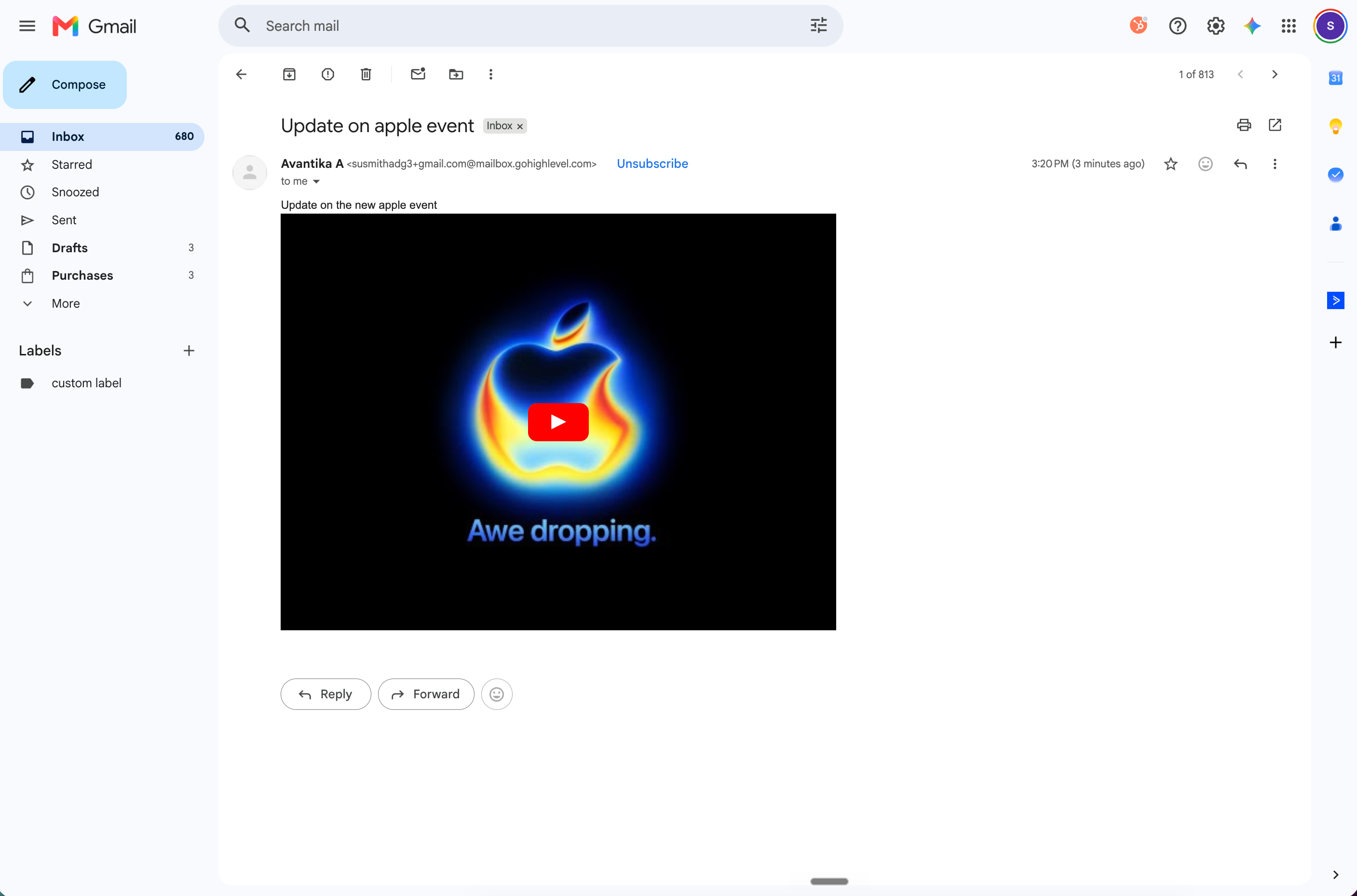
YouTube previews now display correctly in sent emails. When you paste a YouTube link into the email from Conversations, your recipients now see a clickable video thumbnail that opens the video in a new tab - exactly as you intended.

Previously, pasted YouTube links could show up as a blank rectangle in your recipients' inboxes, even though the preview looked fine while you were composing. This happened because major email providers like Gmail, Outlook, and Yahoo block the embedded video player on their end. We've changed how these previews are sent so they render reliably across all major inboxes.

This works for both standard youtube watch links and shortened youtube share links. There's no change to how you add videos - just paste the link as you always have.

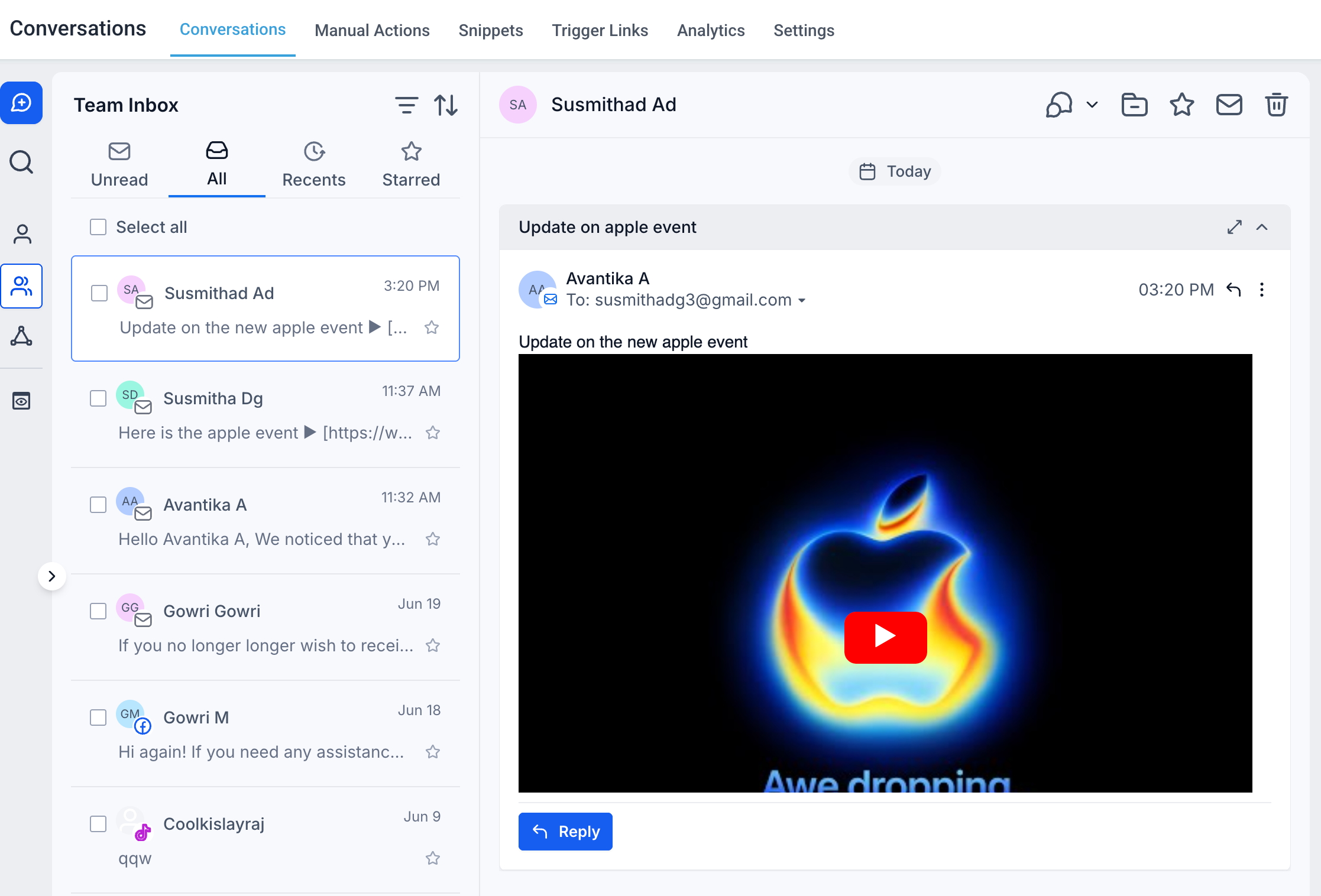
How the YouTube preview looks in the Conversations inbox -

image

Recipients now see a clickable thumbnail that opens the video on YouTube.

image
FixedConversations

Conversations: Catch Up on Unread Messages Faster

Overview:

Finding unread messages in long conversations just got a lot easier. With new visual indicators, you can instantly locate unread messages without scrolling endlessly, saving time and ensuring nothing gets missed.

What’s New?

  • “New” Divider in Conversations:

    Clearly marks where unread messages begin in the thread

  • Auto Scroll to Unread:

    Opening an unread conversation automatically takes you to the first unread message

image

How It Works:

  • Open any unread conversation

  • You’ll be automatically taken to the first unread message, marked by a “New” divider

  • The “New” indicator is cleared only when you reply or manually mark the conversation as read. It will persist even if you navigate away or refresh the page

Why it Matters:

Unread messages can easily get buried between campaign logs, activities, or long message threads. This update removes the guesswork by guiding you directly to what needs attention, helping you respond faster and manage conversations more efficiently.

Note:

  • "New" indicator will only be shown for messages received after April 23, 2026.

  • You can enable this from labs - Conversations: Quickly Find Unread Messages with New Indicators

Earlier updates