Changelog

Follow new updates and improvements to Growably.

Granular unsubscribe controls for Community emails

Members now have precise control over their community email preferences - unsubscribing from a specific notification type in one community no longer affects emails from other communities or the rest of the platform.

โœจ What's new?

Previously, clicking Unsubscribe in a Communities email could opt the member out of all platform email communication. This meant they could miss relevant updates from other communities and other parts of the platform.

With granular unsubscribe controls, the preference now applies only to the community that generated the email and the specific notification type - such as a comment mention or a new post with @everyone.

โš™๏ธ How it works

When a member clicks Unsubscribe in a community email:

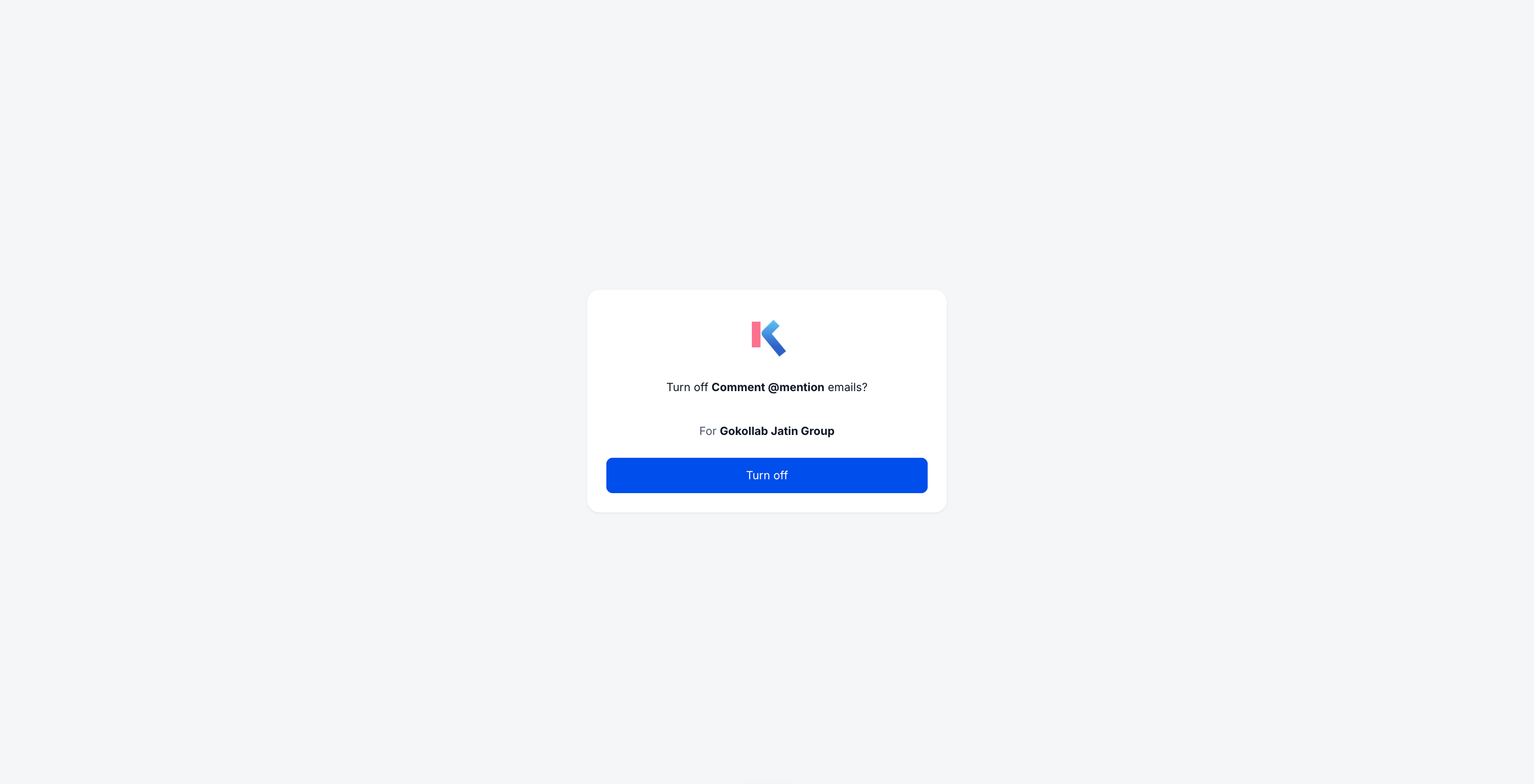
  1. A confirmation page shows the community name and the specific notification type being turned off.

  2. The member confirms the scoped unsubscribe preference.

  3. Future emails matching that community and notification type are stopped.

  4. All other community and platform emails continue as normal.
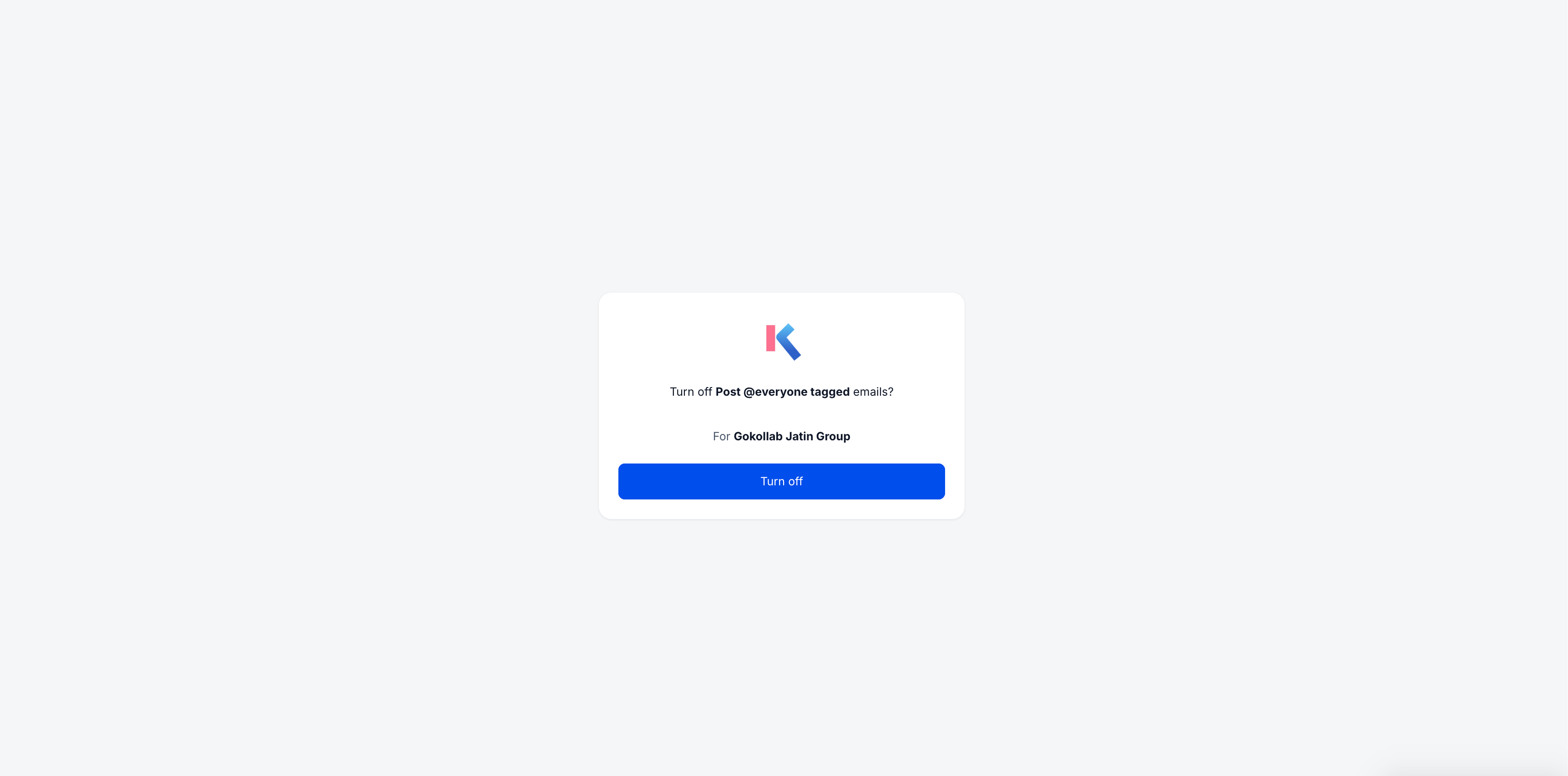
Screenshot 2026-09-30 at 4

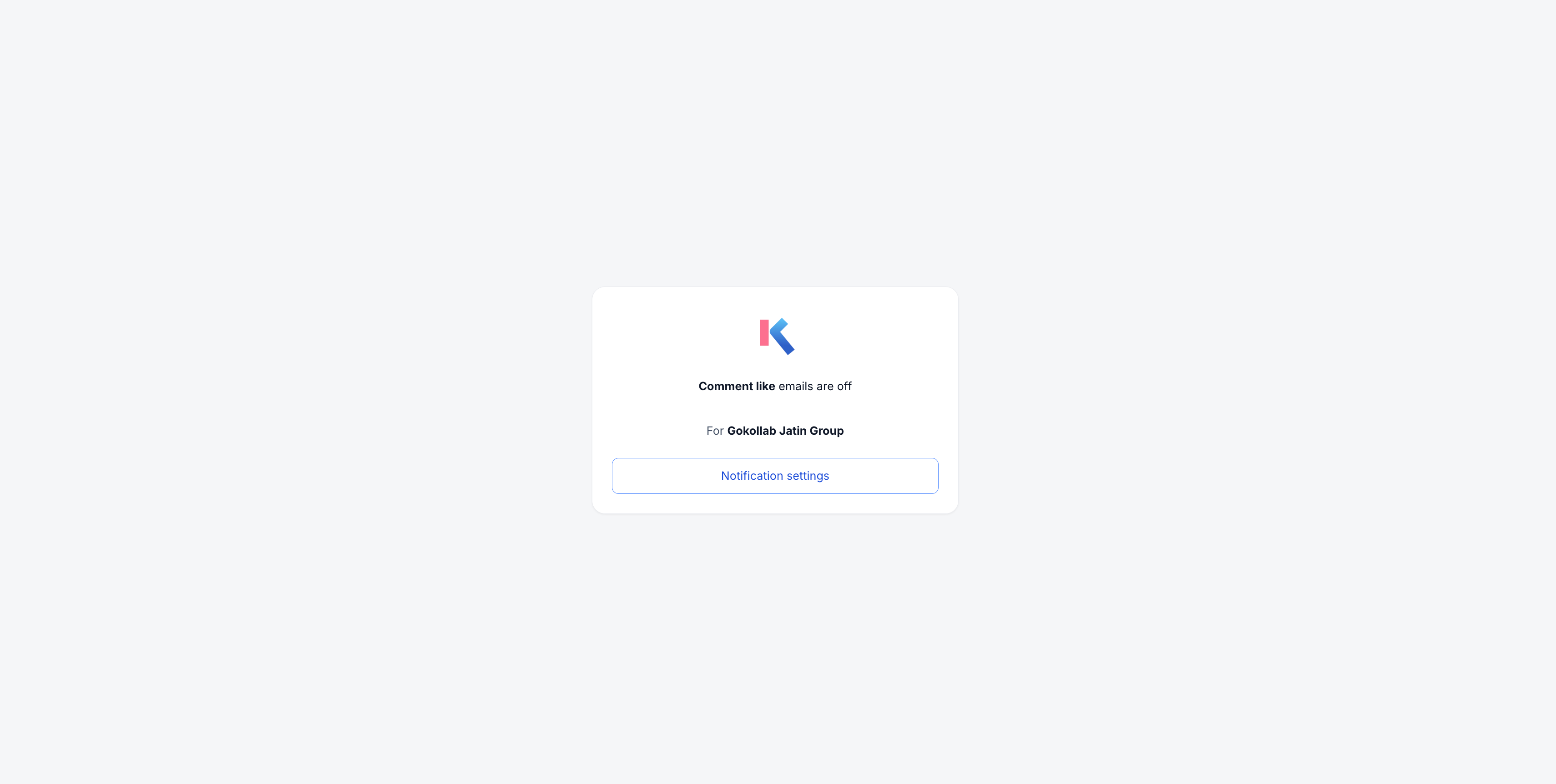
If a member clicks an unsubscribe link that has already been used or has expired, they see a clear message confirming no settings were changed.
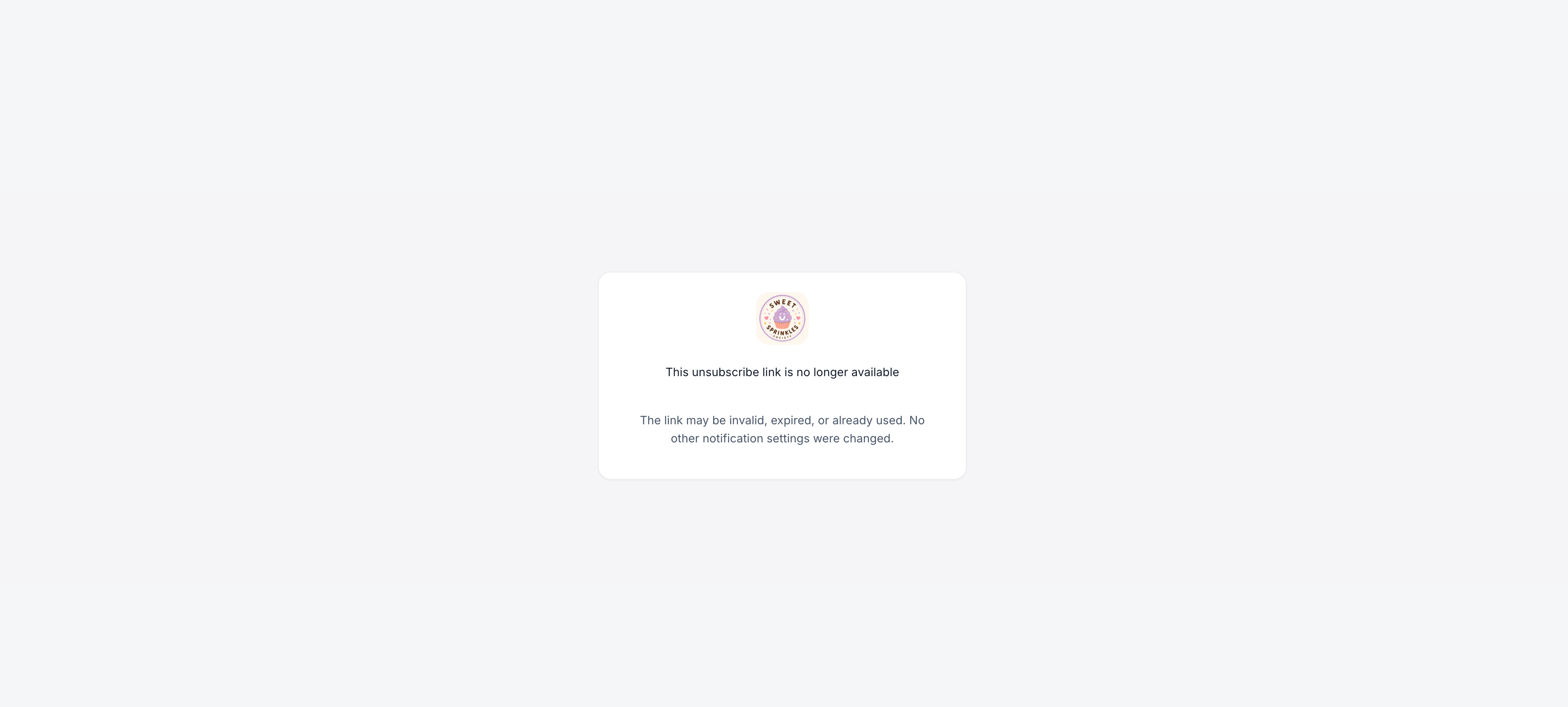
Screenshot 2026-09-29 at 7

The disabled notification can be re-enabled at any time from the member's notification settings.

๐Ÿ’ก Why This Matters

A single unsubscribe action shouldn't silence an entire platform. Granular controls mean members can opt out of the specific emails they don't want while continuing to receive relevant updates from other communities and notification types - reducing accidental platform-wide opt-outs and keeping engagement intact.

๐Ÿ“ Notes

  • Unsubscribe preferences are scoped per community and per notification type.

  • Invalid unsubscribe links display a clear message with no settings changed.

  • Members can re-enable any disabled email notification from their notification settings at any time.
Dark mode for Communities & Courses in GoKollab

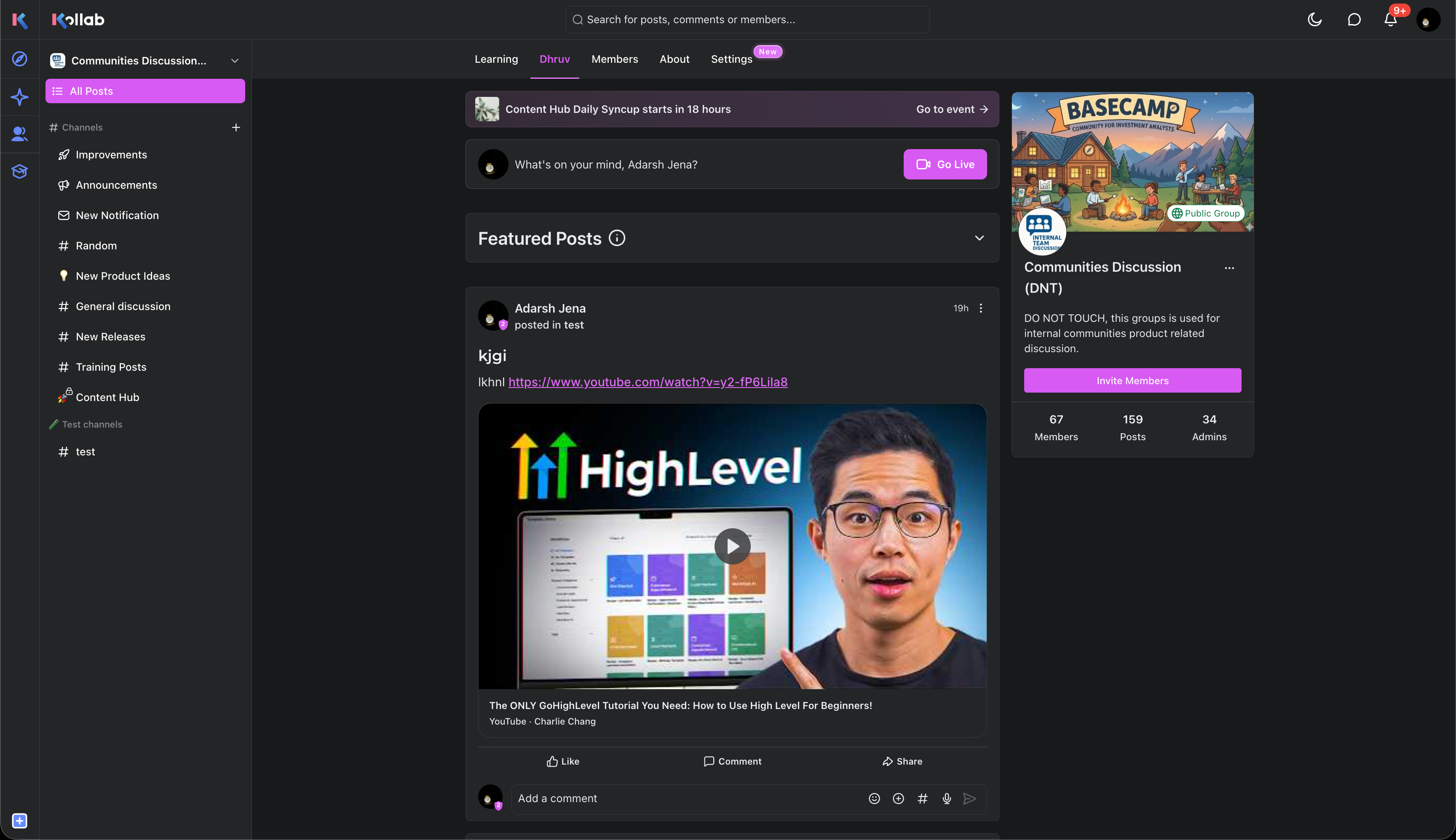
Communities and Courses now support Dark Mode on GoKollab web. Members can switch to a comfortable darker experience, while community owners can configure separate light and dark brand palettes - keeping their identity intact in both modes.

โœจ What's New?

One-Click Dark Mode for Members

Members can switch between light and dark appearances directly from the top navigation. The selected mode is remembered across refreshes and applies across the entire experience.

Separate Light and Dark Branding for Owners

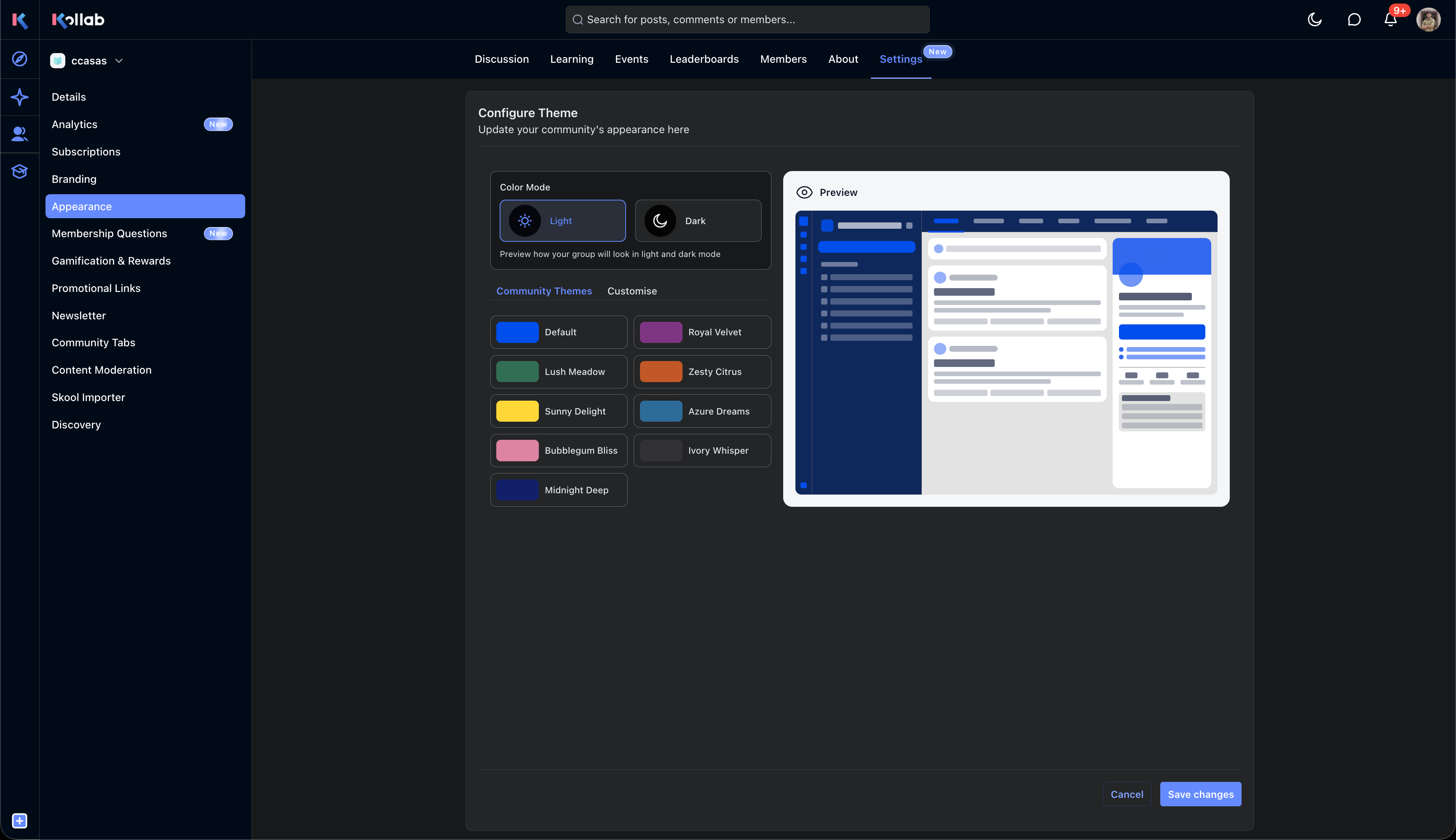
Community owners can configure and preview light and dark color palettes independently from Settings โ†’ Appearance. Editing one palette does not overwrite the other - each mode gets its own brand colors. Choose from preset community themes or fully customize the palette.

Screenshot 2026-09-09 at 5

Full Coverage Across Communities

Dark Mode adapts across the entire community experience - posts, comments, channels, chats, members, events, calendars, mentions, attachments, About pages, and community cards all render in the selected appearance.

Screenshot 2026-09-09 at 6

Learning Experience

Courses, lessons, assessments, assignments, quizzes, and live-session surfaces remain readable and visually consistent in Dark Mode.

Screenshot 2026-09-09 at 5

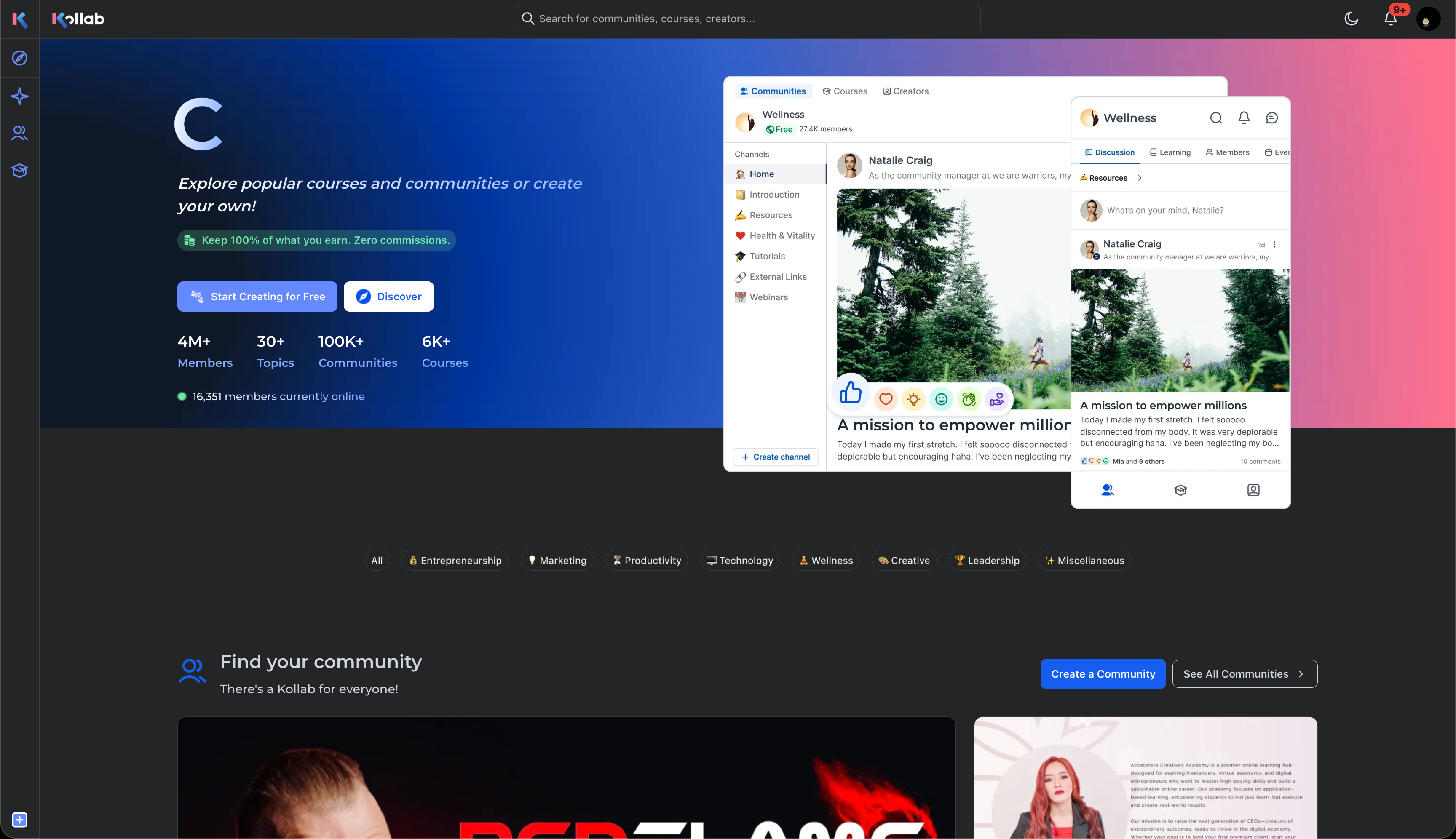
Discovery & Shell

Dark Mode extends beyond individual communities to the full platform shell โ€” including discovery, home showcases, onboarding, pricing, integrations, information pages, and account surfaces.

Screenshot 2026-09-09 at 6

How It Works

As a member:

  • Open a Community on the web.

  • Select the appearance switcher (๐ŸŒ™) in the top navigation.

  • Choose Dark Mode.

  • Your preference is remembered automatically.

As a community owner:

  • Open your community's Settings โ†’ Appearance.

  • Select the Light or Dark color mode.

  • Choose a preset theme or customize the palette.

  • Preview your changes in real time.

  • Click Save changes.

Existing communities continue working without configuration changes. Legacy custom themes will use their existing palette when a separate dark palette has not been configured.

Why This Matters

Communities are used for long sessions - discussions, events, courses, and content creation. Dark Mode provides a more comfortable viewing experience in low-light environments while preserving each community's brand identity. Separate palettes give owners full control over how their branding appears in both modes, instead of relying on automatic color inversion.

๐Ÿ“ Notes

  • Dark Mode is available on the web.

  • Light and dark palettes are configured independently - changes to one do not affect the other.

  • Member appearance preference persists across sessions.

  • A few surfaces (e.g., Studio navigation) don't yet retain the setting on navigation - this is a known follow-up.

Course filtering in Communities

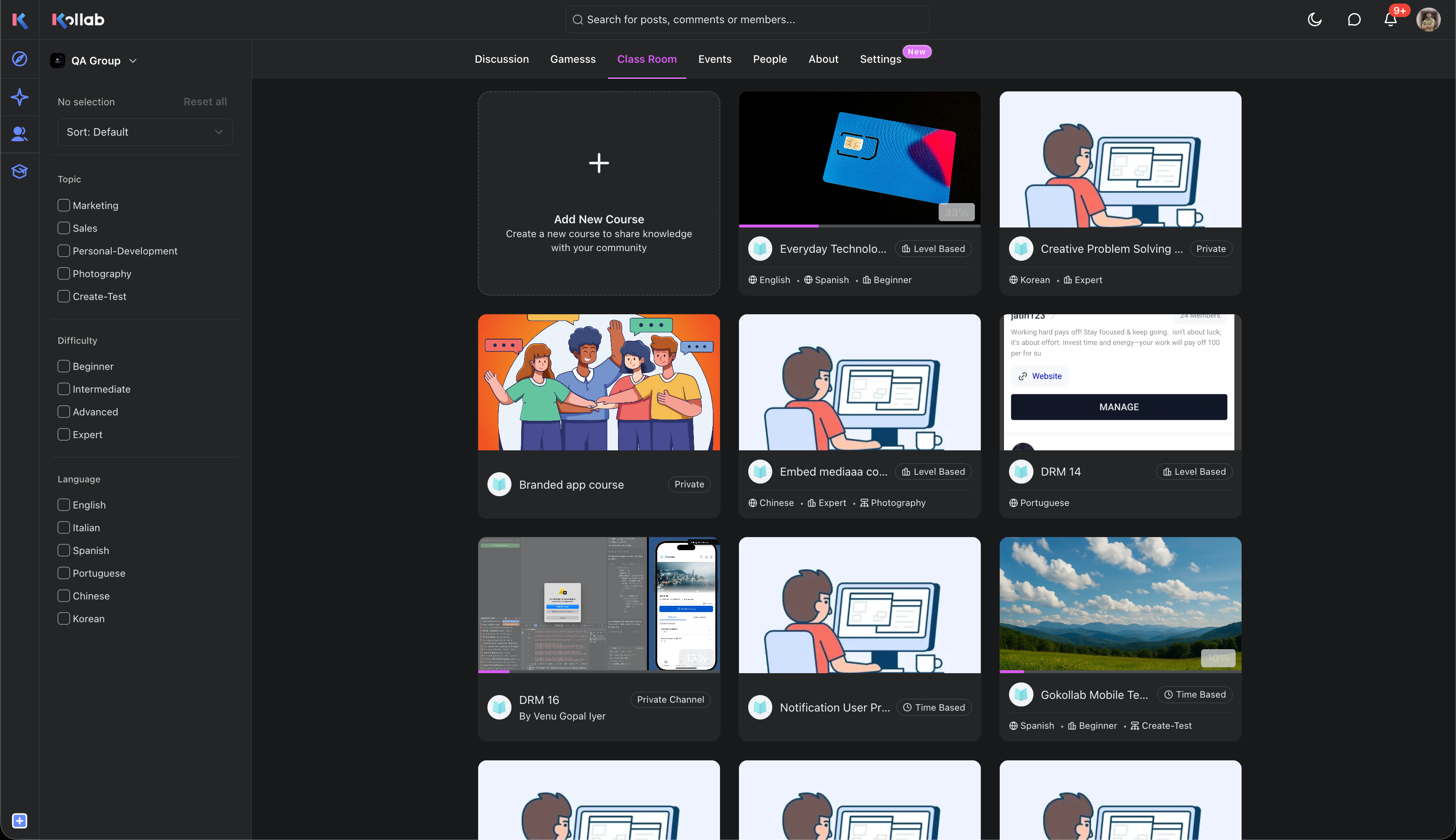
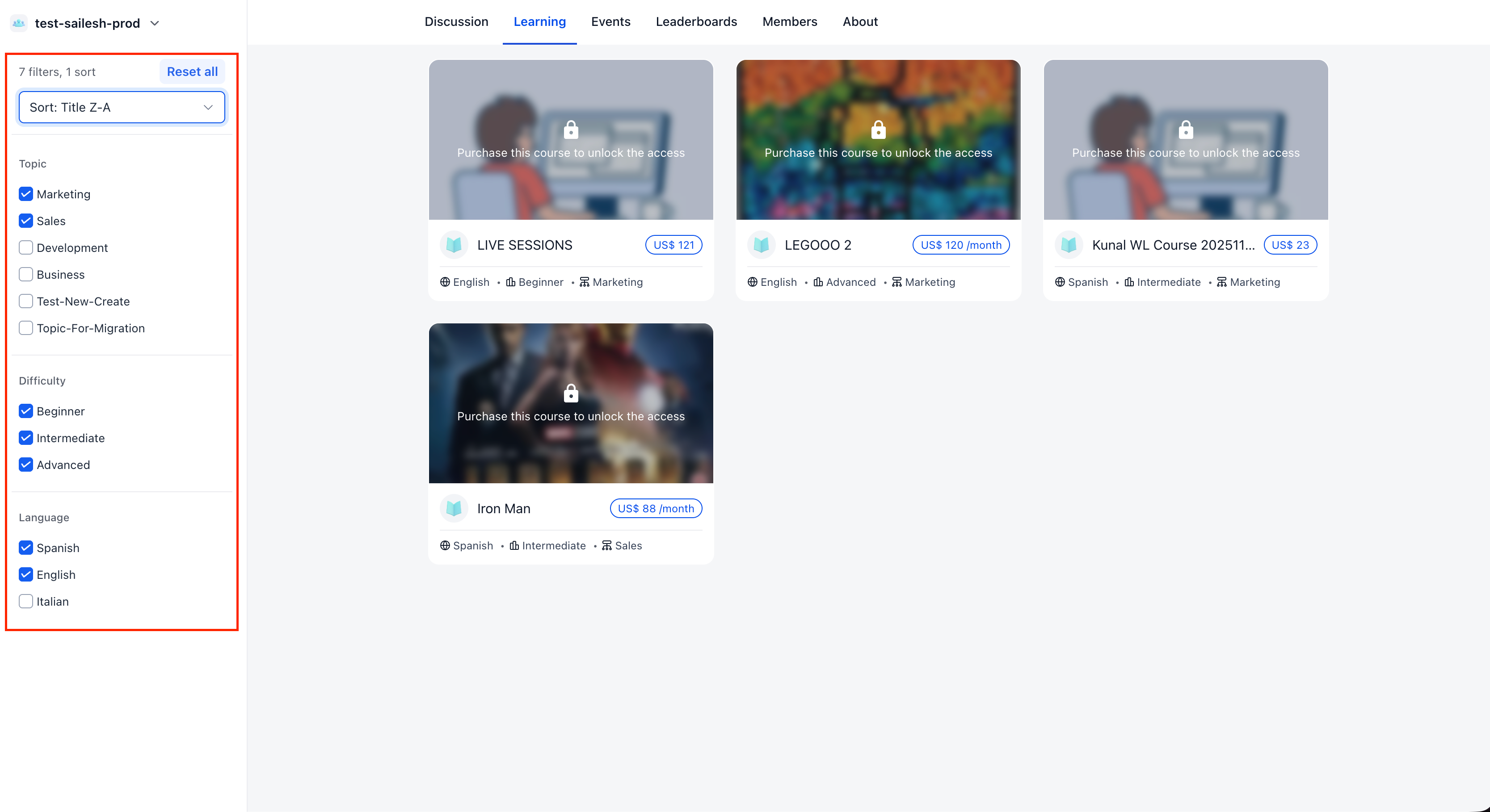
Members can now filter and sort courses directly from the Learning page, making it faster to find the right content in communities with growing course libraries.

โœจ What's New?

๐ŸŽฏ Filter by Topic, Difficulty & Language

The Learning page now includes filter options so members can narrow down courses by Topic, Difficulty, and Language. Select one or more values across any combination of filters to quickly find what's relevant.

Course creators assign topic, difficulty, and language values from the course builder. Once assigned, those filters become available for members inside the community.

courses-filtering-1

๐Ÿ”ƒ Sort Courses

Members can also sort the course list by Title (Aโ€“Z / Zโ€“A), Newest, or Oldest - giving more control over how courses are browsed.

๐Ÿ“ฑ Available on Mobile

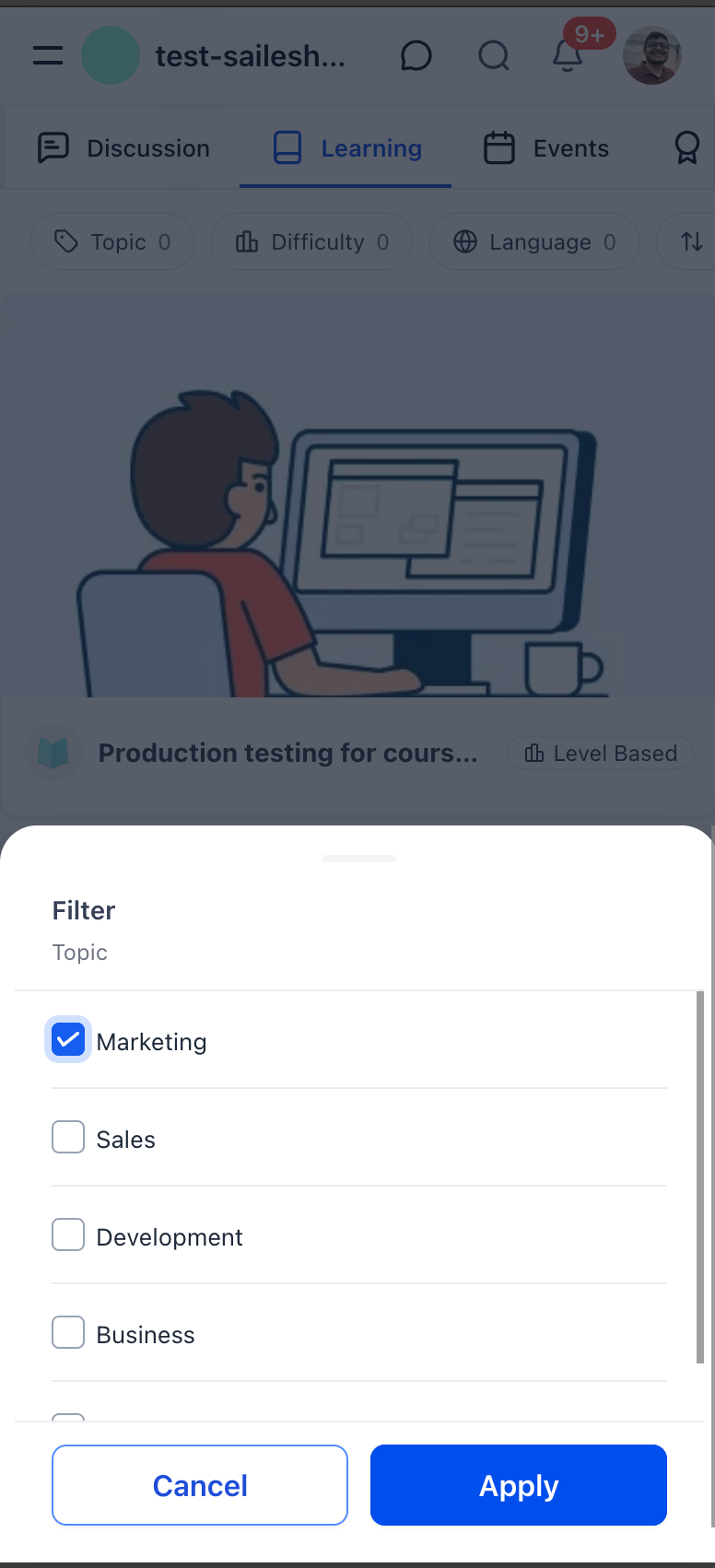
Course filtering is available on the mobile app as well. Filter chips for Topic, Difficulty, and Language appear at the top of the Learning tab, with a bottom sheet for selecting values.

courses-filtering-2

๐Ÿ’ก Why This Matters

As communities add more courses, a flat list becomes harder to browse. Filters let members quickly narrow down by interest, skill level, and preferred language - spending less time searching and more time learning.

๐Ÿ“ Notes

  • Filters are based on topic, difficulty, and language values assigned to courses in the builder.

  • Multiple filters can be combined for more precise results.

  • Available on both web and mobile.

Earlier updates