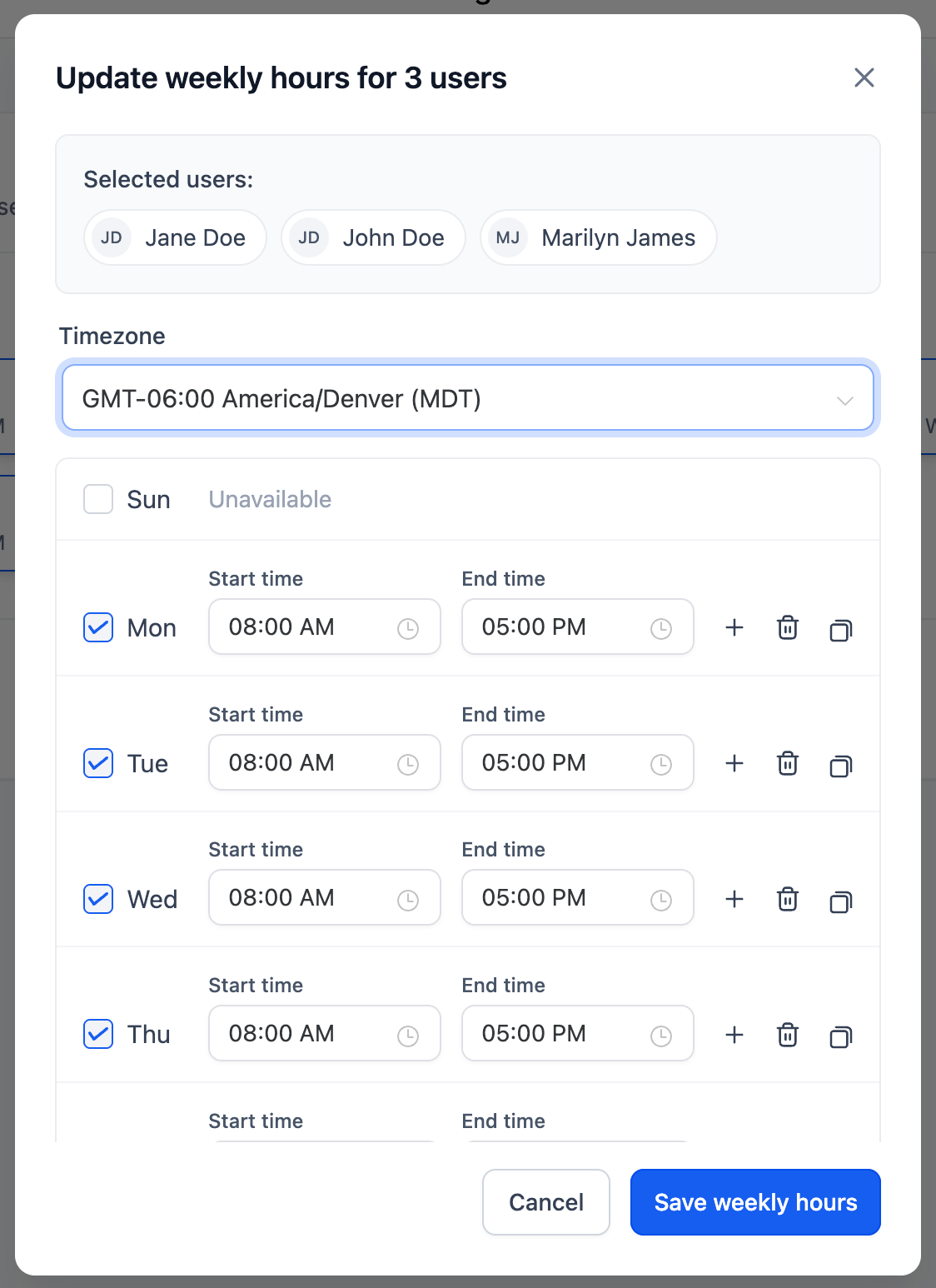
March 10th, 2026
Improved
Calendar
🏷️ Smarter Bulk Edit for Schedules in Multi-User Calendars
🧭 Overview
We’ve enhanced the Bulk Edit Availability experience to make multi-user schedule updates clearer, safer, and more structured.
With improved visibility into weekly and date-specific hours — along with smarter save logic — managing availability for multiple team members is now more predictable and controlled.
🚀 What’s New
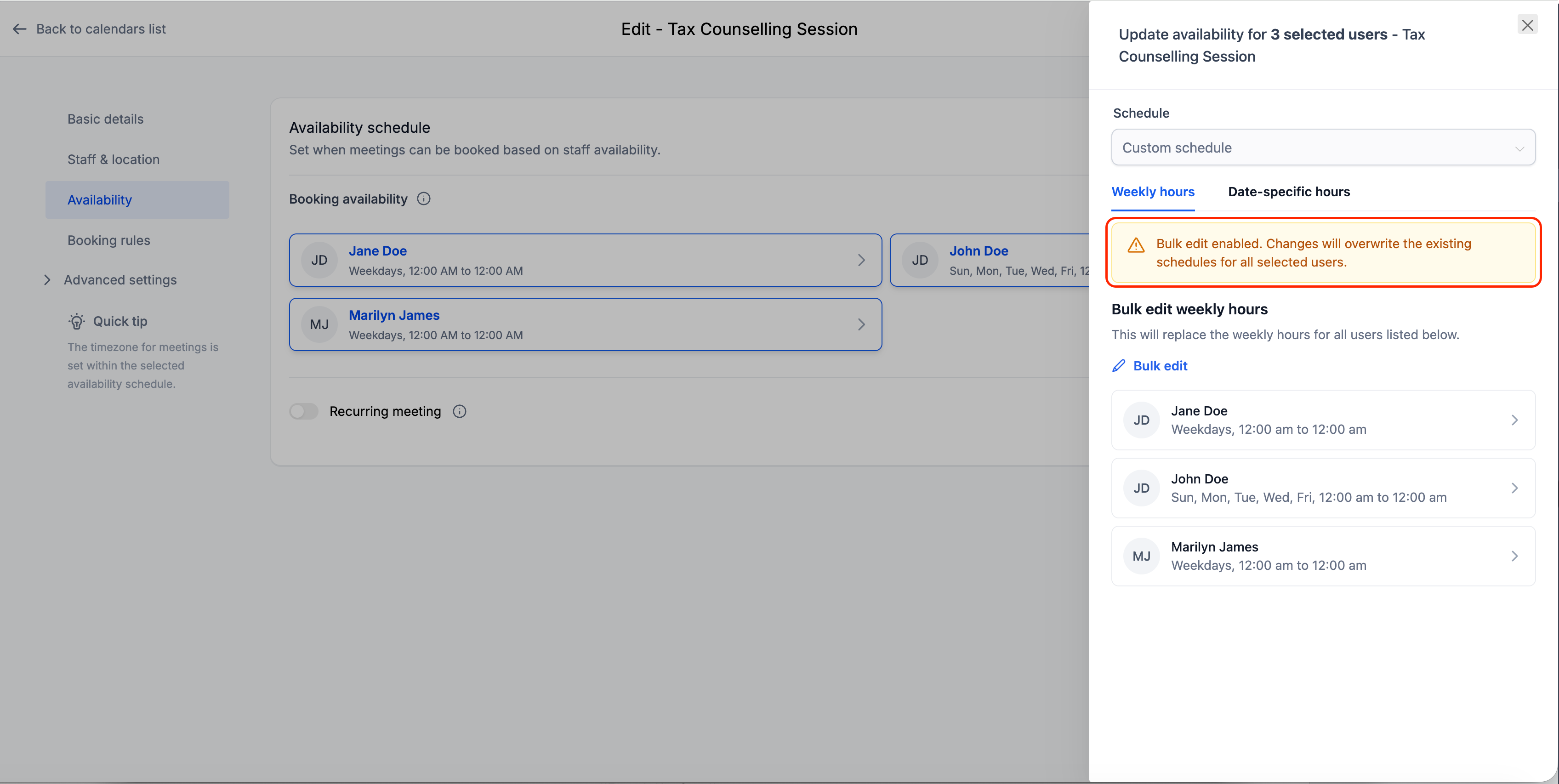
⚠️ Clear Impact Intimation for Weekly Hours
When editing Weekly hours in Bulk Edit mode, an informational banner now appears to indicate that changes will apply to all selected users.
This ensures you understand the impact before saving.
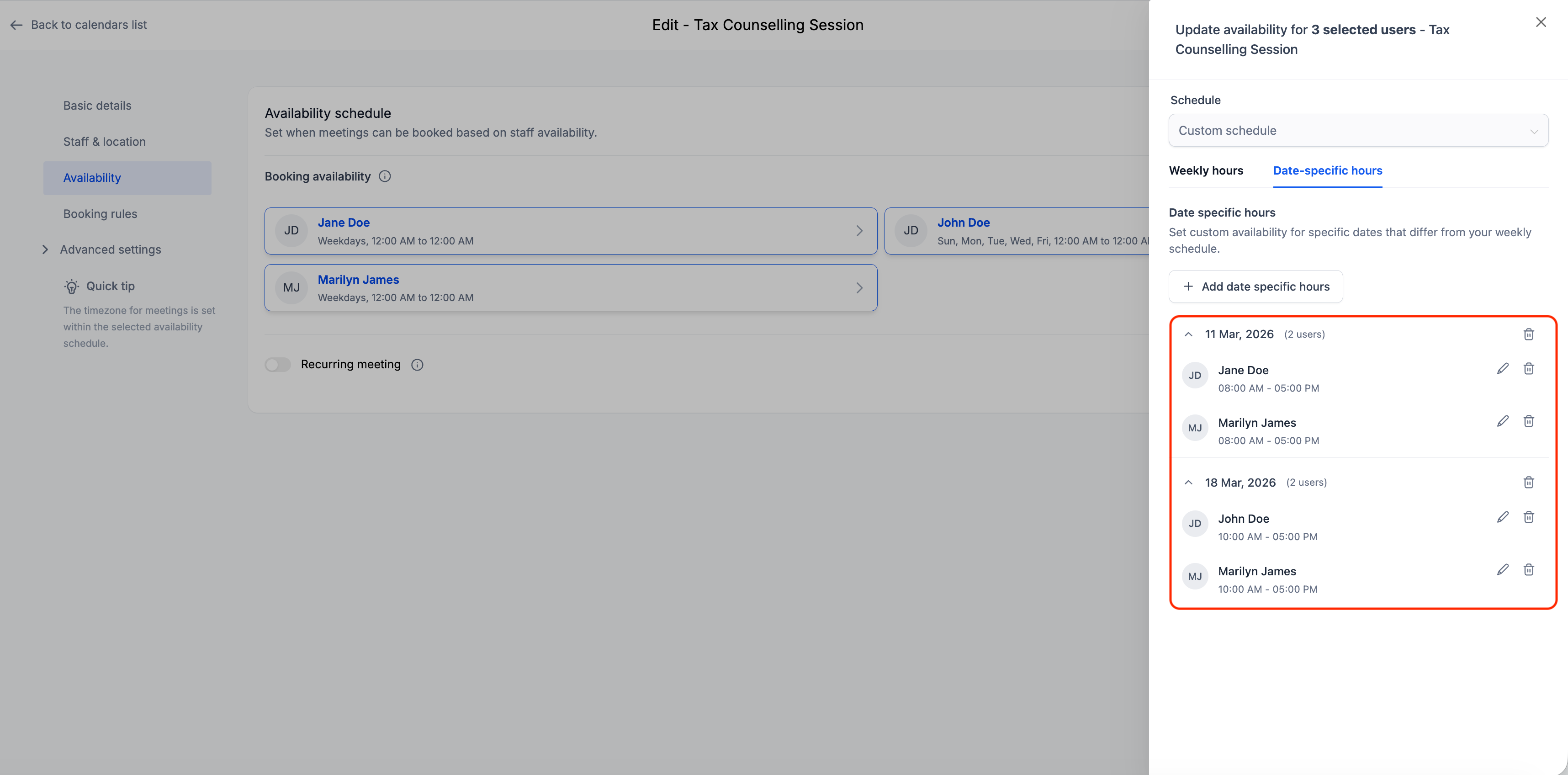
📅 Structured View of Date-Specific Hours
Date-specific hours are now displayed in a grouped-by-date format across all selected users.
For each date, you can:
See how many users have availability set
View individual user time blocks under that date
Edit or delete entries per user
This gives full visibility into schedule exceptions before making changes.
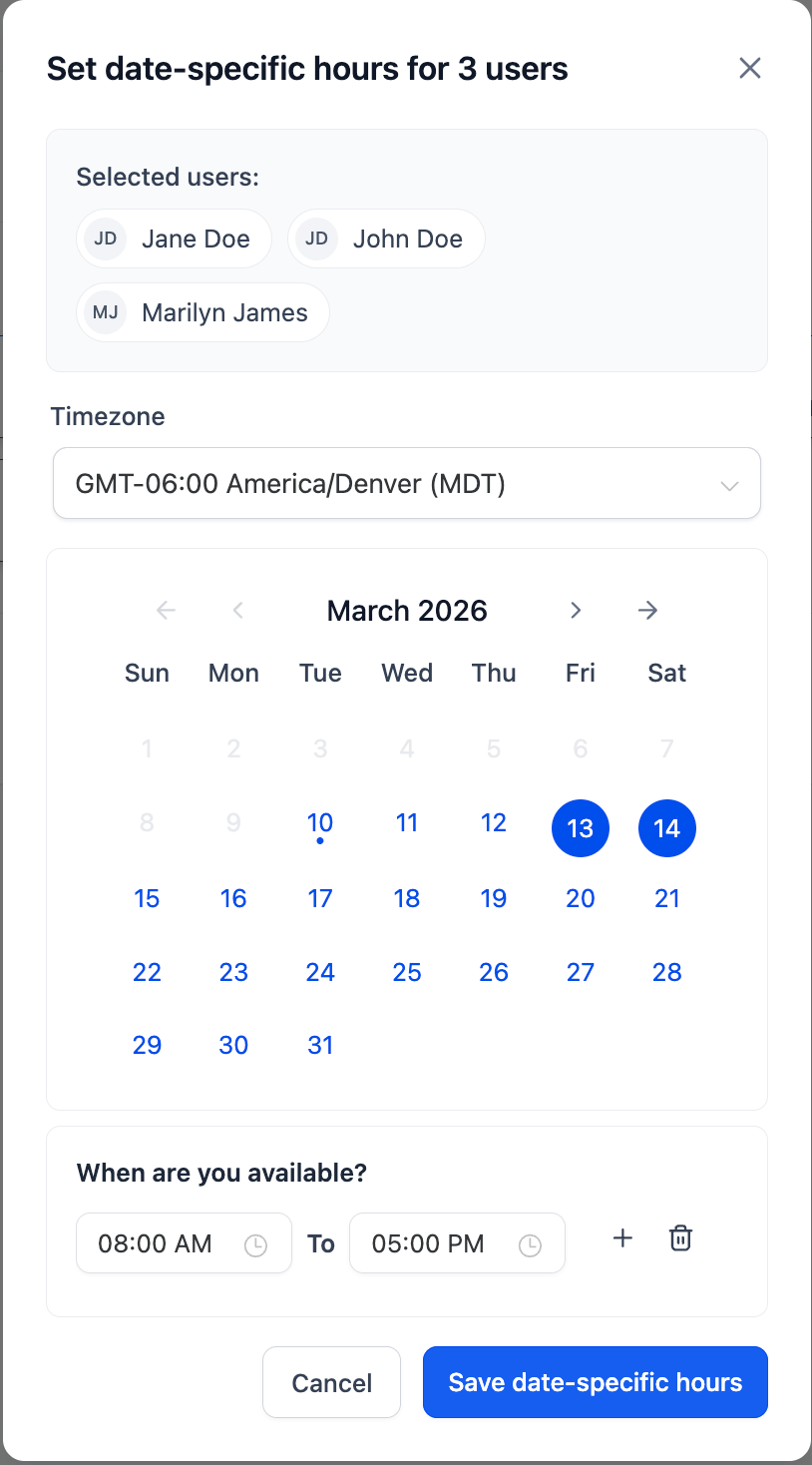
➕ Add Date-Specific Hours in Bulk
When adding new date-specific hours:
The time block automatically applies to all selected users
You can later edit or remove entries individually if needed
💾 Smarter Save Logic
Save behavior is now section-specific:
Updating Weekly Hours only modifies weekly schedules
Updating Date-Specific Hours only modifies date exceptions
This prevents accidental schedule loss during bulk edits.
🧩 How to Use
Go to *Calendars → Calendar Settings → Edit a Calendar → Availability* tab
Click Bulk edit
Select team members and click on Edit hours
Modify Weekly or Date-Specific Hours
Click Save Changes
Only the edited section will be updated.
🎯 Why This Matters
Reduces accidental schedule overrides
Improves clarity when managing multiple users
Provides structured visibility into date exceptions
Makes bulk availability updates safer and faster