Define Roles for Contacts in Companies with Association Labels
Know who does what at each Company. Use labels such as Employee, Billing contact, or Decision maker to describe a Contact’s role, keep responsibilities current, and reach the relevant people.
What’s New?
Roles that match your business: Create Company and Contact association labels in object settings.
Single or paired labels: Use one name on both sides or names such as Employer and Employee. Configure relationship limits in each direction.
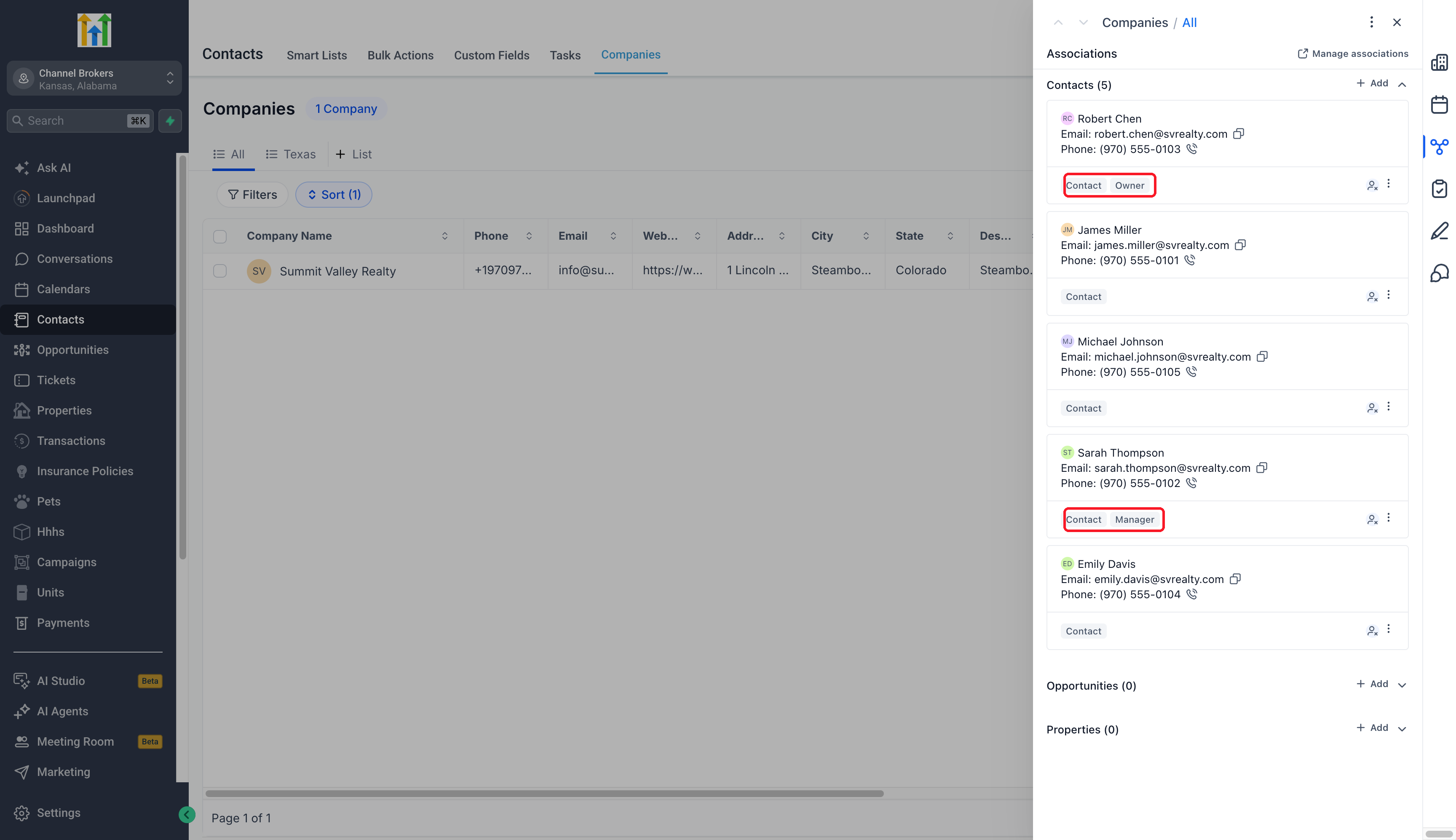
Labels on record relationships: Choose a role when linking records and edit custom labels on existing links.
Multiple roles for one person: The same Contact and Company can be linked under more than one label.
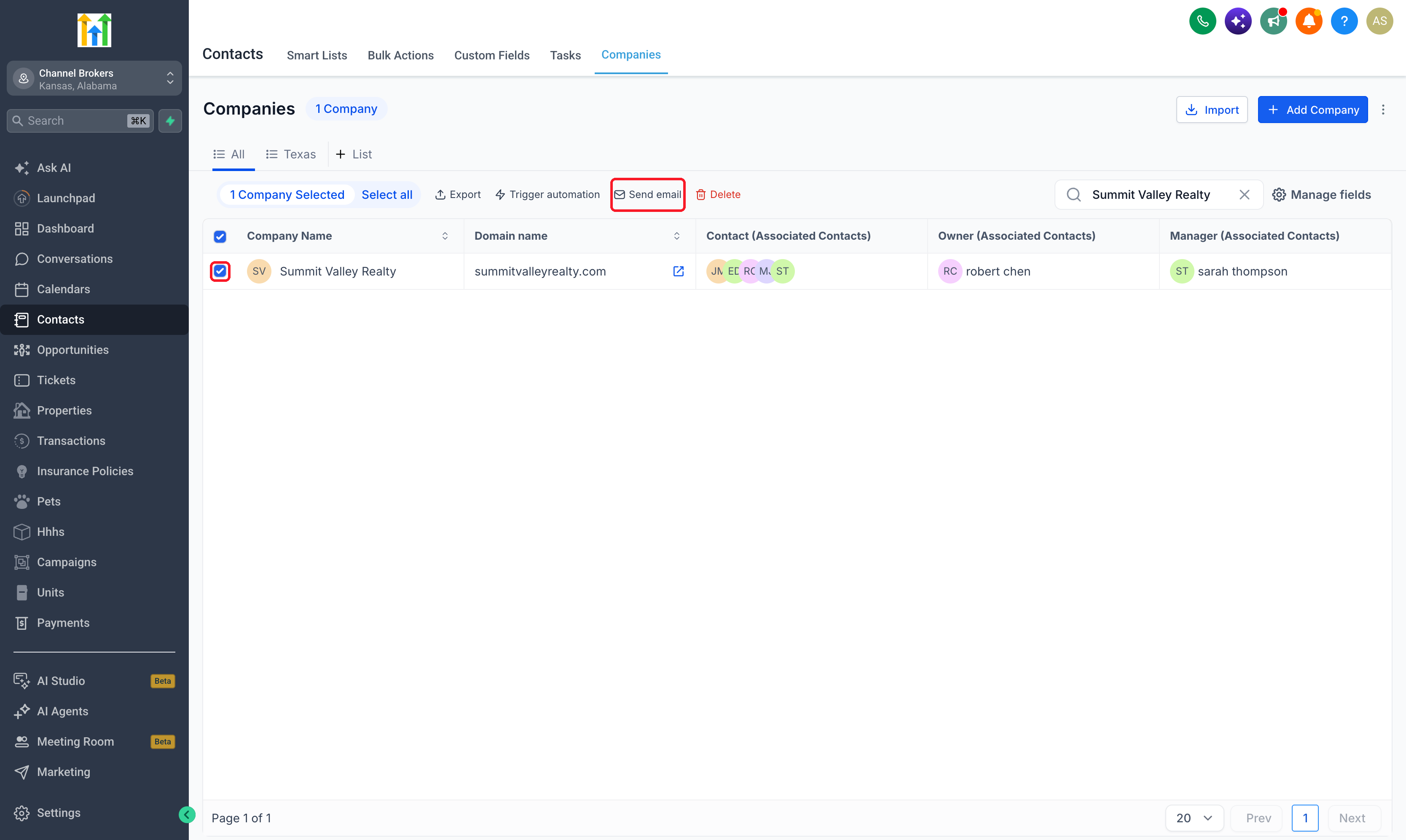
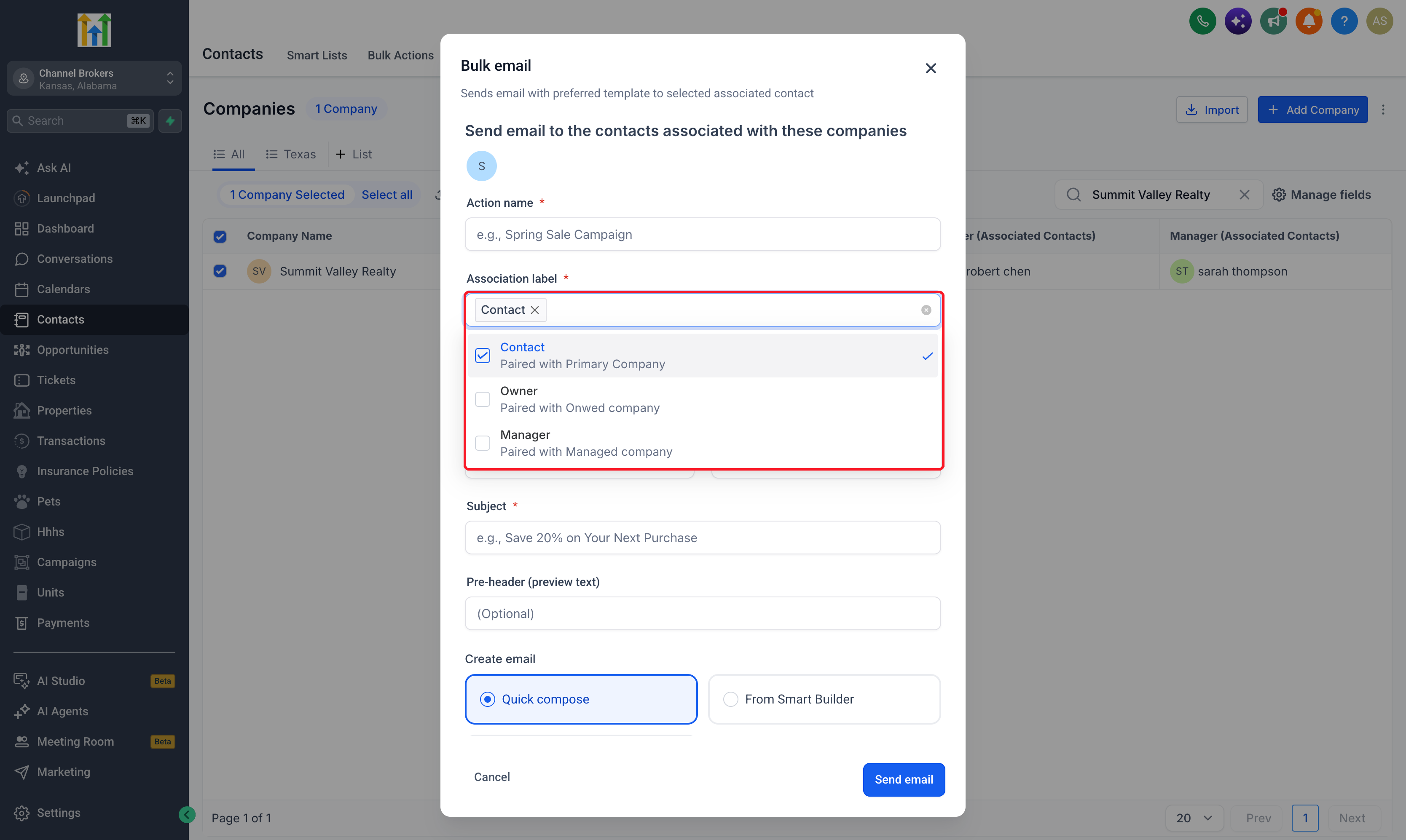
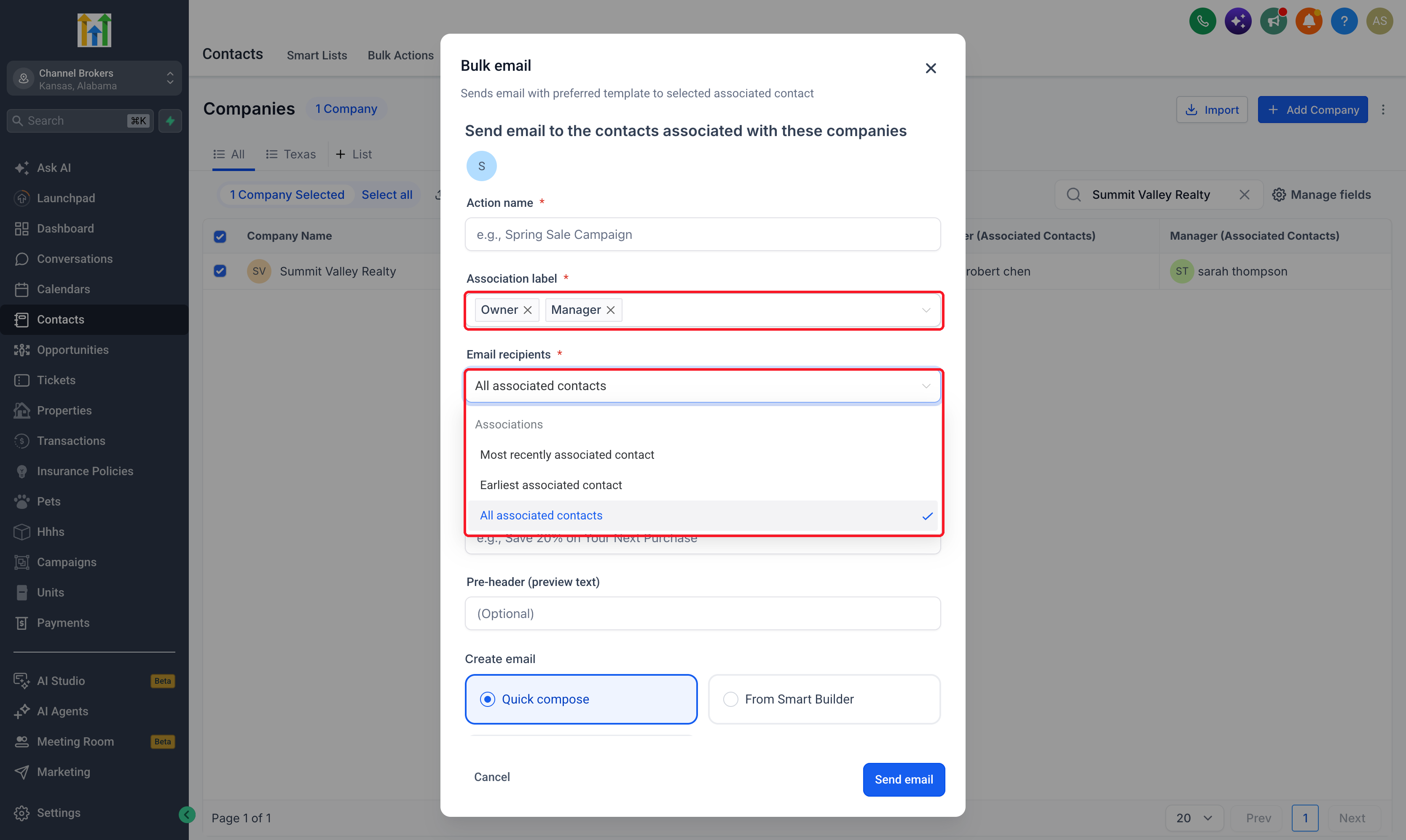
Email by role: Choose association labels when emailing from Companies. Contacts matching several selected labels are deduplicated.
Why This Matters
Find the right stakeholder: Identify billing contacts and decision makers before reaching out.
Make communication relevant: Send an account update to Billing contacts or a review invitation to Decision makers.
Keep responsibilities clear: Update the relationship label when a person’s role changes.
How to Use
Enable Association Labels and Multiple Companies for Contacts in Labs.
Go to Settings > Objects > Companies or Contacts > Associations.
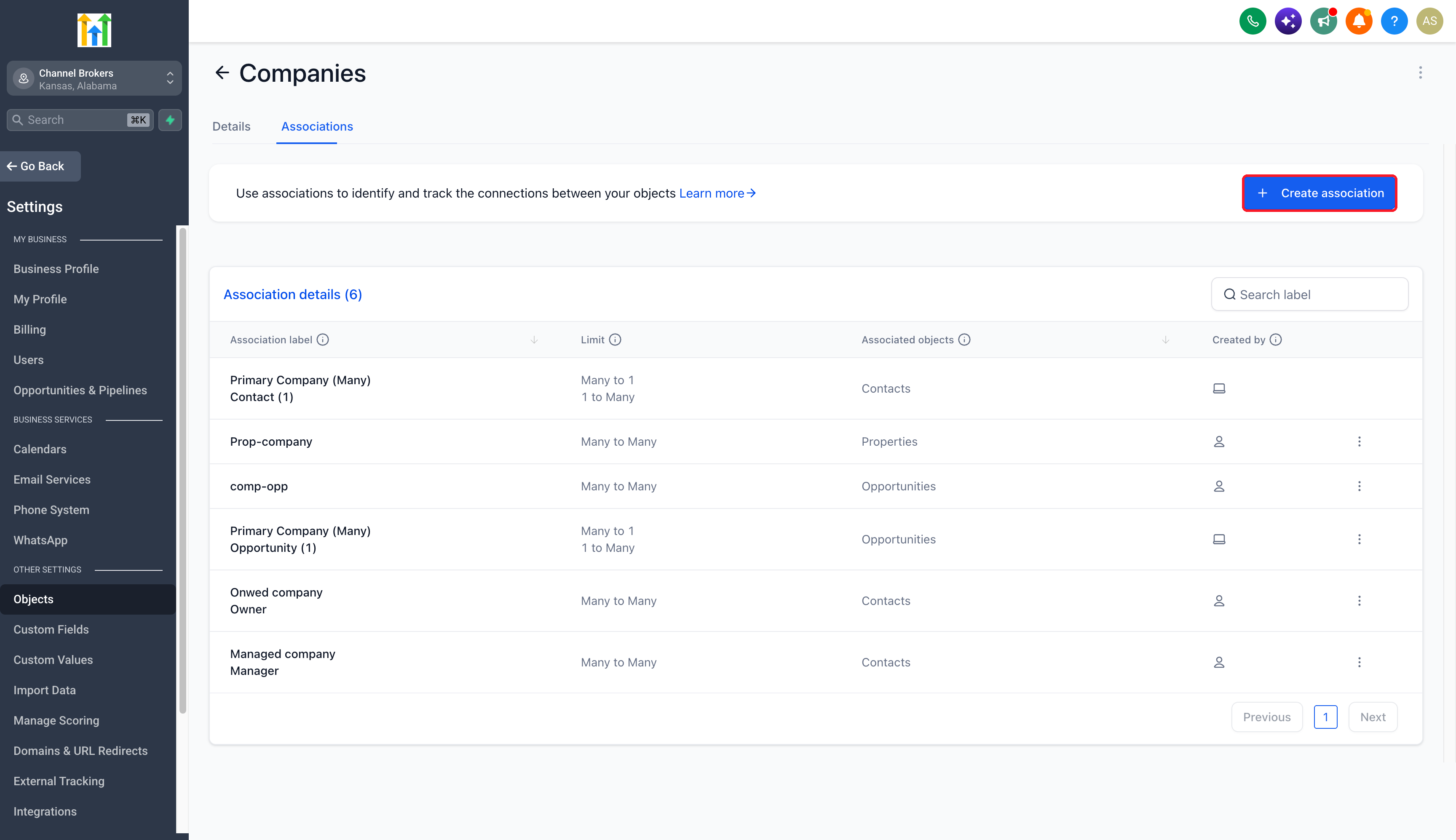
Create a single or paired relationship label and configure its limits.
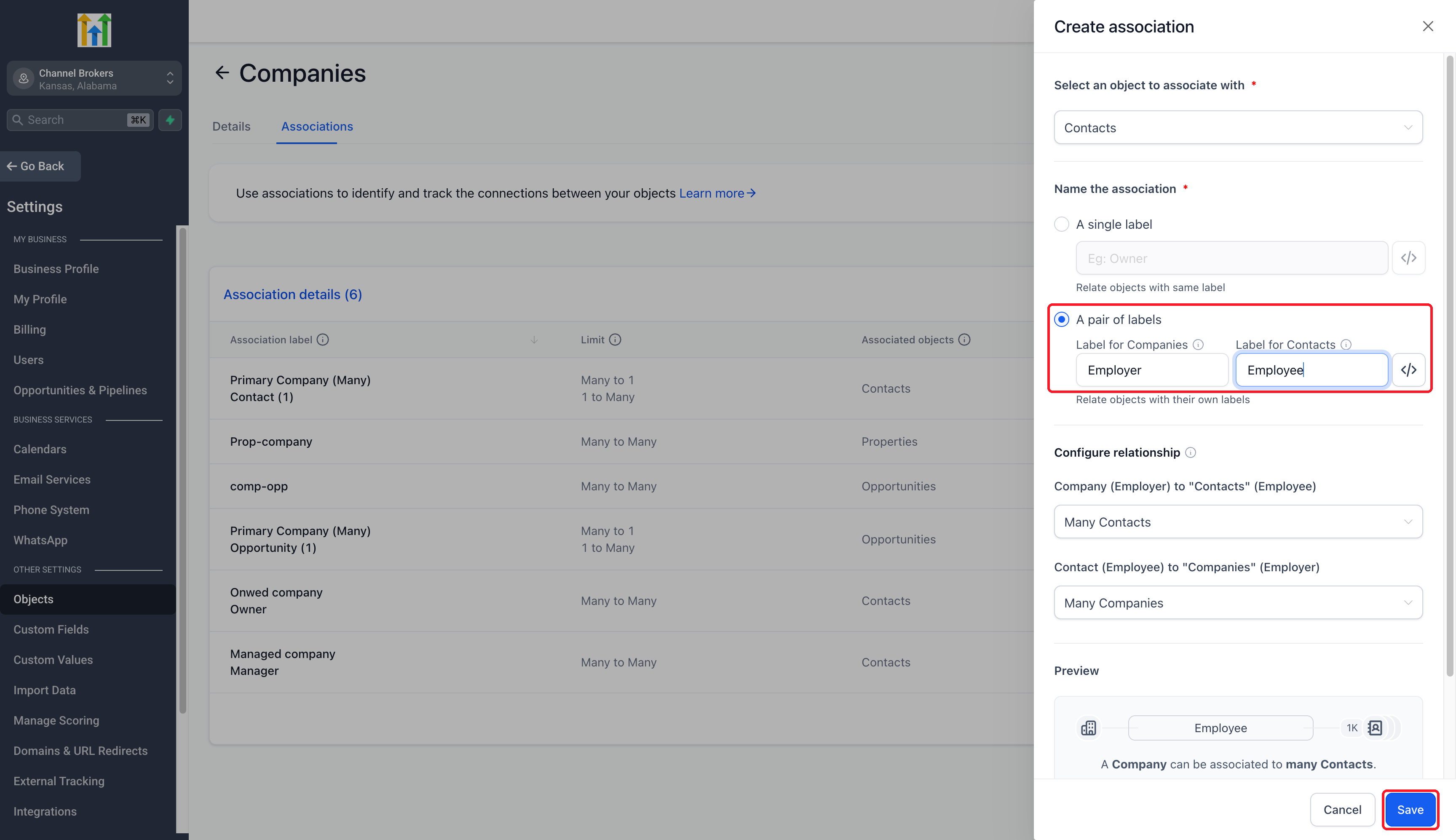
Open a record’s Associations, select the records and label, then save.
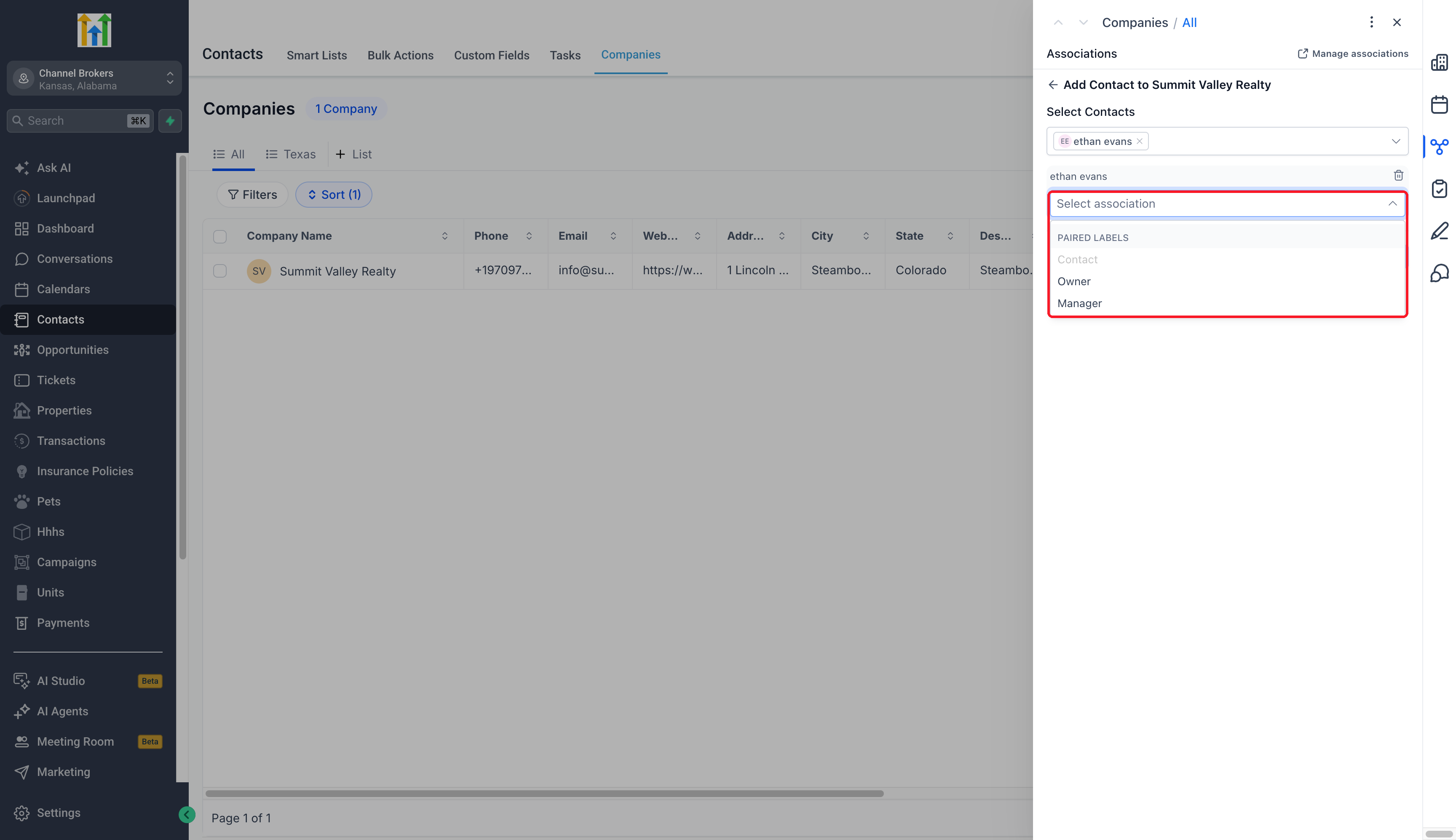
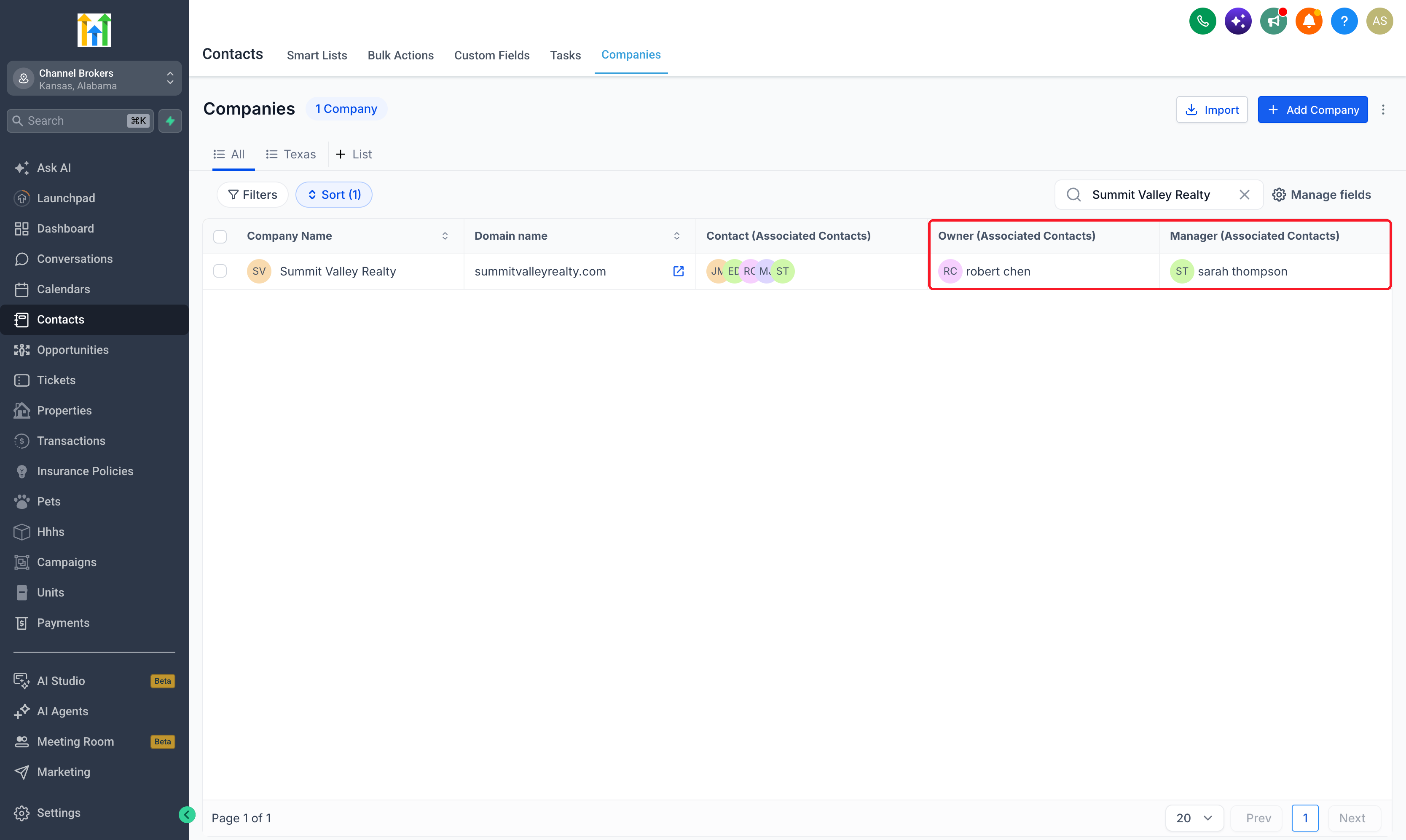
Use the relevant labels when reviewing Company list columns or selecting an email audience.
Pro Tips
Keep Primary Company separate: Custom labels describe additional roles alongside the system primary relationship.
Name both directions: Employer for Companies and Employee for Contacts makes each record’s view clear.
Check email recipients: Custom labels support all, most recently associated, or earliest associated Contacts. Including Primary Company uses All contacts.