Workflow Trigger for file uploads via Client Portal
Overview:
Summary of the Release
Growably now supports a new workflow trigger, Client Portal File Uploaded, allowing businesses to automatically initiate workflows whenever a contact uploads a document through the Client Portal Shared Documents experience.
What's New? / Key Features / Benefits
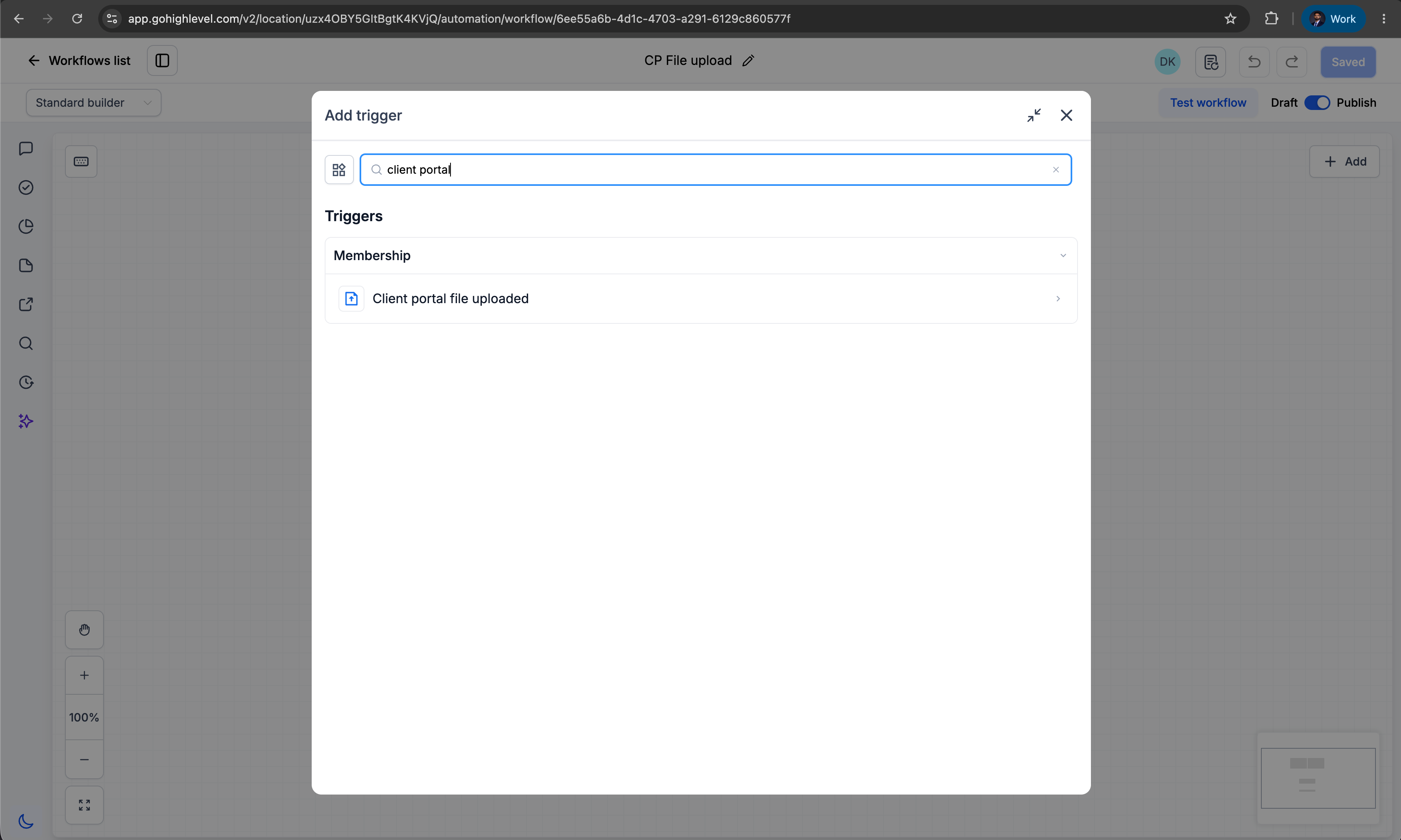
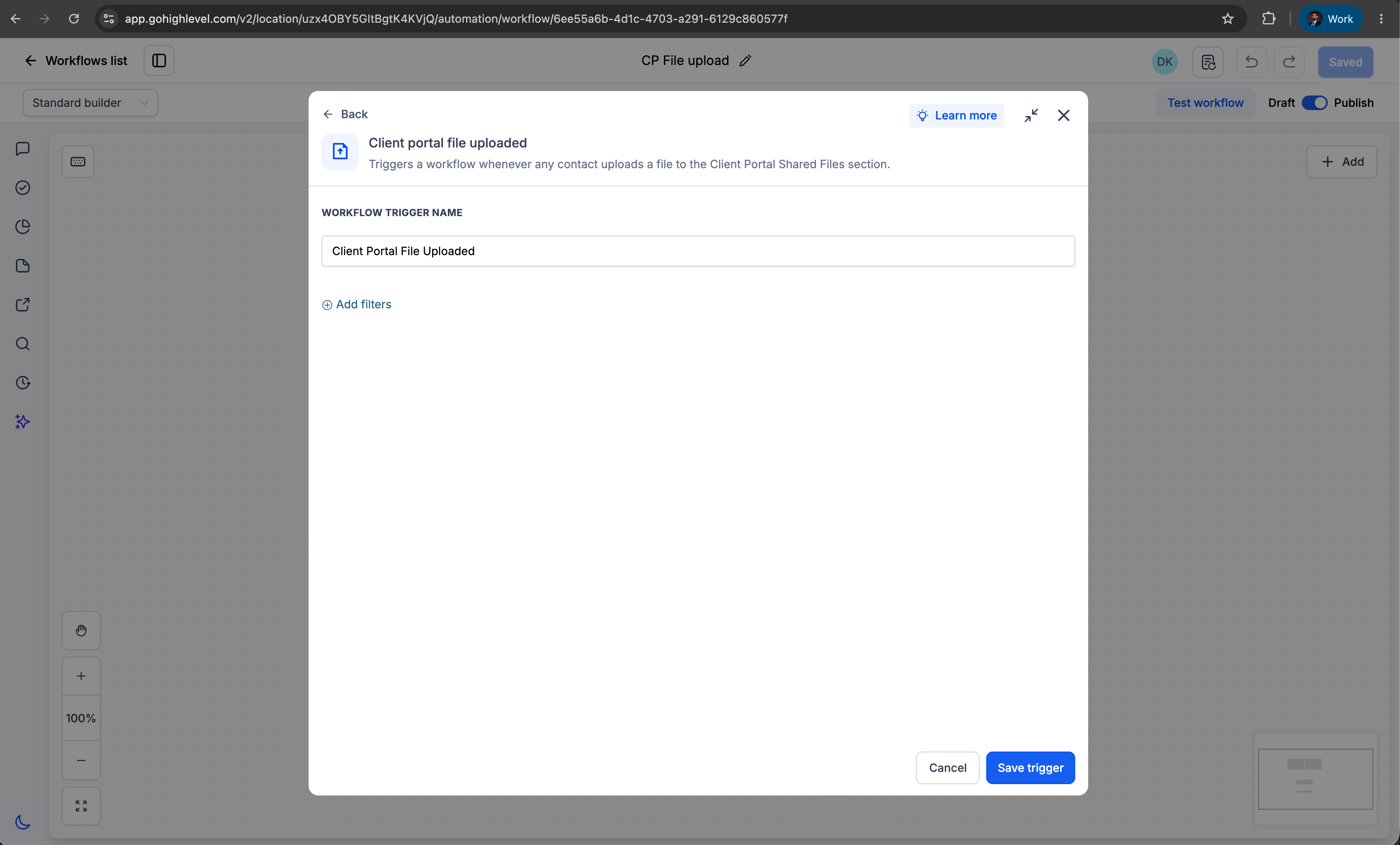
New Workflow Trigger: Client Portal File Uploaded
Automatically trigger workflows when a contact uploads a file through the Client Portal Shared Documents experience.
How to Use?
Navigate to Automation → Workflows.
Create a new workflow or edit an existing workflow.
Add the trigger Client Portal File Uploaded.
Configure the workflow actions as relevant.
Publish the workflow.
How to share a file with a client through Client Portal
Navigate to a specific contact.
Click the Files icon from the right-side navigation panel.
Upload a file.
Select the Upload to Client Portal checkbox.
Save the file.
The file will become available to the contact within their Client Portal.
-
How to upload a file as a Client Portal user
Log in to the Client Portal.
Navigate to the Shared Documents section.
Click Share File.
Upload a single file or multiple files (up to 10 files at a time).
Submit the files.
Multiple file types are supported. Once uploaded, the Client Portal File Uploaded workflow trigger will fire automatically.
This feature closes that automation gap by enabling businesses to:
Eliminate manual monitoring of uploaded documents
Reduce operational delays
Improve compliance and review processes
Ensure no important uploads are missed
Create seamless document-driven customer journeys
Accelerate onboarding and approval workflows