June 16th, 2026
New
Funnels & Websites
Layers Panel Search in Website & Funnel Builder
✨ What's New?
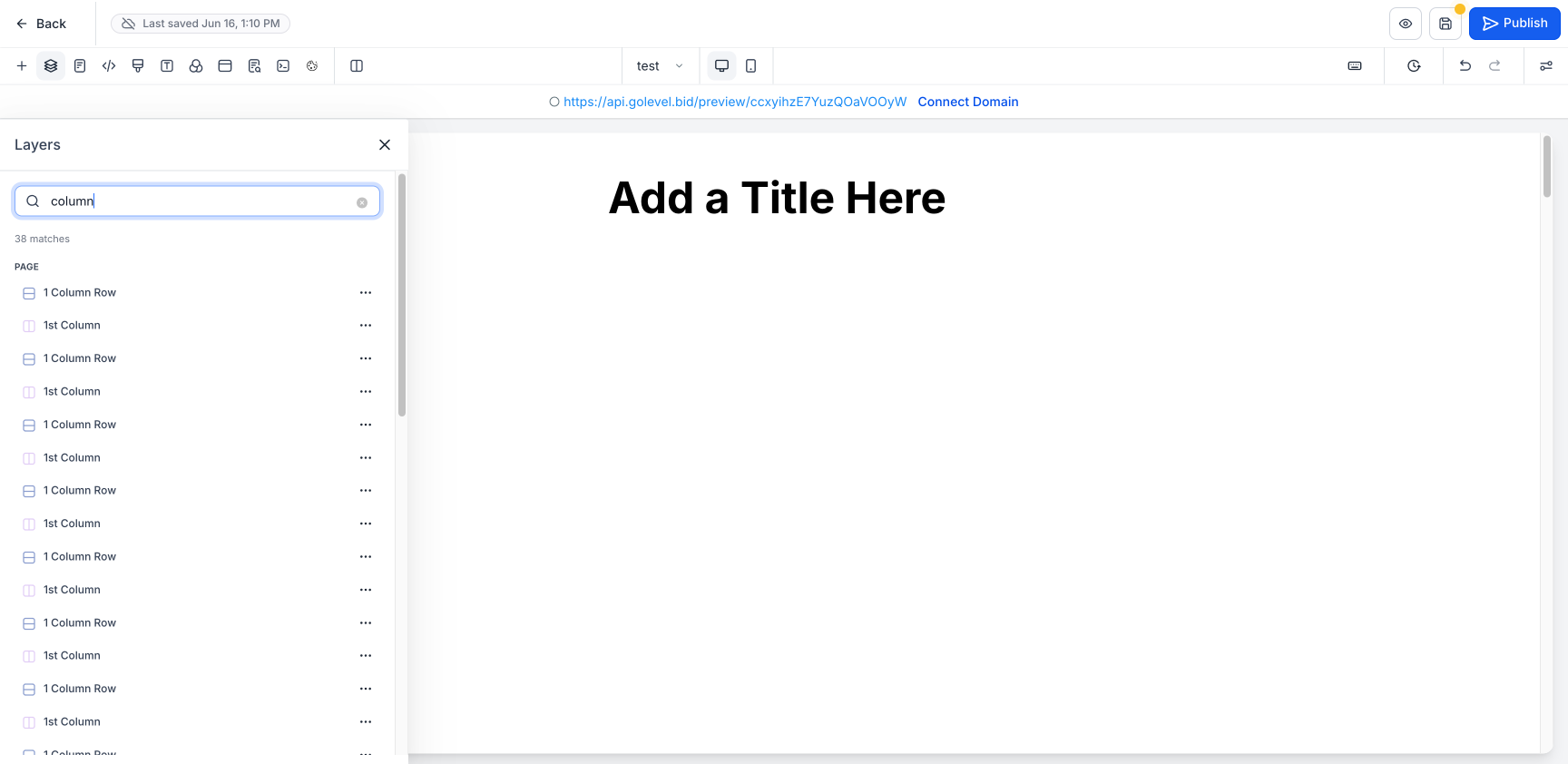
Introducing Layers Panel Search — a search bar built directly into the Layers panel of the GHL Website & Funnel Builder that lets you find any element on your page instantly. Search by name, type, or element ID and jump straight to it — no more scrolling and expanding a deep layer tree to find what you need.
🎯 Why This Feature?
On content-heavy pages, the Layers tree gets long and deeply nested. Finding one specific element — a particular image, a button, a section buried inside columns — meant manually expanding branch after branch. Layers Panel Search eliminates that friction: type what you're looking for and go straight to it.
🌟 Key Highlights
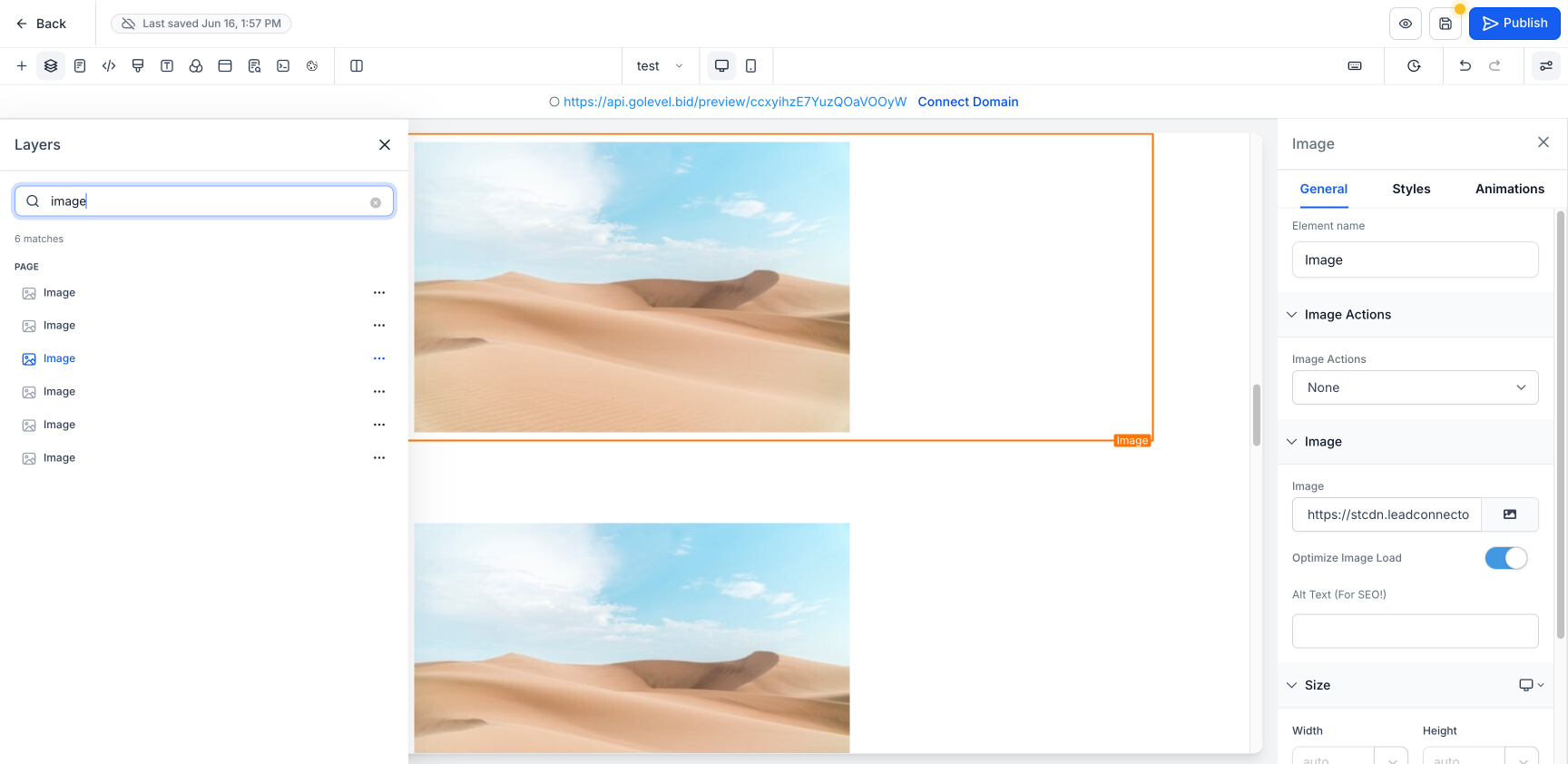
Search by Name, Type, or ID – Match elements by their title (e.g. "Headline"), their type (e.g. "Image", "Column"), or their element ID
Instant Flat Results – Matches appear in a flat list grouped under Page / Popup, with a live match count
Click to Jump & Select – Click any result to select and scroll to that element on the canvas, opening its settings
Full Actions from Results – Hide/Show, Edit, Clone, and Delete directly from each result's ⋯ menu
Color-Coded Icons – Sections, rows, and columns keep their familiar icon colors in the results list
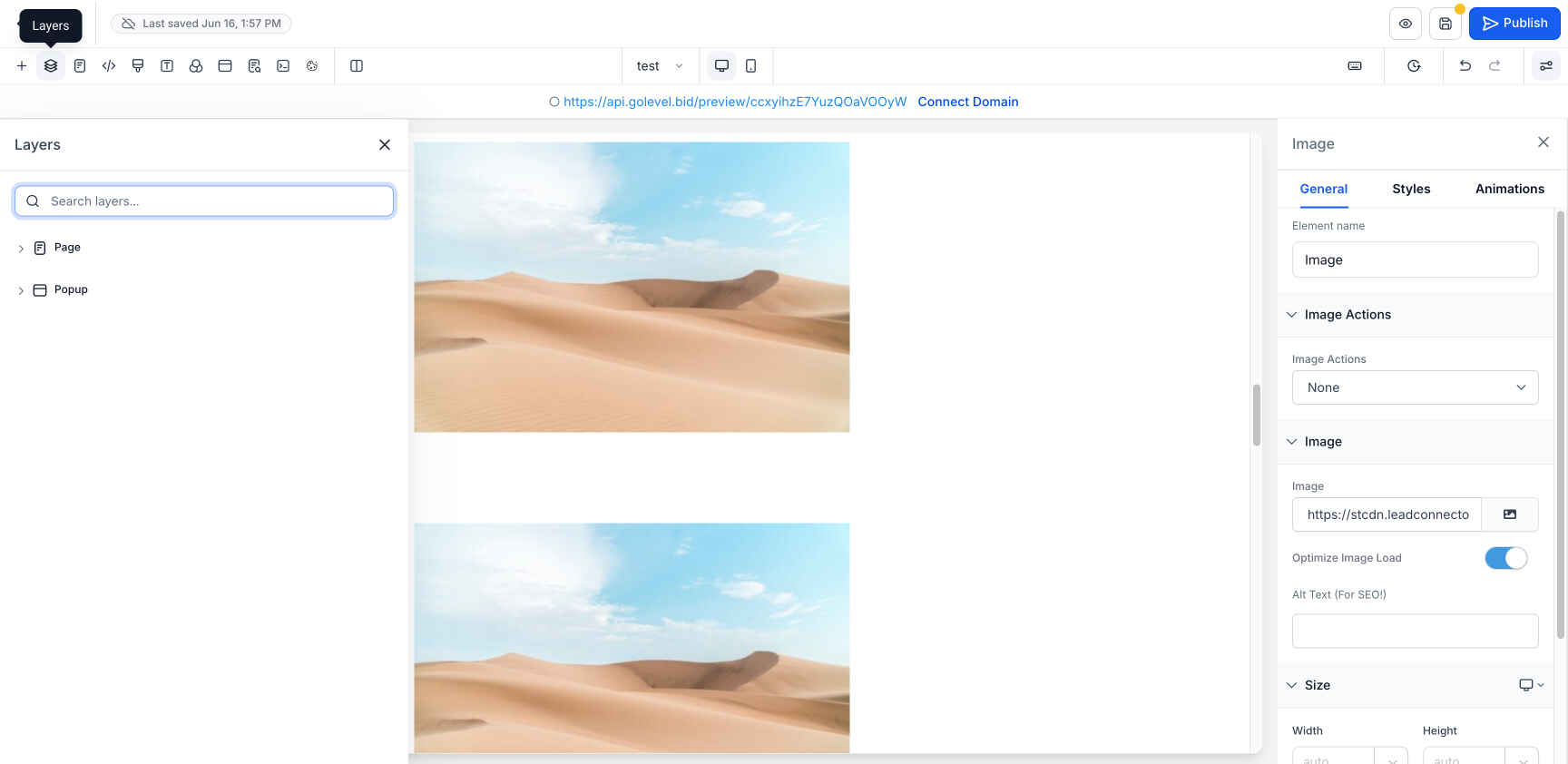
One-Click Clear – Clear the search to return instantly to the full Layers tree
🛠️ How to Use
Access: Website/Funnel Builder → Edit Page → Layers panel (left toolbar) → Search layers
Steps:
Open the Layers panel
Type an element name, type, or ID in the search box
Click a result to jump to and select that element on the canvas — or use the ⋯ menu for Hide/Show, Edit, Clone, Delete
Click the ✕ to clear and return to the full layers tree
ℹ️ Good to Know
Search covers the current page's layers (both Page and Popup branches) — it does not search other pages or funnel steps
Matching is case-insensitive and works on partial text
Results update as you type; clearing the box restores the full tree