September 26th, 2025
Improved
QR Codes
Bulk Actions, QR Code Renaming & Copy Link Shortcut
🆕 What's New
Your QR Code management experience just got a power boost! We’ve added bulk actions, inline renaming, and a new way to quickly copy links — all from the QR Codes List Page. Efficiency, meet convenience. ⚡
✨ Key Highlights
1. Bulk Actions on QR Codes
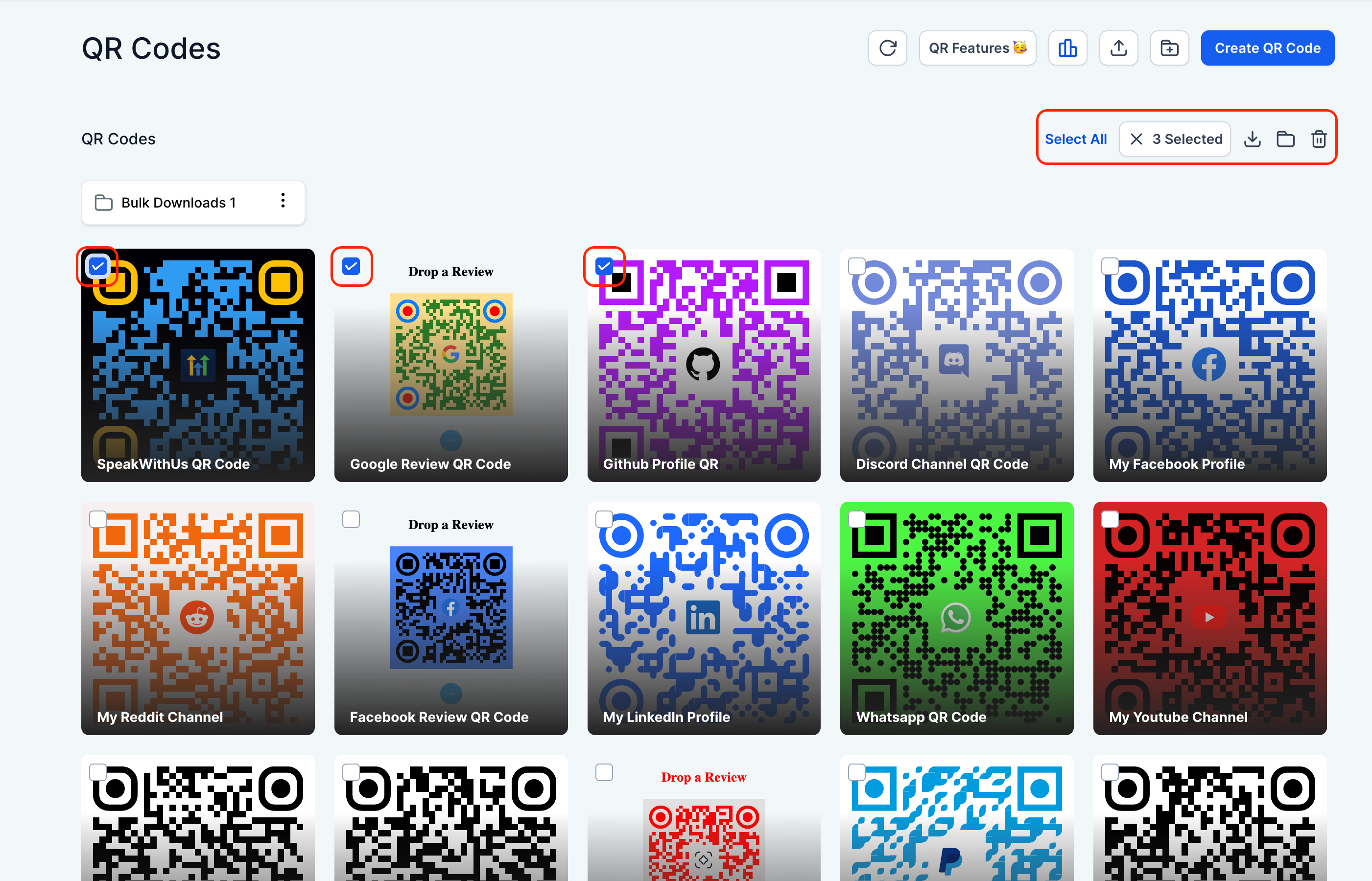
Select multiple or all QR Codes to perform the following actions:
🗂️ Move them into folders
🗑️ Delete in one go
📥 Download selected codes (see more details below 👇)
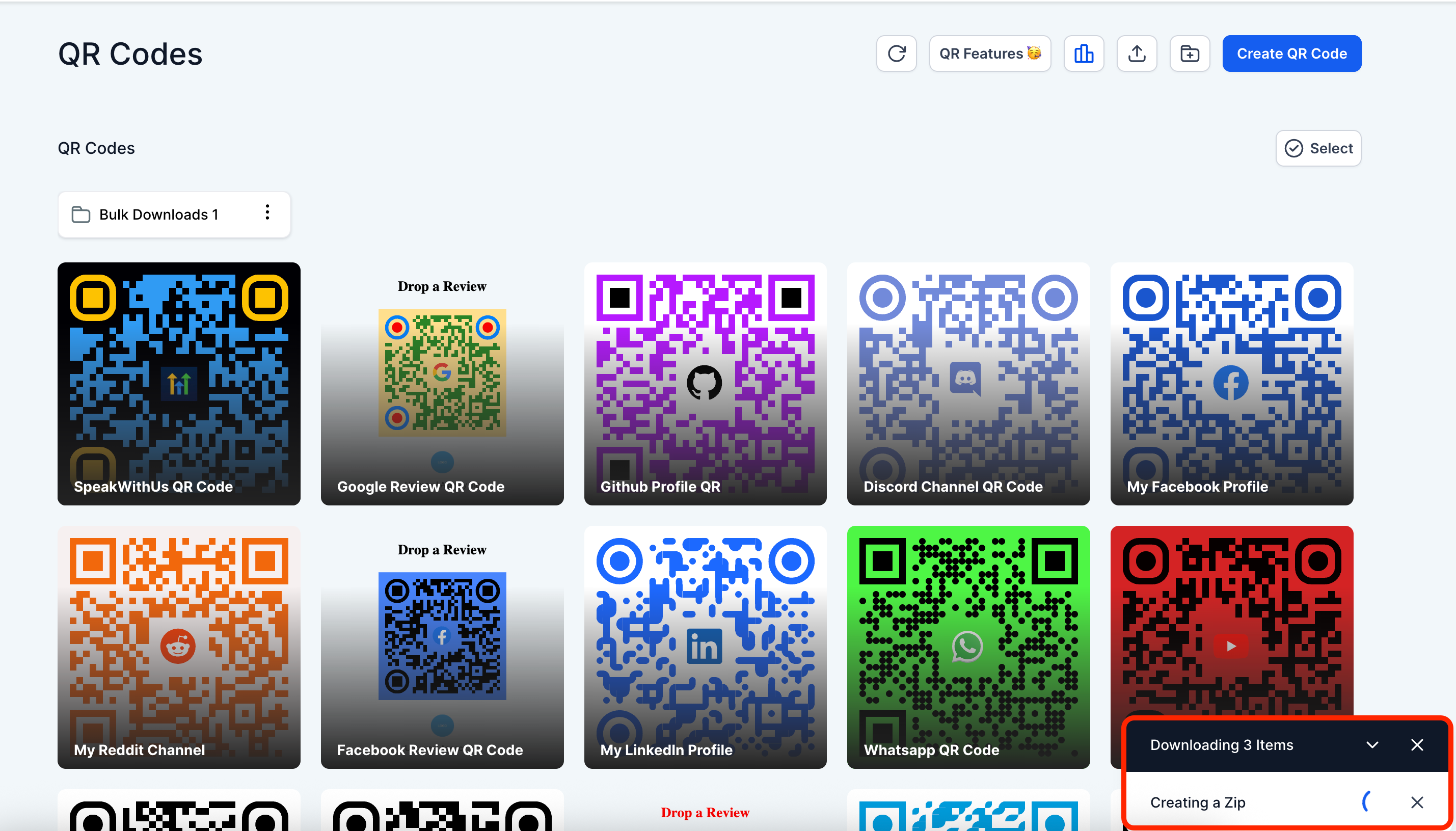
2. Smart Download Handling
QR Codes are zipped asynchronously in the backend and triggered for download from the frontend
If any older QR Codes are missing the requested format, we’ll automatically show available download formats for each
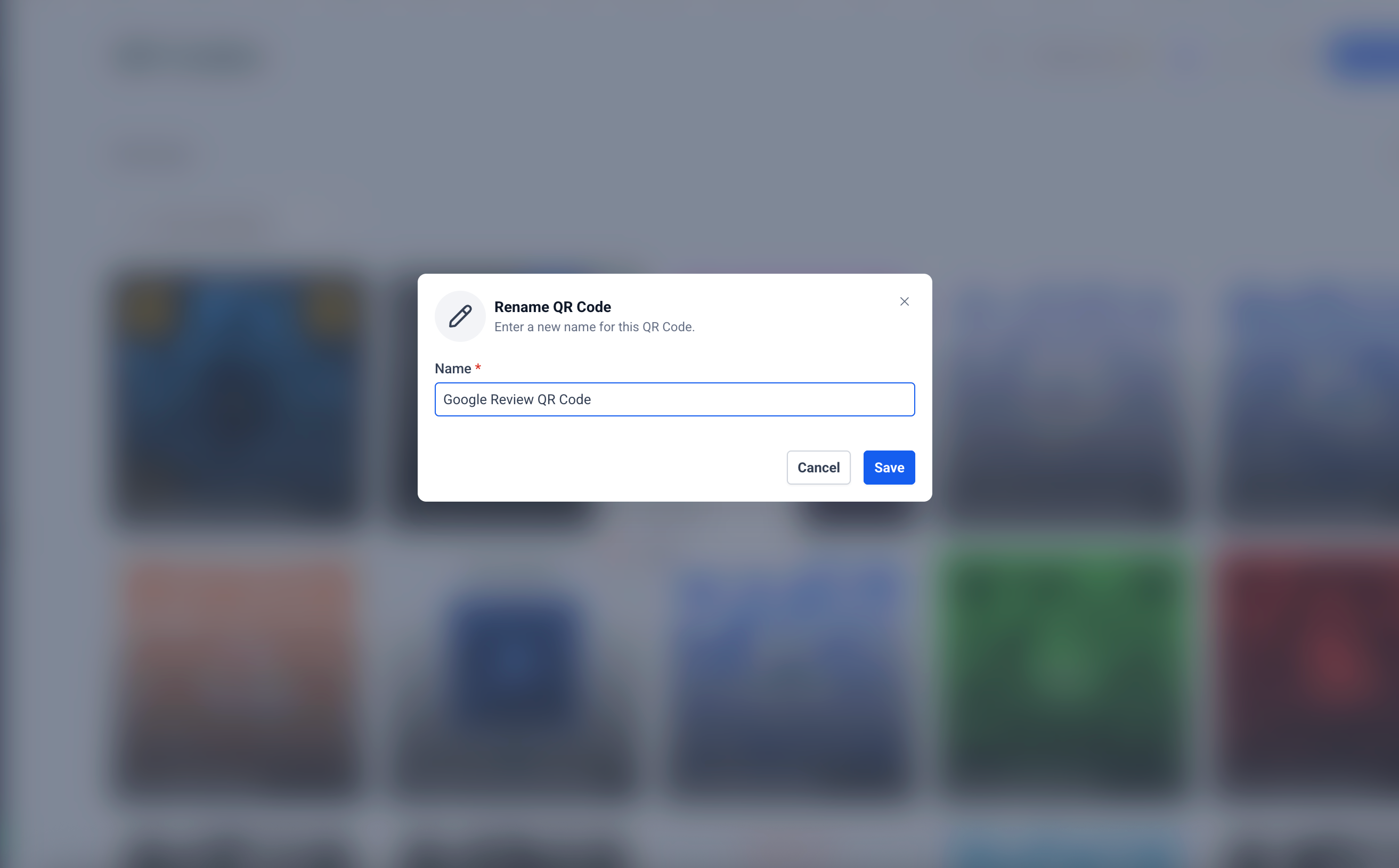
3. ✍️ Rename QR Codes
Rename any QR Code directly from the list page without navigating elsewhere. Just click, edit, and save.
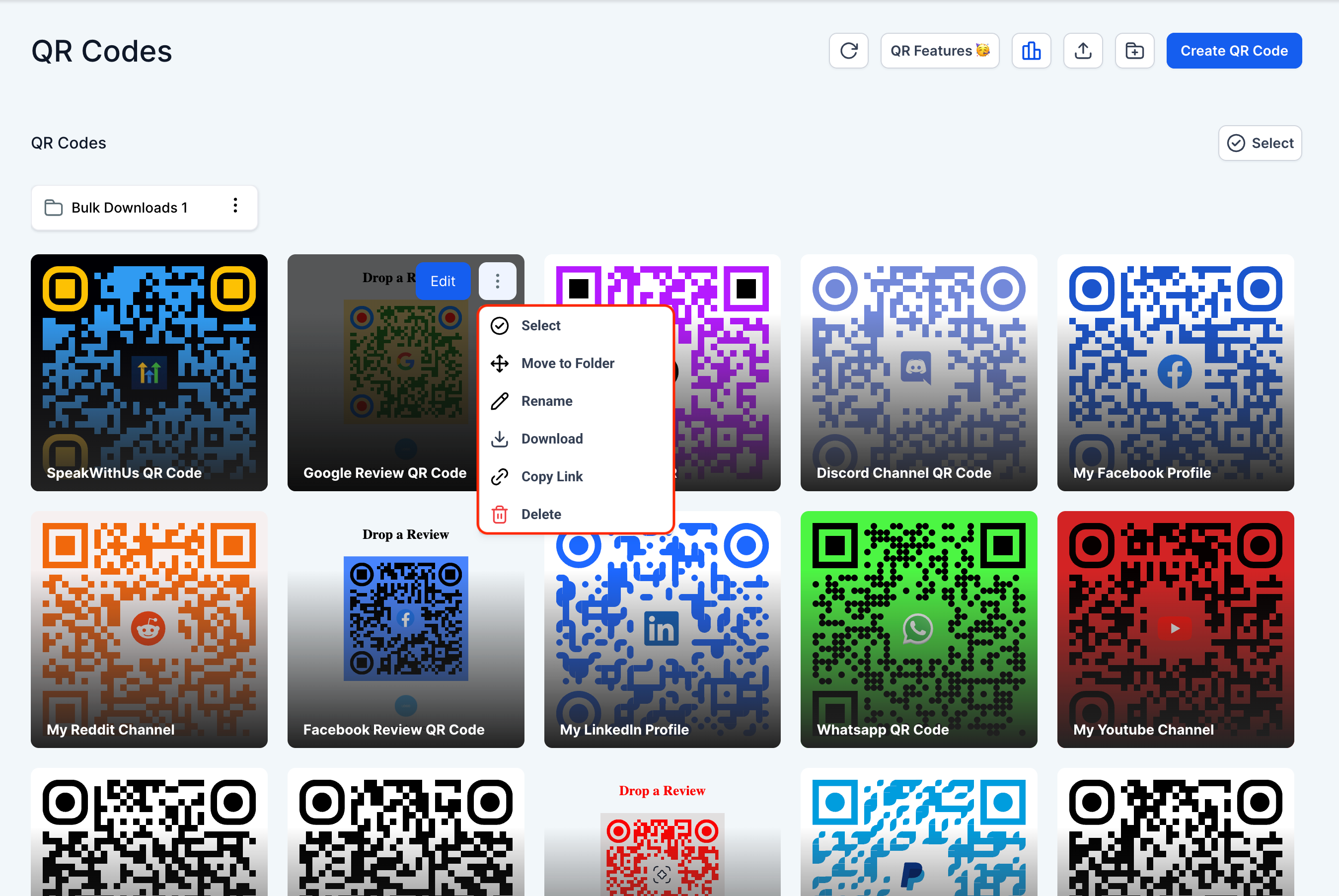
4.🔗 Copy QR Code Link Instantly
Save those extra clicks! You can now copy a QR Code's link right from the list view
⚙️ How It Works
Navigate to the QR Codes List Page
Use checkboxes to select one or more QR Codes
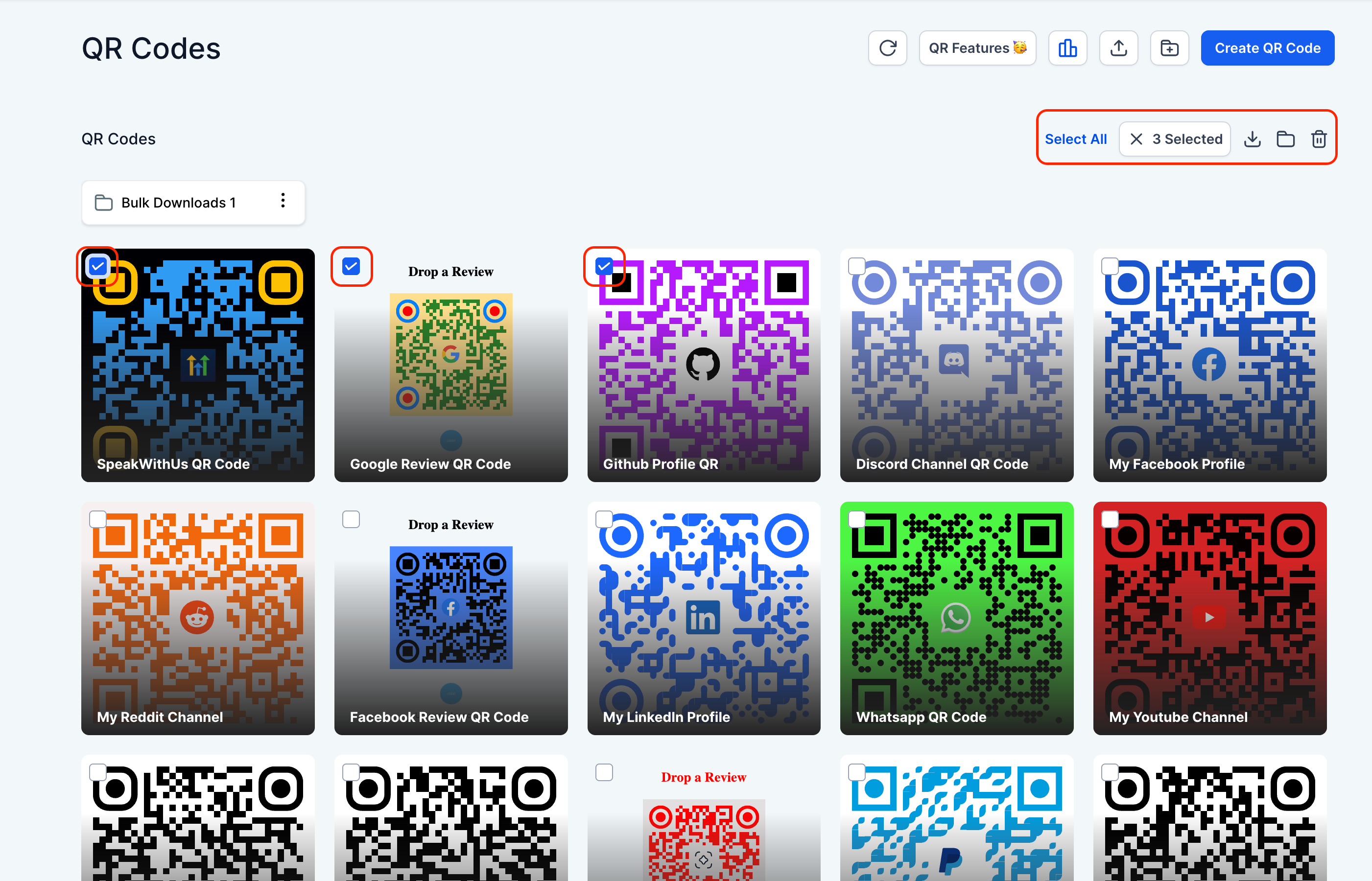
Choose a bulk action from the top bar:
Move to folder
Delete
Download
If a QR Code’s requested format isn't available, you'll be offered alternative formats to choose from
To rename a QR Code:
Click the rename icon next to it
Edit the name and hit save
To copy a QR Code’s link, click the new "Copy Link" button on the card
📝 Notes
Bulk actions are only available on the QR Codes List Page for now
Downloads are optimised for performance using asynchronous zipping in the backend
Copy Link and Rename options help reduce navigation time and improve team efficiency