Template in your brand colors
What's New
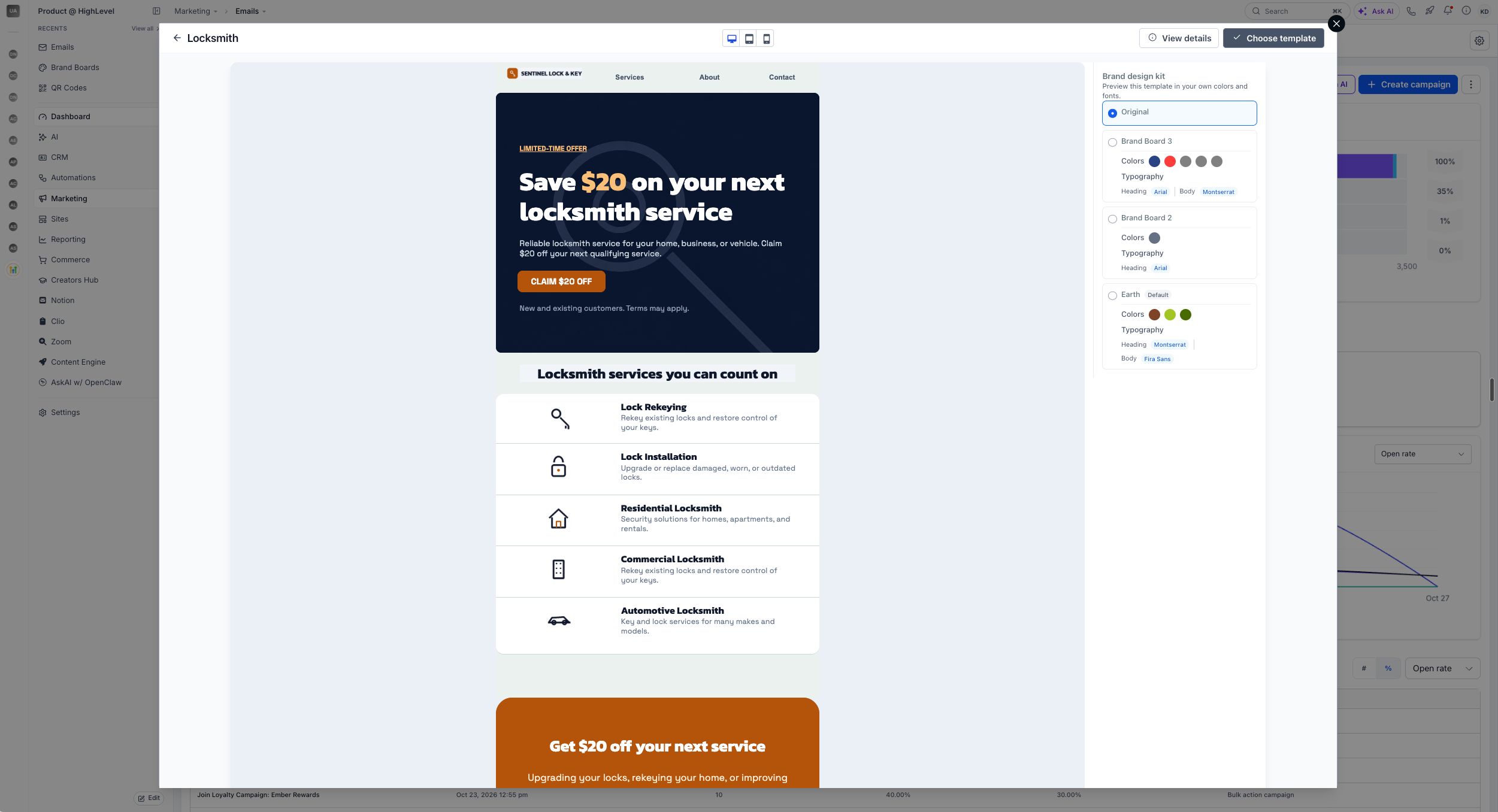
See a template in your own brand colors before choosing it: The template modal's preview now shows a list of your Brand Boards on the right, so you can preview any template styled with your brand colors before selecting it.
Brand applied on load: Once you pick a brand board from the list, the chosen template loads already recolored to match.
Why This Matters
Picking a template used to mean choosing a generic design, then manually recoloring it to match your brand afterward. Now you can see exactly how a template will look in your brand colors before you even select it, so there's no rework afterwards.
How to Use
Open the template modal from any supported builder.
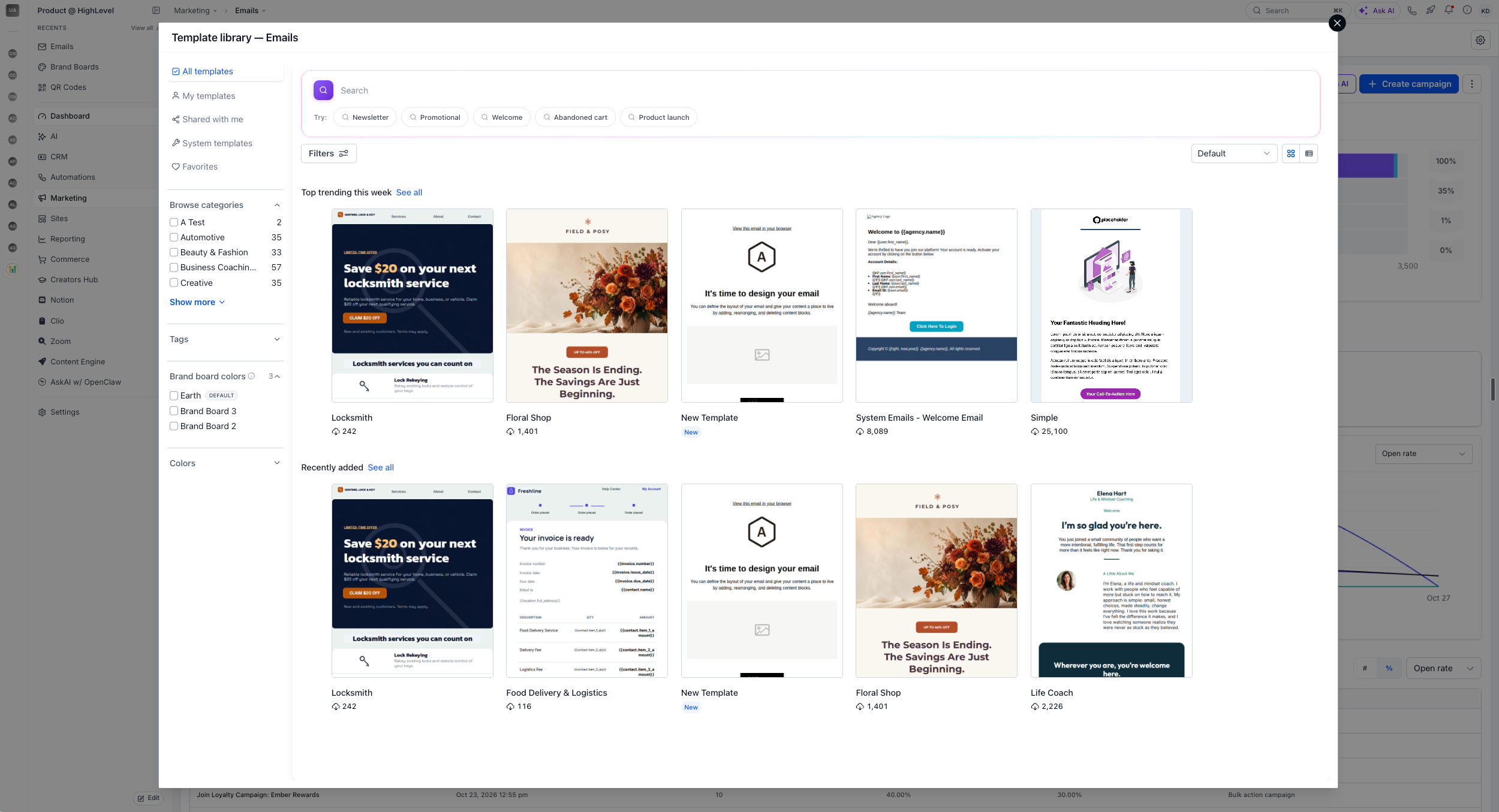
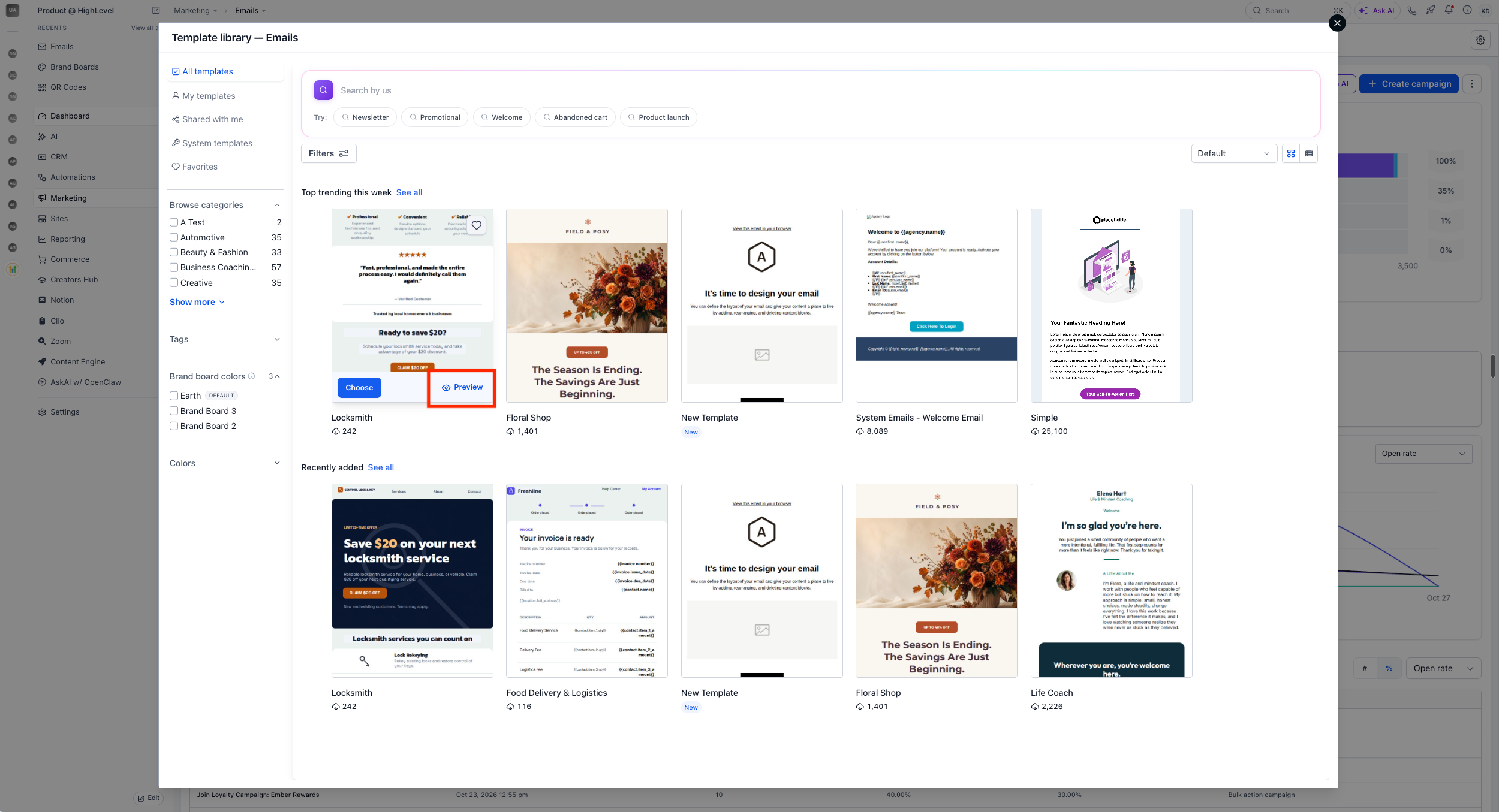
Select a template to preview.
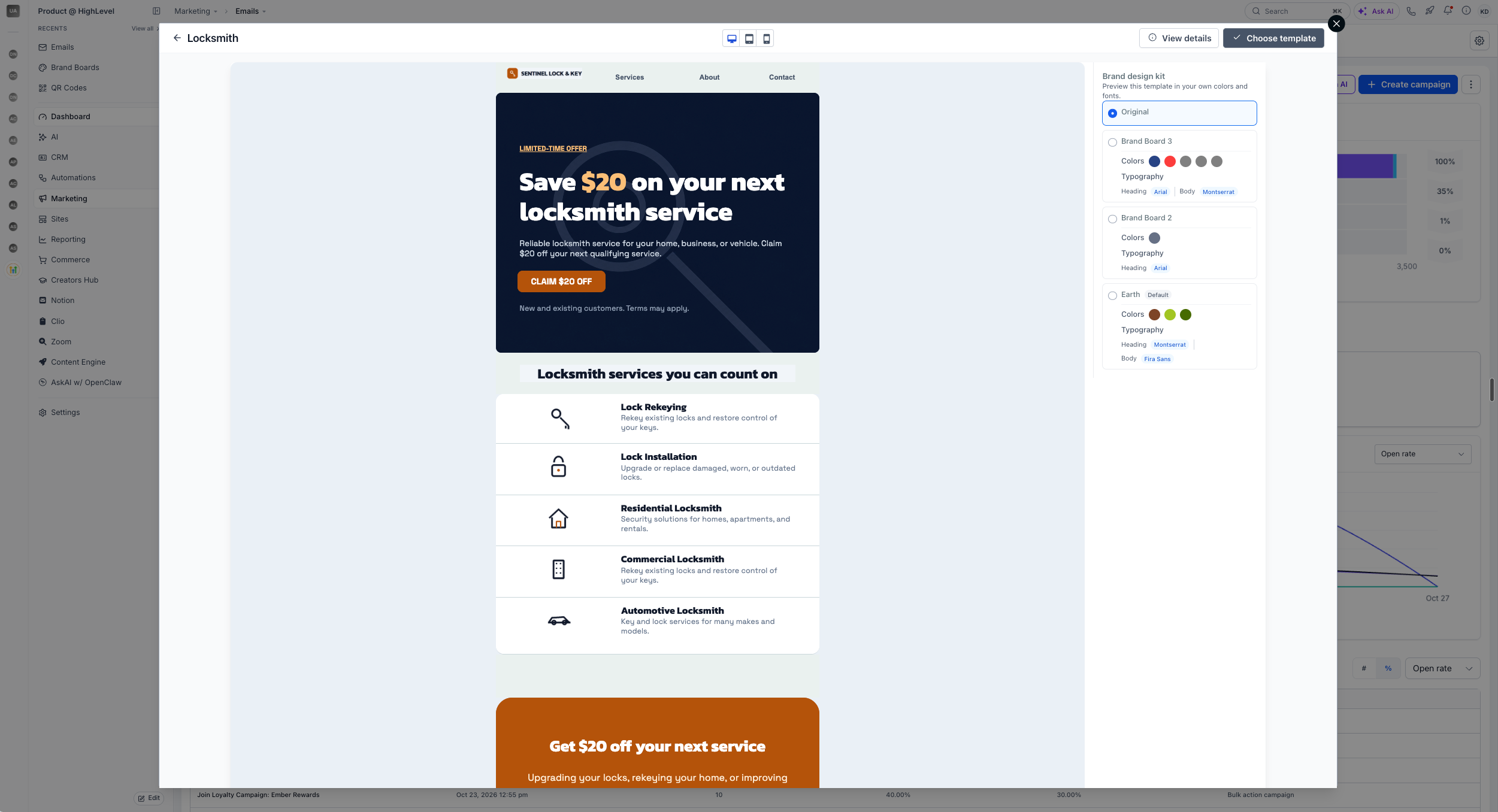
In the preview, choose a Brand Board from the list on the right.
In case you do not have a brand board, setup one from scratch from the right side
The preview updates to show the template in those brand colors.
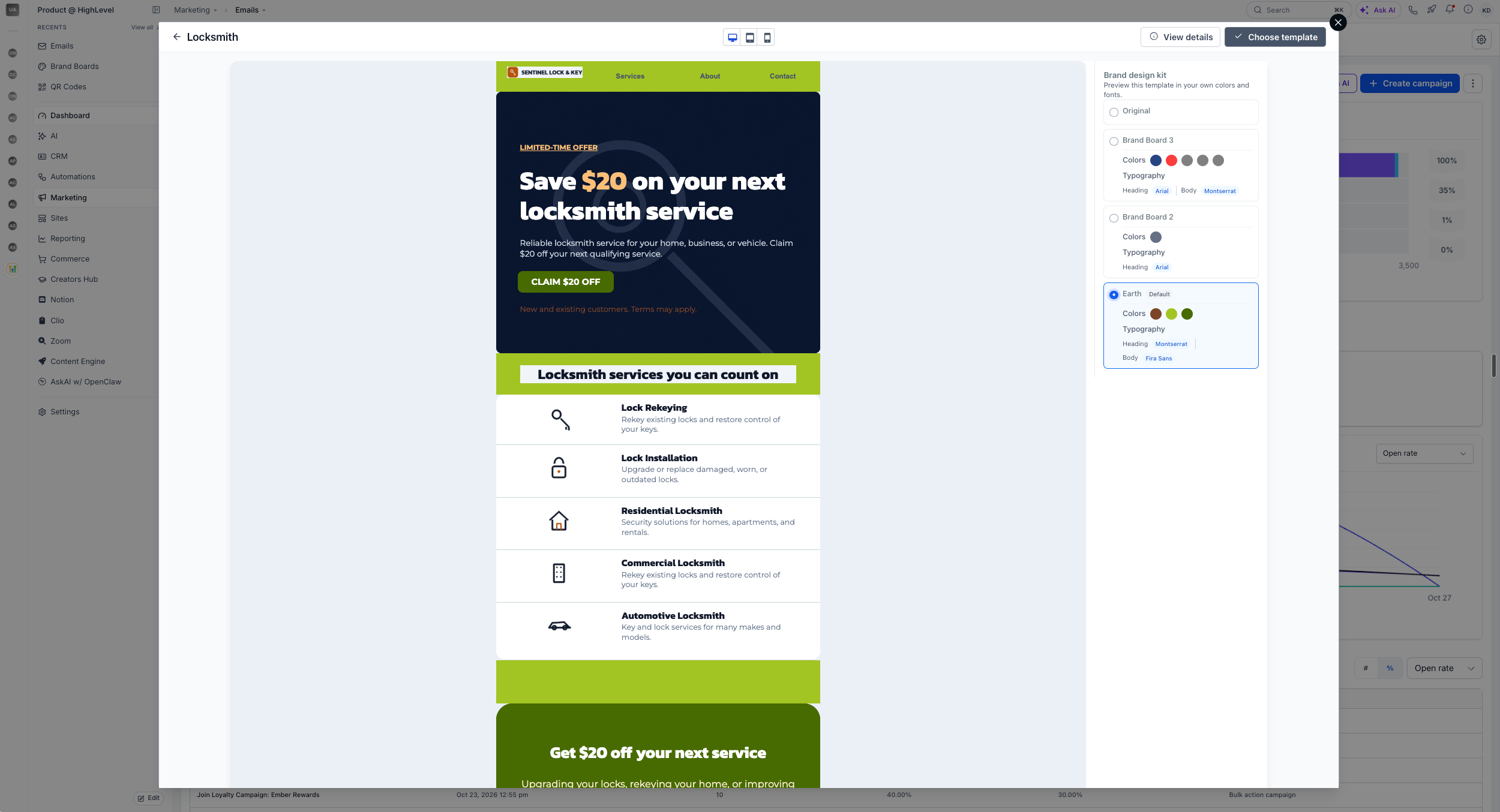
Click on 'Choose template' to apply it with your brand colors already in place
Notes
Available in the template modal's preview only in this release.
Recoloring is based on your saved Brand Board colors; editing those colors won't retroactively update templates you've already applied.
In case a brand board is not setup, click on the button on the right side "Setup Brand Board" in the preview section